Does your iPhone’s camera shutter play a sound even when the device is set to silent mode? It can be happening due to a bug in iOS 26 that may influence the phone to think that it belongs to a region or country where the camera shutter sound is mandated by law (Japan and South Korea). This problem has been shared by many users in various forums, as the camera is making the shutter sound during capture. Here is a detailed guide that you can implement to fix this issue.
Fix 1 – Enable Live Photo Mode
The best workaround for this issue is to shift the Live Photo mode of the iPhone. This way, the iPhone won’t produce any shutter sound during the 1.5-second capture time.
Step 1 – Open the Camera app.
Step 2 – Next, tap the Live Photo icon (concentric circle) in the top of the camera view to turn it ON (it should not be slashed through).
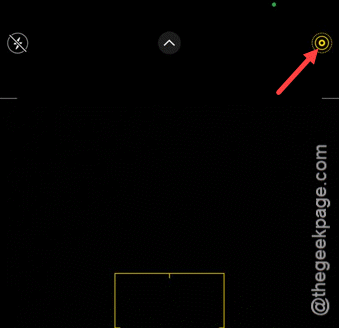
Step 3 – Go this way –
iPhone Settings > Camera > Preserve Settings.
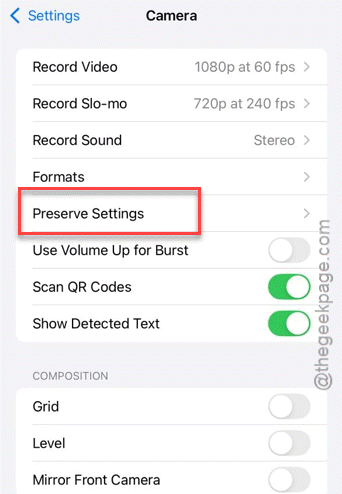
Step 4 – Turn on the Live Photo feature.
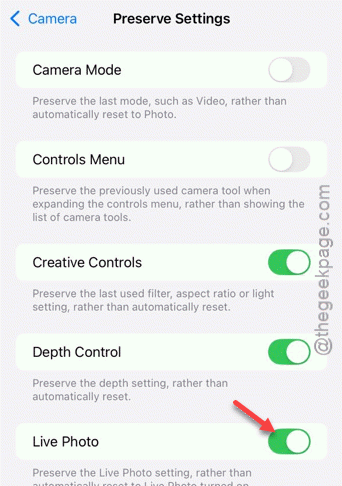
While the Live Photo mode is active, you can easily take photos that won’t produce any shutter sound during capture.
Fix 2 – Create and Use Silent Camera Automation
You can create an automation that minimizes the media and ringer volume to 0% the moment you open the Camera app. This should eliminate any chances of shutter sound.
Step 1 – Go to the Shortcuts tab. Tap the Automation tab.
Step 2 – Tap the + button and tap search for App.
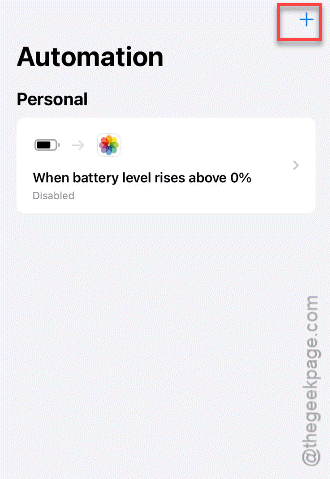
Step 3 – Choose the Camera app. Tap the Is Opened option and Run Immediately.
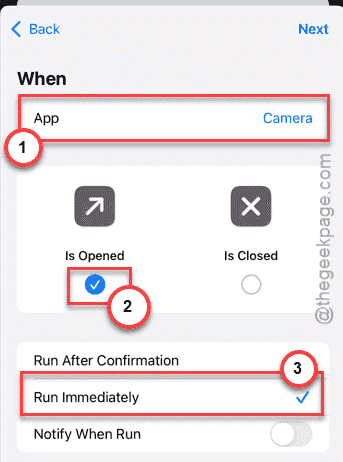
Step 4 – Tap the New Blank Automation > Add Action option. Choose Controls, and then select Set Volume option.
It will set the volume level to 50% by default.
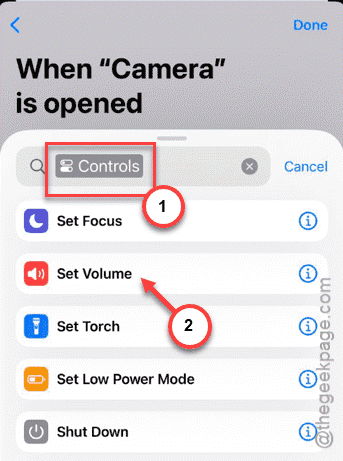
Step 4 – Tap the 50% volume and reduce it to the 0% mark.
Step 5 – Click the Done button to save the changes.
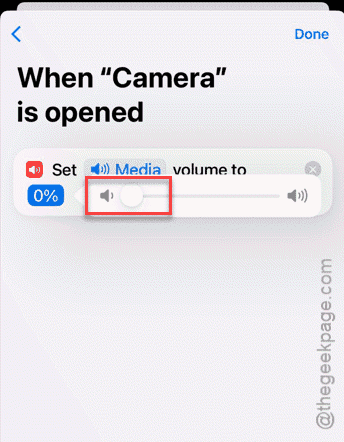
You can create another automation that automatically resets the volume back to a preferred level (like 35%) when the Camera app closes following the similar steps.
Fix 3 – Toggle the Location Services Settings
Location Services may influence the camera shutter sound in the Japan and South Korea regions.
Step 1 – Open the Privacy & Security tab. Then, load up the Location Services.
Step 2 – Turn the Location Services settings to OFF.
Step 3 – Restart the iPhone.
Step 4 – Once it does restart, toggle the Location Services to ON mode.
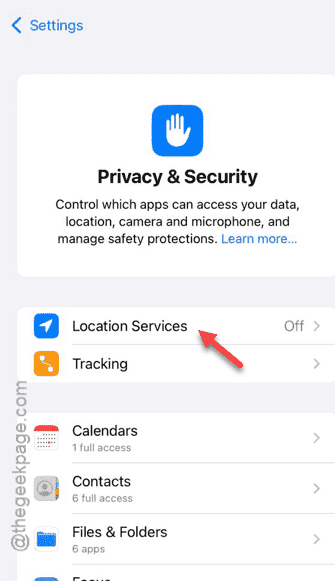
This otherwise simple refresh should fix the shutter bug that predetermines your wrong location to trigger that shutter sound.
Fix 4 – Turn Off the Volume on iPhone
Only the zero system volume ensures no shutter sound from the iPhone. iOS 26 may aggressively separate these two sounds, which can trigger the camera sound even in silent mode.
Step 1 – Open the Camera app.
Step 2 – Quickly swipe down to access the Control Center. Then, manually drag the volume slider all the way down to the bottom.
Now, try to capture the image.
Fix 5 – Force-Restart the iPhone
Sometimes to clear any stuck audio driver problem, ignore the mute switch of the iPhone.
Step 1 – Quickly press the Volume Up button.
Step 2 – Next, hit the Volume Down button.
Step 3 – Then, press and hold the Power button of the iPhone until the iPhone restarts. After the device finally restarts, there won’t be any issues with the iPhone’s shutter.
These fixes should resolve the issue.