Does the Lock Screen clock font reset after restarting the iPhone? After getting the iOS 26 update on their devices, users have complained about this problem. It usually stems from a iOS 26 failure to register the clock font style in the permanent wallpaper database. Disabling the Liquid Glass style in iOS 26 or choosing a solid photo as the background image should resolve the problem.
Fix 1 – Avoid Dynamic and Photo Shuffle Wallpapers
The dynamic wallpapers regenerate the entire wallpaper layout whenever you do restart the iPhone. Using a normal, static wallpaper should resolve this clock font on the lock screen.
Step 1 – Long press the iPhone’s lock screen, and tap the Customize button there.
Step 2 – Then, tap the (➕) button to create a new lock screen.
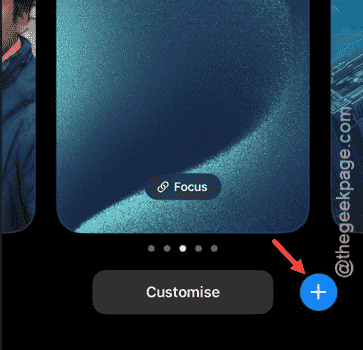
Step 3 – Now, select a solid photo or, even better, a solid color as the lock screen of the iPhone.
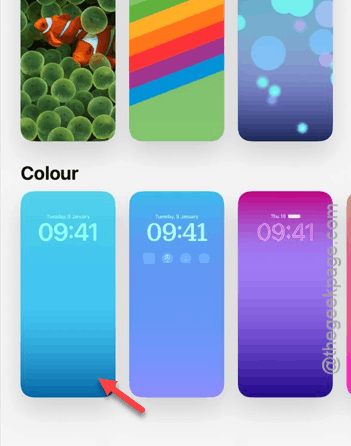
There won’t be any issues with the lock screen font issue in the iPhone lock screen.
Fix 2 – Use the Wallpaper Pair Feature
Instead of applying the font customization on the lock screen, apply the entire effect as the Set as Wallpaper Pair method.
Step 1 – Long press the lock screen of the iPhone to enter the customization screen.
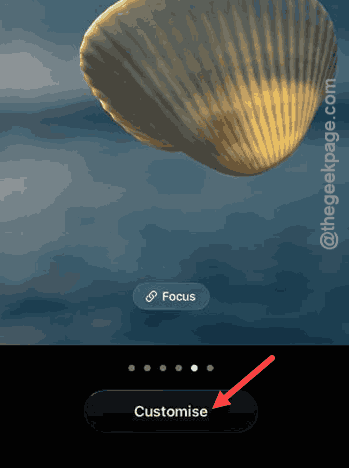
Step 2 – Choose a different font from the one you were using before.
Step 3 – Tap the Add button to enact those changes.
Step 4 – Use the Set as Wallpaper Pair instead of the Customize Home Screen feature.
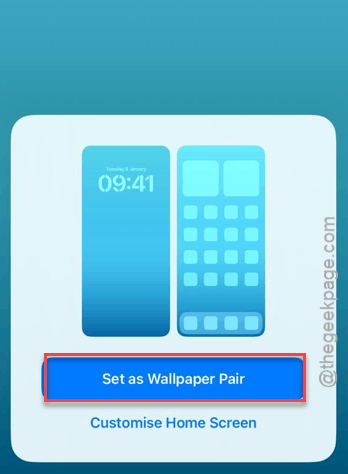
The customized home screen can sometimes interrupt the font-save process.
Fix 3 – Clear the Focus Mode Overrides
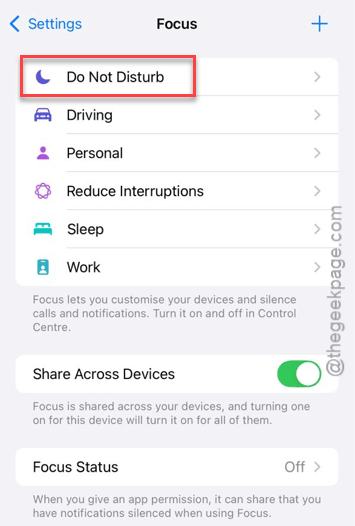
Having the focus mode turned on can sometimes reset the lock screen fonts in the lock screen when the focus mode activates or reactivates.
Step 1 – Open the iPhone Settings. Then, go to the Focus settings.
Step 2 – Check which active Focus you are using, like Do Not Disturb.
Step 3 – In the Customize Screen section, tap the Choose button for the Lock Screen and make sure it is the same version as you have set.
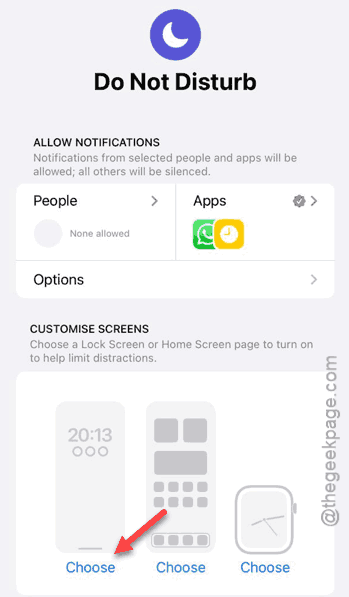
Step 4 – If you see the default clock there, just remove it and select your preferred one.
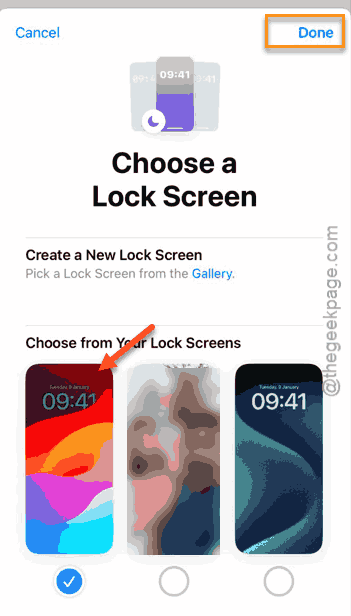
Check if this works.
Fix 4 – Turn ON the Reduce Motion
You should enact the Reduce Motion accessibility in the iPhone Settings to fix this problem.
Step 1 – In the iPhone Settings console, go to the Accessibility tab. Go to the Motion tab.
Step 2 – Later, toggle Reduce Motion to ON.
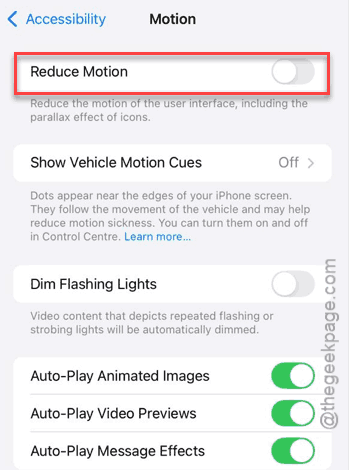
Step 3 – Return to the lock screen and change the font and save it.
Step 4 – Later, restart your iPhone.
Once it is fixed, you may set the Reduce Motion to OFF mode.
Fix 5 – Perform a Font Scaling on iPhone
A display deep refresh may solve the iPhone’s lock screen font reset issue that you are currently facing.
Step 1 – Open the Display & Text Size settings in the iPhone Settings.
Step 2 – Then, load up the Text Size settings.
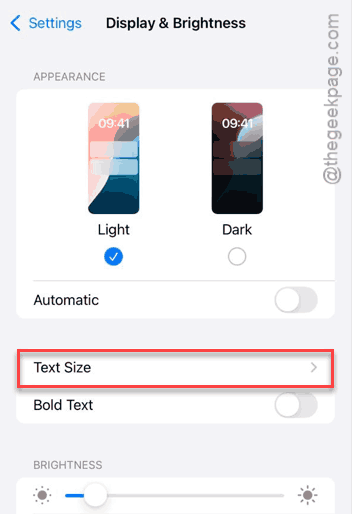
Step 3 – Move the slider one notch to the right side.
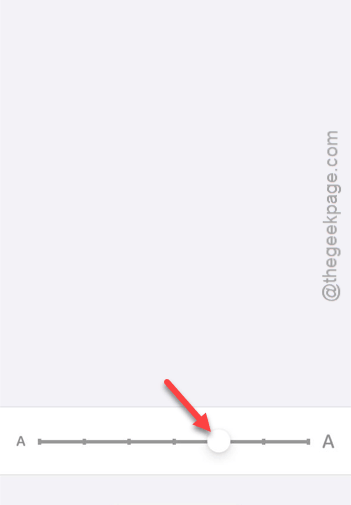
Step 4 – Go to the Lock Screen and set the preferred clock font in there.
This way, you can finally fix the clock font reset issue noticed in several affected iPhones.