When using an Input Method Editor (IME)- typically for Chinese, Korean, or Japanese typography, Word may unexpectedly show up some SBC (Single-Byte Character) in your document. This can show up while you try to input any Double-Byte Character (DBC) in there. Usually, this particular issue is a result of the IME settings and formatting settings. Follow these fixes to resolve this problem yourself.
Quick Fix Table –
| Issue | Recommended Fix |
| Changes width when you hit Enter | Fix #3: Adjust AutoCorrect |
| Characters look like boxes/ SBC | Fix #4: Convert to .docx |
| Keyboard language keeps jumping | Fix #2: Uncheck Automatically switch keyboard |
Fix 1 – Use the Width Toggle Keyboard Shortcut
In most of the cases of the IME, pressing the hotkey during a fast typing session may switch the output to half-width.
Step 1 – Just press the Shift+Space buttons together while the IME tool is active.
Step 2 – If you are using Japanese IME, press the Alt+` (tilde) buttons together to switch.
This is the standard combination to switch between the SBC (narrow) and DBC (wide) characters.
Fix 2 – Disable Change Input Mode Settings
Word can automatically switch between the IME modes based on the text field.
Step 1 – Proceed to the File menu in Word. Then, go to the Options tab.
Step 2 – Now, open up the Advanced section.
Step 3 – Slide down to find the Editing Options section. Uncheck the Automatically switch keyboard to match language of surrounding text feature. Save the change.
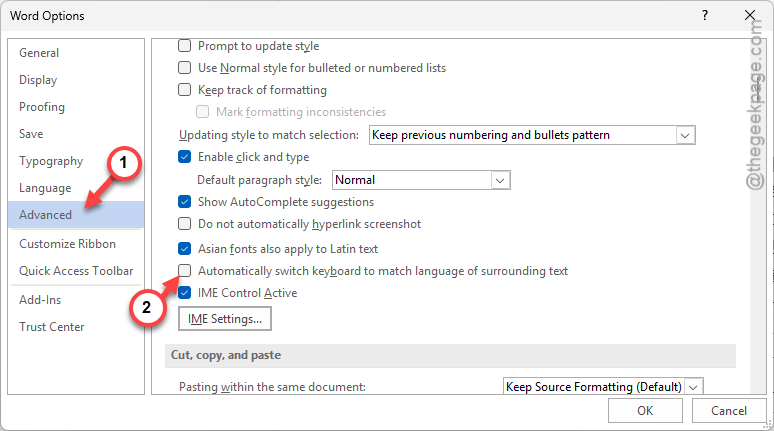
This way, Word won’t automatically switch between IME modes irrespective of surrounding texts.
Fix 3 – Adjust the Half-width/ Full-width AutoFormat Setting
Sometimes Word can replace the SBC characters to save a bit of space, if you are using English-like punctuations.
Step 1 – Once again, follow this path –
File > Options
Step 2 – Go to the Proofing tab. Use the AutoCorrect Options button to load it up.
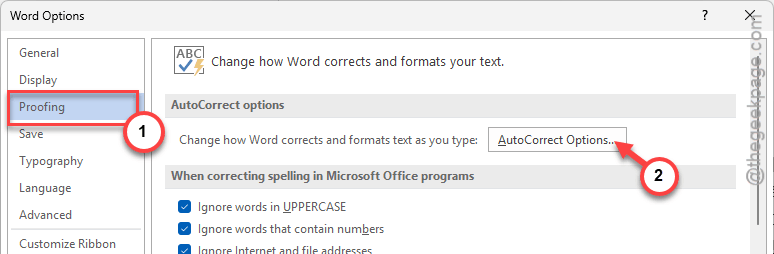
Step 3 – Next, proceed to the AutoFormat As You Type tab. Uncheck the Straight quotes with smart quotes option.
Step 4 – Check any CJK-specific features like, Full-width characters with the Half-width characters option.
Word won’t automatically convert the wide characters inot narrow ones.
Fix 4 – Tweak the Compatibility Mode settings
If you have saved the Word file in an older .doc format, Word may not be able to display the full-width characters properly.
Step 1 – Go to the File tab. Proceed to the Info section.
Step 2 – If you see a Convert button there, tap that. Change the file type to a more modern .docx version.
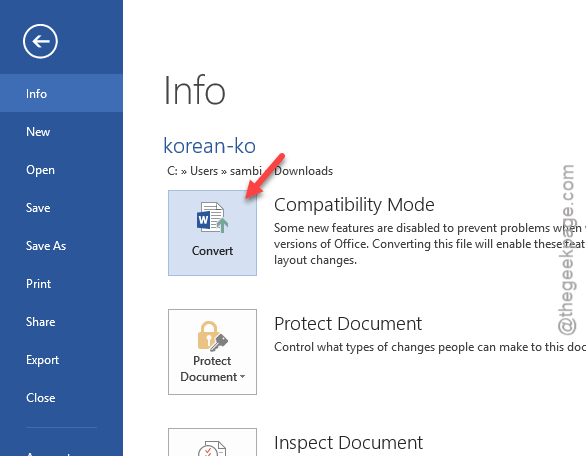
The modern file types use UTF/Unicode-8 system more effieciently; hence, there won’t be such issues with the IME.
Fix 5 – Reset the Microsoft IME Settings
If the SBC issue still persists, reset the Microsoft IME settings on your system.
Step 1 – Right-click the A or あ icon on your taskbar.
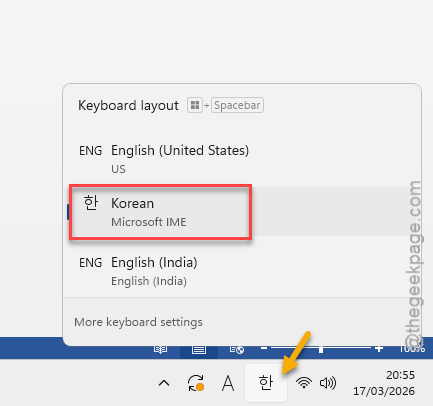
Step 2 – Then, select the Settings. Go to the General tab.
Step 3 – Go to the bottom and tap Restore under Default Settings.
Step 4 – Ensure Character width is set to Full-width or Half-width, according to your preference.
This should help you resolve the issue.