When Polls and Forms stop responding in the Microsoft Teams channels, it can disrupt the crucial workflow, which may annoy many users. As these tools require perfect synchronization between the cloud and the app, the lack of such can lead to this issue.
Quick Fix Guide~
| Error Statement | Recommended Fix |
| “Something went wrong“ | Fix #1: Enable Connected Experiences |
| App button does nothing | Fix #2: Clear the Local Cache |
| “Missing meeting ID” error | Fix #3: Use “Polls” app, not Forms |
Fix 1 – Enable the Optional Connected Experiences system
Microsoft classifies the Polls/Forms as an optional service. So, the users must enable the Optional Connected Experiences system in the Teams app.
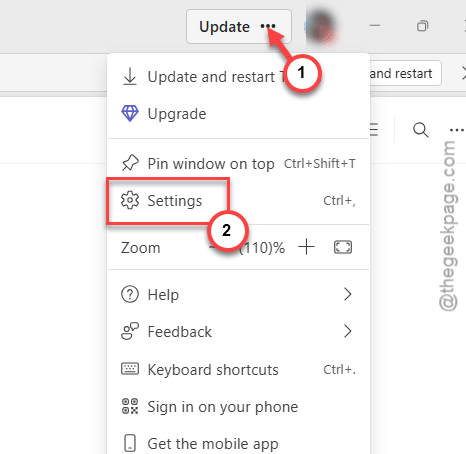
Step 1 – Tap the three-dots (⋯) button next to the profile photo, and tap Settings.
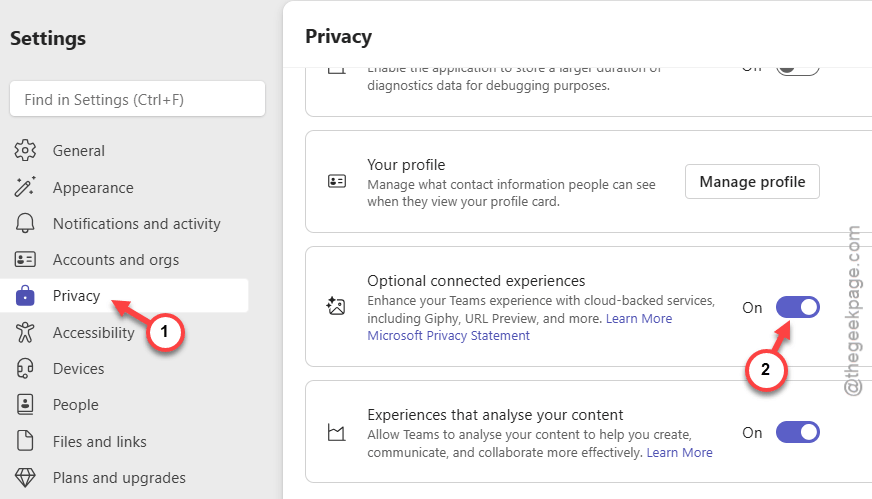
Step 2 – Go to the Privacy tab.
Step 3 – Scroll down to the Optional connected experiences tab. Make sure it is toggled to ON.
Step 4 – Restart the Teams client.
The Polls tab should be operational once again.
Fix 2 – Clear the Built-Up Teams Cache
Corrupted metadata in the local Teams cache may cause this problem.
Step 1 – At first, close the current instance of the Microsoft Teams app.
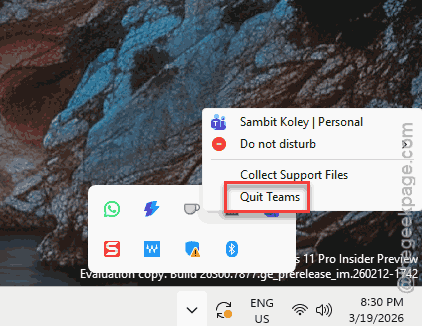
Step 2 – Then, go to the taskbar. Find the Teams app icon there, and click Quit Teams to quit the app completely.
Step 3 – Later, hit the Win+R buttons at once. Next, paste this address there, and click OK.
%localappdata%\Packages\MSTeams_8wekyb3d8bbwe\LocalCache\Microsoft\MSTeams
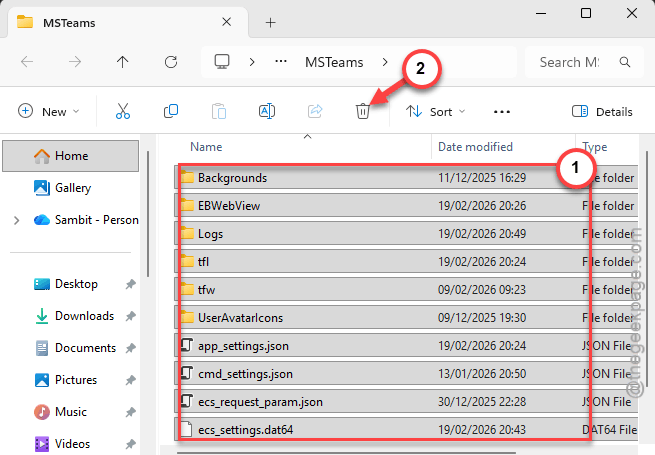
Step 4 – Select all the contents inside the folder and Delete them.
Step 5 – Then, relaunch the Teams client.
It will take a few moments to re-sync the contents of the Teams app. Try to find and use the Polls tab.
Fix 3 – Switch to the Polls App
Microsoft has officially rolled out the Polls app in the place of the older Forms function.
Step 1 – In your channel or meeting, tap the + button to add a tab button.
Step 2 – Search specifically for “Polls” rather than “Forms” in there.
Step 3 – Add this app to the channel.
NOTE – The existing forms will still work in the Forms app. But, for the new interactive channel polling, they need the new Polls app is required.
Fix 4 – Cross Check via Teams on Web Client
Check whether the Polls app is working in the Teams web client, but not on your desktop.
Step 1 – Open the Google Chrome or MS Edge. Then, go to the Microsoft Teams on Web.
Step 2 – Try to create a poll in the same channel.
If the Polls app does work on the web client, it may be due to the PC credentials or app corruption. So, do this –
Step 1 – Open Windows Settings. Go this way –
Apps > Installed Apps
Step 2 – Search for Microsoft 365. Tap the ⋮ button next to it and tap Modify.
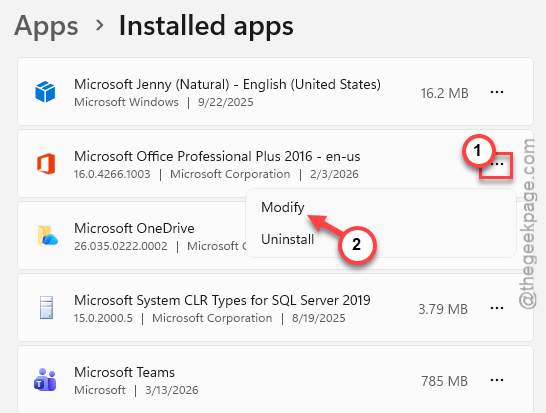
Step 3 – Choose the Online Repair mode, and tap Repair to start repairing the app.
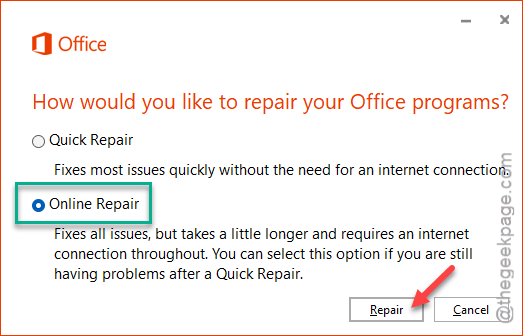
Check if the Poll app is working or not.
Fix 5 – Ask for Audit Admin Permissions
If you encounter a message like “You don’t have permission to add apps,” your account may not have proper permission to access third-party apps.
Step 1 – Ask your IT admin to load up the Teams Admin Center.
Step 2 – Then, navigate to the Teams app. Tap the Manage apps mode.
Step 3 – Search for Polls and Forms to ensure their status is set to Allowed.
Step 4 – Check whether Permission Policies are enacted to ensure your profile is allowed to use Microsoft Apps.
This should have resolved the issue.