After the Teams UI overhaul, many users have found themselves confused with the buttons and gray menus in search of their basic controls in the application. Usually, the lost buttons have not been deleted or removed; they are just dislocated (or a few got renamed) in the new Teams app interface. Here are detailed step-by-step instructions to counter this problem yourself.
Quick Fix Table ~
| Issue | Recommended Fix |
| Sidebar icons missing | Fix #1: Press the Ctrl+0 to reset the zoom level |
| Calendar/Calls vanished | Fix #2: Right-click dots > Pin |
| UI looks broken or blank | Fix #4: Delete Settings folder |
Fix 1 – Reset the Zoom Level in the Teams app
This is a major reason why the buttons from the Teams interface may disappear. If you have set the Microsoft Teams view to 120% or even higher, the app automatically suppresses the navigation pane on the left-hand.
Step 1 – Click anywhere in the Teams app.
Step 2 – Press the Ctrl+0 to reset the zoom to 100%.
Step 3 – Alternatively, tap … button and tap next to the profile picture. Tap the Zoom setting.
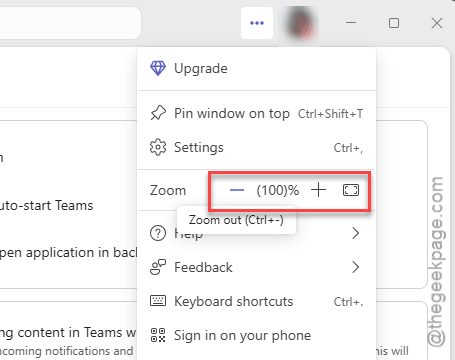
Once you have reset the zoom setting, the navigation rail should reappear on the left.
Fix 2 – Re-Pin Missing Apps to Navigation Bar
In the Teams interface, the apps can become unpinned if you have accidentally dragged them of or an update has reset the view.
Step 1 – Look at the left-hand sidebar for the navigation rail.
Step 2 – Tap the … button at the bottom of the icons.
Step 3 – Find the missing app (e.g., Calendar). Right-click that app and select Pin.
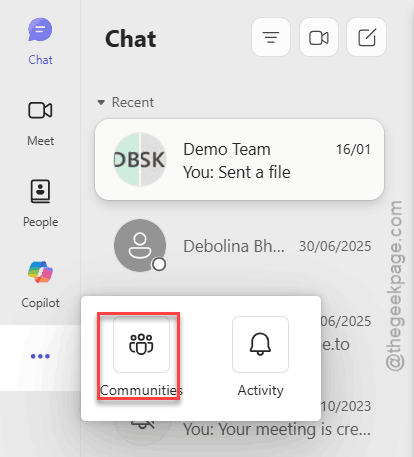
You can now drag and drop these icons to re-order the preference.
Fix 3 – Find the Missing Meeting Toolbar
The meeting toolbar (Leave, Mute, or Share button) is docked at the top-right corner of the meeting window.
Step 1 – If you can’t see the meeting toolbar, which consists of Leave, Mute or Share buttons, look at the top of the meeting window.
Step 2 – If the bar is still missing, hit the Ctrl+Shift+M buttons to toggle the Mute button. Or, press the Ctrl+Shift+E buttons to toggle the Video.
If the meeting toolbar is gone, right-click the meeting in the Calender view and tap Join in a new window. Check whether the missing toolbar is present there or not.
Fix 4 – Clear the Teams UI Cache
If the navigation bar is blank or icons are flickering, the local cache is likely corrupted. Clearing that cache should fix the issue.
Step 1 – Completely shut down the Microsoft Teams client. Tap the arrow button in the taskbar. Find the Microsoft Teams app there, and click Quit Teams.
Step 2 – Hit the Win+R buttons together. Paste this there, and click OK.
%localappdata%\Packages\MSTeams_8wekyb3d8bbwe\LocalCache\Microsoft\MSTeams
Step 3 – Delete the Settings folder and the Local Storage folder.
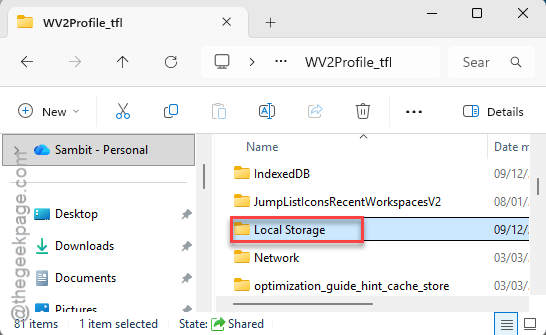
After this, restart the Teams app.
The UI will reset to the factory default layout, restoring the old layout.
Fix 5 – Disable High DPI Scaling Conflicts
If the buttons look blurry, cut off, or invisible, Windows might be enforcing a resolution that MS Teams does not support.
Step 1 – Locate the Teams app there –
C:\Users\%username%\AppData\Local\Microsoft\Teams\Current\Teams.exe
Step 2 – Right-click the Teams executable, and click Properties.
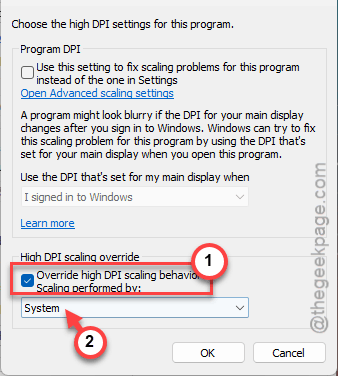
Step 3 – Proceed to the Compatibility tab. Tap the Change high DPI settings.
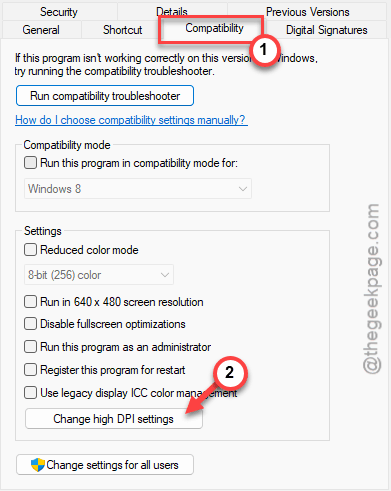
Step 4 – Check the Override high DPI scaling behavior and choose System from the drop-down list.
Step 5 – Apply and save the changes there.
Restart the Teams client. This should force the Teams UI to align properly.