Having trouble with too many notifications on the Microsoft Teams client? Some users have complained about this issue since the latest Teams application update. The notification system is designed to get your attention to serious items, like an important message, not to waste your time with continuous notification chimes about useless items. Here are the resolutions you may apply to fix this problem yourself:
Quick Fix Table –
| Symptom | Recommended Action |
| Reaction Likes | Set to Mentions & Replies settings |
| Meeting Chatter | Mute until I join |
| Channel Noise | Right-click the channel > Notifications |
Fix 1 – Use the Mentions Only Notification System
If your Microsoft Teams activity feed is flooded with liked messages or spam chatters, you can tweak Teams to alert you for the mentions-only system.
Step 1 – Click the three-dots button next to your profile icon, and tap Settings.
Step 2 – Then, proceed to the Notifications and activity tab.
Step 3 – In the General section, change the preset to the Mentions & replies setting.
This will immediately disable all the notifications for channel likes, reactions, and other chatters in the Microsoft Teams client.
Fix 2 – Mute the Meeting Started and Chat Pings
If you are too tired of all the ‘Meeting started’ banners during your calls, you can turn it off from the Microsoft Teams settings.
Step 1 – In the Microsoft Teams client, load up the Teams Settings.
Step 2 – Then, go to the Notifications tab. Find the Meetings tab.
Step 3 – Next, set the Meeting start notifications to OFF.
Step 4 – Later, tweak the Meeting chat notifications to Mute untiI I join or send a message.
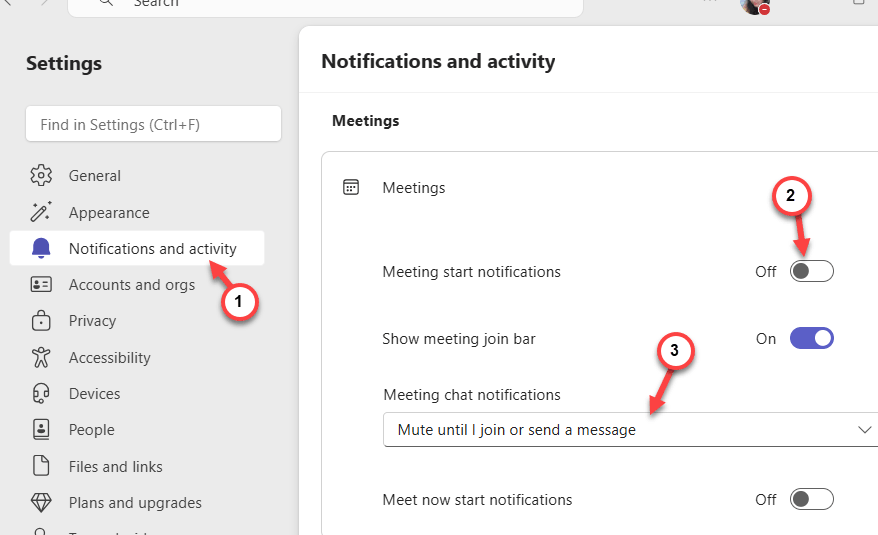
This should prevent Teams from sending you all those unnecessary pre-meeting notifications.
Fix 3 – Silence Notification Pops and Sounds
Users can easily get annoyed with repetitive pop sounds of the Microsoft Teams messages.
Step 1 – Open up the Teams Settings. Go to the Notifications and activity tab.
Step 2 – Find the Play sound with notifications toggle and turn it OFF.
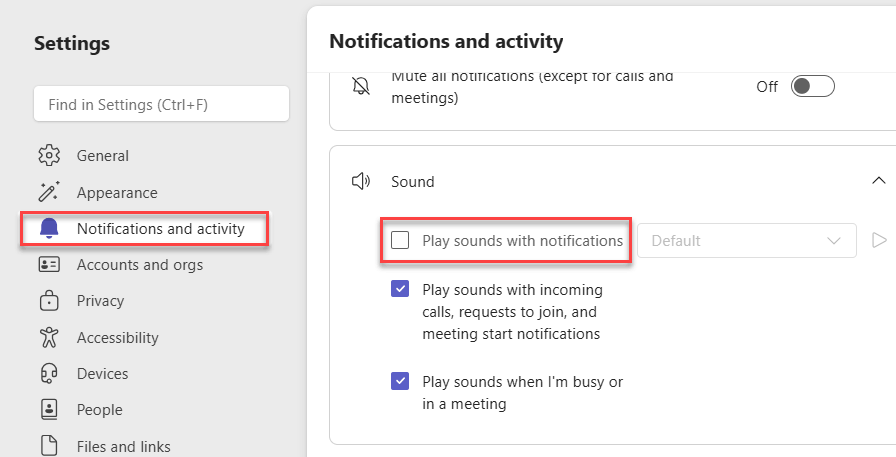
This should decrease the number of notifications issue with the Microsoft Teams app.
Fix 4 – Leverage Windows Focus Integration
Microsoft Teams notifications and pings won’t pass through the Focus settings on the Windows client.
Step 1 – Tap the date and time on the taskbar. Open up the Focus settings, whichever you are currently using.
Step 2 – Then, open the MS Teams Settings. Proceed to the Privacy tab. Tap Manage priority access.
Step 3 – Add only the important persons whose alerts you can’t ignore.
While the Windows is running in the Focus mode, Teams will stack up the notifications except those are on the priority list.
Fix 5 – Tweak the Active on Desktop Setting
If you are getting the notifications on your phone as well as on the PC client, you should adjust that settings in the Microsoft Teams settings.
Step 1 – Load up the Teams mobile client.
Step 2 – Tap the profile picture and tap Notifications.
Step 3 – Choose the Block notifications and select When active on desktop. Set the Inactivity timer to 0 minutes.
This ensures that if you are active on the PC, your phone stays completely silent. Check if this works out for you.