Are the Teams meeting links are not loading up in the Teams app? The Microsoft Teams meeting links are designed to load up the in Microsoft Teams app directly. But, the meeting links are loading up the in a new page of the browser, instead of opening up in the Teams app. The improper default app link up, wrong in -app permission to load Teams links are usually responsible for this scenario.
Fix 1 – Change the Default App Settings
Check the current default app setup for the Microsoft Teams client.
Step 1 – Go to the Apps settings on Settings page. Then, go to the Default Apps tab.
Step 2 – Find the Microsoft Teams app there.
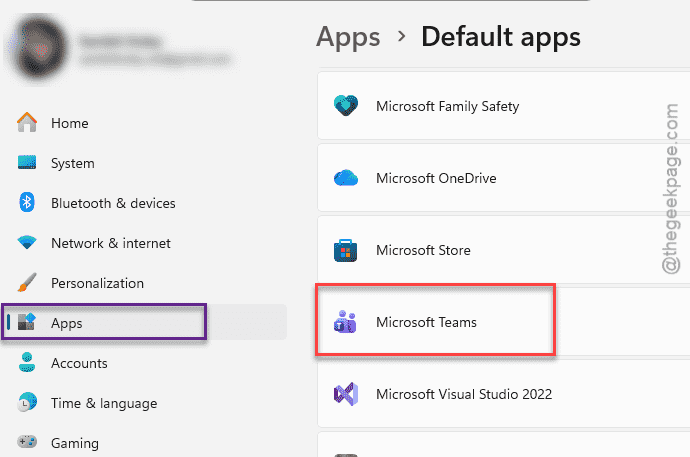
Step 3 – Make sure the URL: teams, ms teams and TEL are set to Microsoft Teams app.
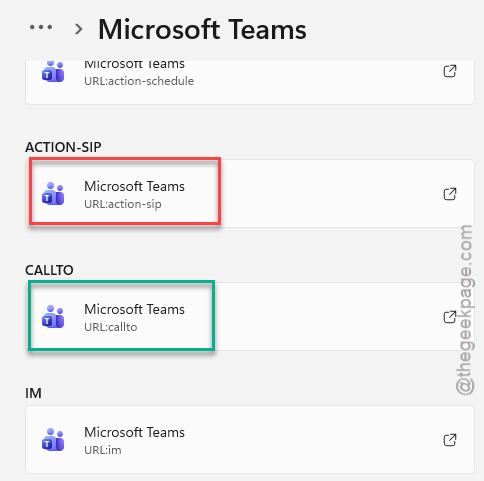
Step 4 – Finally, go ahead and restart the Teams client.
Click that link again and check where it is taking you.
Fix 2 – Reset the Browser defaults (Open In App Permission)
In most cases, the browser default creates this contradictory situation, where the browser link is set to open the Teams link in the browser, not in the app.
Step 1 – Tap the link in your browser, like on MS Edge or Google Chrome.
Step 2 – When you see the prompt to load up the meeting in a separate app, check the Always allow teams.microsoft.com to open links box, and tap Open Microsoft Teams app.
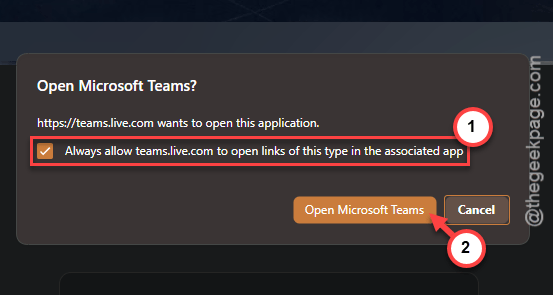
This time, the link will open up in Microsoft Teams. Once you set it up this way, all the Teams links will lead you to the MS Teams app.
Fix 3 – Repair the Teams client
Corruption in the app registration system may lead to such issues.
Step 1 – Open the Windows Settings. Proceed to the Apps tab. Go to the Installed Apps tab, next.
Step 2 – Then, search for teams app. Then, tap the ⋮ button, and tap Advanced Options.
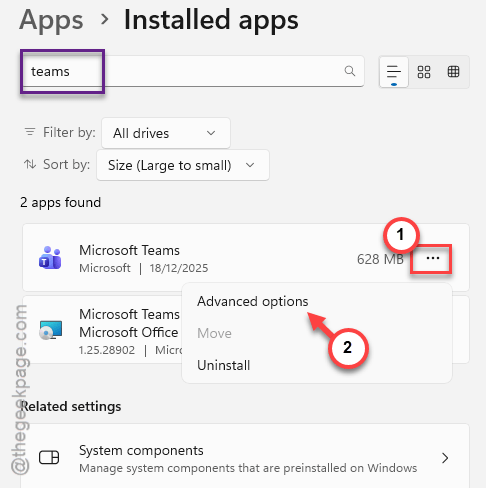
Step 3 – Find the Repair button there and run it to repair the Teams client.
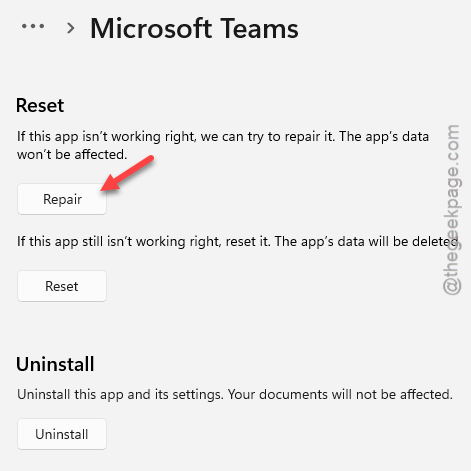
Once the repair process is complete, test it again.
Fix 4 – Re-register the MS Teams client
Registering the Teams client should fix the broken URL handler issue.
Step 1 – At first, right-tap the Start button, and choose to load up the Terminal (Admin).
Step 2 – Then, paste this command there, and hit Enter to re-register the MS Teams client.
reset-appxpackage *msteams*
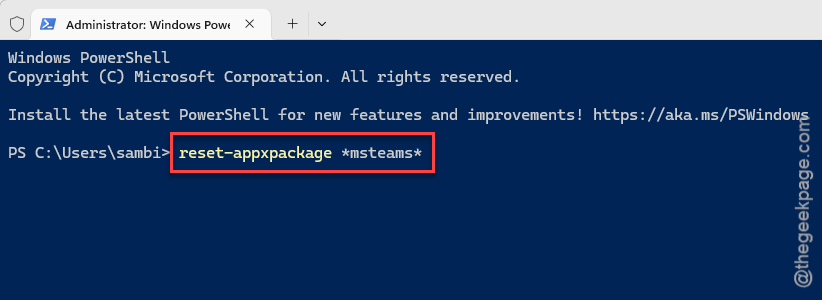
After this, close the Terminal window. Then, restart the Teams client, try to use the Teams link again.
Fix 5 – Sign out and Sign in Teams
Temporarily signing out of the MS Teams client and logging back to the client can refresh the Teams tokens for the app.
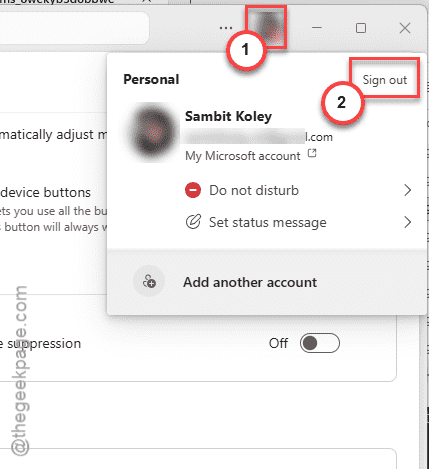
Step 1 – Load up the MS Teams client. Then, tap your profile picture. Tap the Sign out option to sign out of the Teams client.
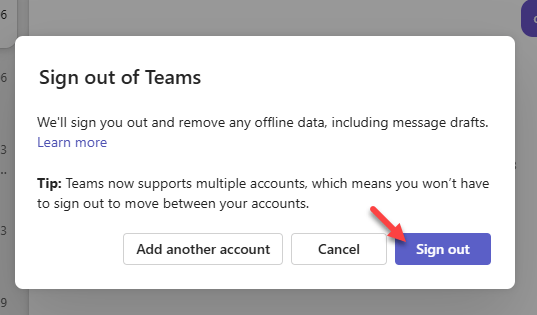
Step 2 – It will show you a standard prompt. Ignore that and tap Sign out.
It will return you to the Microsoft Teams home page.
Step 3 – You can just tap the account to log in using that account.
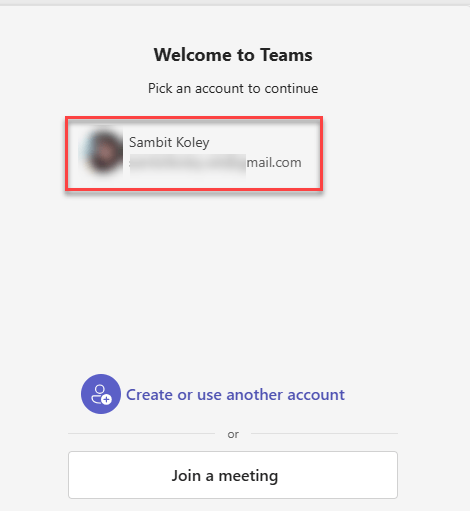
Once you have logged in to the Teams app, tap the same meeting link. Check where that leads you. It should open up the Teams client.