When Microsoft Word’s AutoCorrect and Math AutoCorrect conflict, you will notice strange behavior in your documents. Even a simple character like ‘C’ can be mistakenly autocorrected into ‘©’. This problem is not just limited to this issue case and often leads to other sorts of behavioral issues. Follow these tips to fix the problem yourself.
Quick Fix Table~
| Symptom | Recommended Fix |
| \delta stays as text | Fix #1: Enable Outside math regions |
(r) becomes ® |
Fix #2: Delete the rule from the list |
| Symbol looks like a box [?] | Fix #5: Use Plain text for the rule |
Fix 1 – Enable Math Auto Correct Outside of Math Regions
Word only triggers the math-specific shortcuts when you are inside an equation box. You can allow the Math AutoCorrect outside the math regions in the document.
Step 1 – Tap the File menu in the MS Word page. Then, tap the Options menu.
Step 2 – Go to the Proofing tab. Proceed to the AutoCorrect Options.
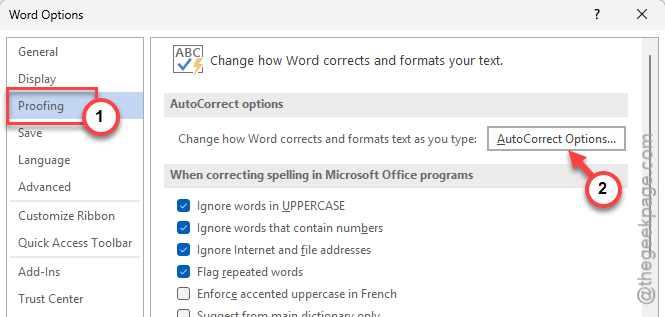
Step 3 – Tap the Math AutoCorrect tab. Check the Use Math AutoCorrect rules outside of math regions box. Save the changes using the OK button.
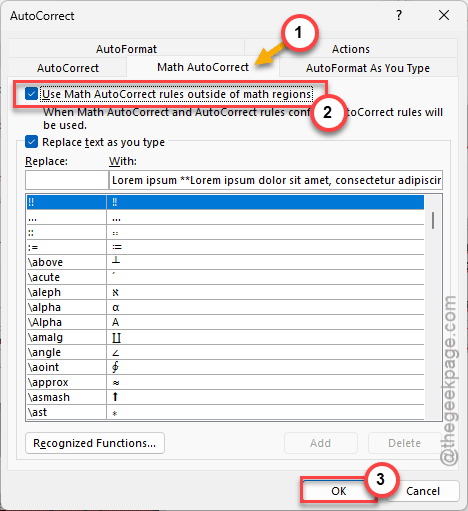
This will allow you to use the math shorthand in the document irrespective of the math box setup.
Fix 2 – Remove Conflicting Plain Text Rules
Word’s standard AutoCorrect has some rules that may conflict with modern math notations.
Step 1 – Tap the File menu in the MS Word page. Then, tap the Options menu.
Step 2 – Go to the Proofing tab. Proceed to the AutoCorrect Options.
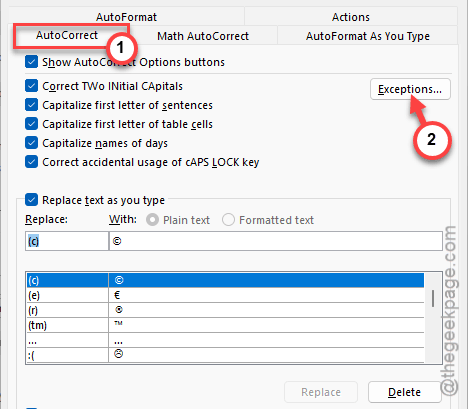
Step 3 – Go to the AutoCorrect tab.
Step 4 – Scroll through the list of shortcuts. Select and delete the shortcut that is causing (eg., (c)) this issue.
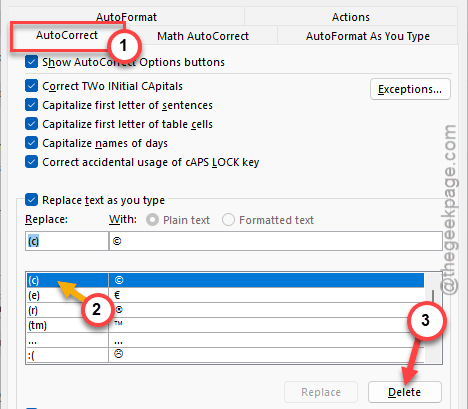
Input the same thing in the document and check again.
Fix 3 – Change the Replace as you Type Trigger
If MS Word is replacing things too aggressively before you finish typing the variable, it is some hidden settings of the utility that is causing this problem.
Step 1 – At first, proceed this way –
File > Options
Step 2 – Go to the Proofing tab. Proceed to the AutoCorrect Options.
Step 3 – In the AutoCorrect tab, untick the “Correct TWo INitial CApitals” box. Save the changes.
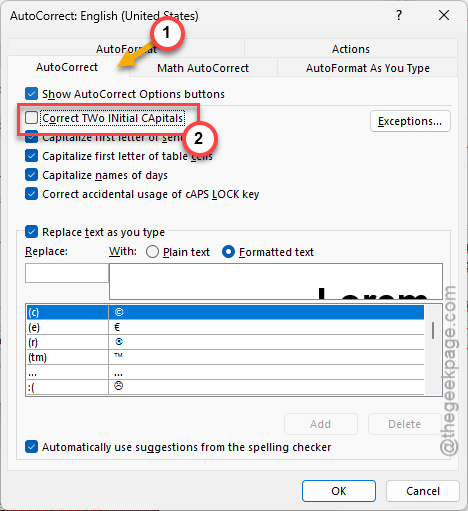
Check if this stops from fixing the mathematical casing problem.
Fix 4 – Put Exception Rules for Math Abbreviations
You can add some specific word that you don’t want Word to autocorrect to the Exceptions list to troubleshoot this problem.
Step 1 – In the AutoCorrect tab, click the Exceptions… feature.
Step 2 – Go to the Other Corrections tab.
Step 3 – Type the specific string you want Word to leave alone and click Add.
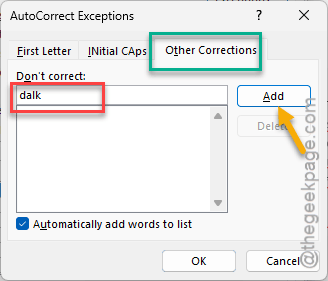
This way, add all the items to the Exceptions list where the Word won’t autocorrect.
Fix 5 – Use the Formatted Text Radio button
The Formatted Text mode, if selected when creating an AutoCorrect entry, Word to break the symbols, trying to ignore the Math AutoCorrect logic.
While adding or editing a rule in the AutoCorrect menu, ensure Plain text radio is selected.
The plain text allows the character to be interpreted by the math engine’s font (usually Cambria math), which should ultimately fix the issue.