Microsoft Teams users sometimes may encounter an issue where the desktop app fails to load up properly on their machine. This problem may interrupt the user schedules, cause unnecessary delays in the user’s productive workflow. Cache corruption, concurrent MS Teams app instance can halt the normal startup of Microsoft Teams desktop client. You may follow these steps to resolve this issue.
Fix 1 – Quit MS Teams and Relaunch It
If the Teams client is already running in the background, you may not be able to start it directly from the desktop.
Step 1 – Close the current instance of the Microsoft Teams app, even if it stuck or not loading up properly.
Step 2 – Next, tap the arrow button to see the apps in the system tray. Then, right-click the Teams app, and tap Quit teams.
Step 3 – Press the Ctrl+Shift+Esc buttons together to load up the Task Manager.
Step 4 – Find these two processes, and end them –
ms-teams.exe
msedgewebview2.exe
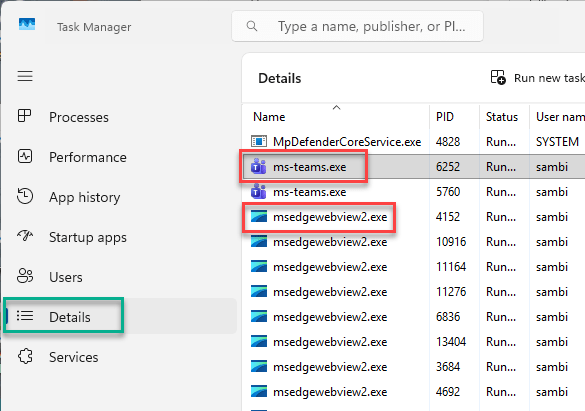
After this, close the Task Manager. Then, relaunch the Teams desktop app. See whether you are still having issues with the Teams app opening or not.
Fix 2 – Repair the Teams Desktop Client
You should repair the Teams desktop app from Windows Settings.
Step 1 – Open the Settings on Windows. Next, proceed this way-
Apps ⇾ Installed Apps
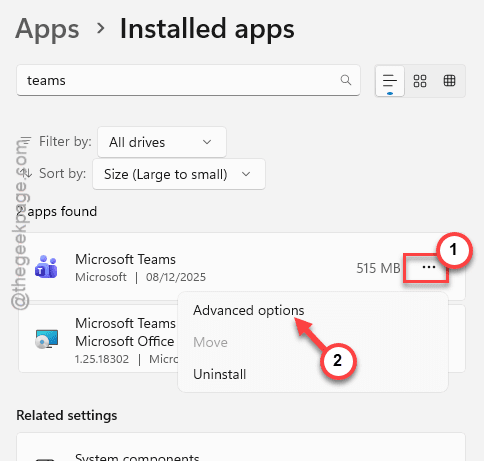
Step 2 – In the Installed Apps tab, do a quick search for Teams.
Step 3 – Tap the three-dot button next to Microsoft Teams app and tap Advanced options.
Step 4 – Choose the Repair button to repair the Teams client.
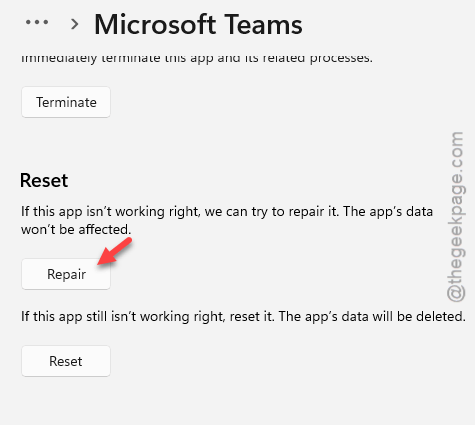
Wait for the repairing process to get finished.
Fix 3 – Cleanup the Teams Local Cache
Corrupted MS Teams local cache may cause issues with the startup process.
Step 1 – At first, close the Teams client completely. Make sure to close the app from the system tray as well.
Step 2 – Then, open a Run box. Paste this address there, and click OK.
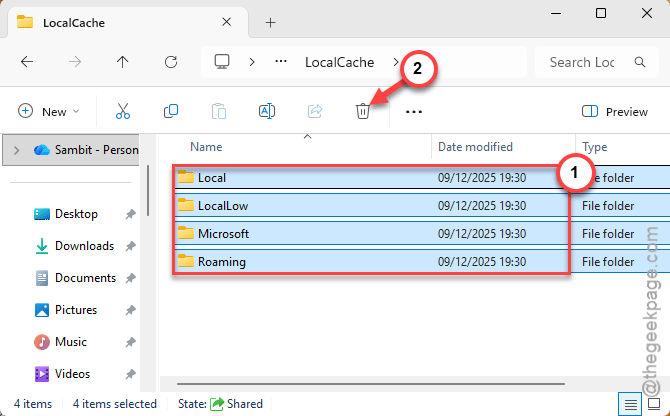
%localappdata%\Packages\MSTeams_8wekyb3d8bbwe\LocalCache
Step 3 – Delete all the contents of the Localcache folder.
Step 4 – After this, restart the Microsoft Teams client.
This will rebuild the MS Teams appdata locally. Check whether this resolves the Teams startup issue.
Fix 4 – Restart the WebView2 Runtime Client
The WebView2 is an important component of Microsoft Teams app. Reboot the MS Edge WebView2 client.
Step 1 – At first, right-click the Start button, and tap Task Manager.
Step 2 – In the Task Manager console, go to the Details tab.
Step 3 – Find all the msedgewebview2.exe processes there. Right-click any such processes, and tap End task.
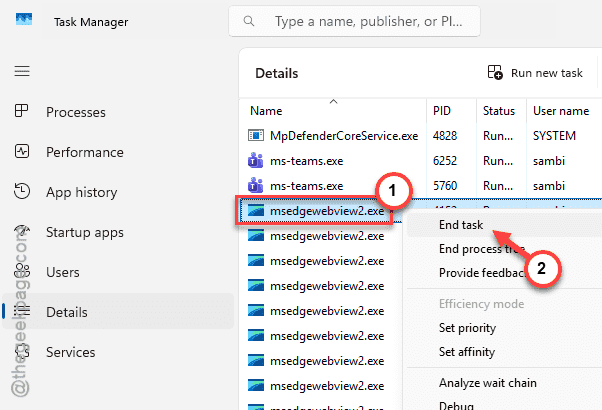
Step 4 – Once you have killed all the processes, close the Task Manager.
Then, relaunch the Microsoft Teams desktop client. This time, the app will load up properly.
Fix 5 – Re-register the Teams app
To get rid of this issue, you can re-register the Microsoft Teams app.
Step 1 – At first, right-click the Start button, and tap Terminal (Admin).
Step 2 – In the Terminal page with administrative rights, paste this line and hit Enter.
reset-appxpackage *msteams*
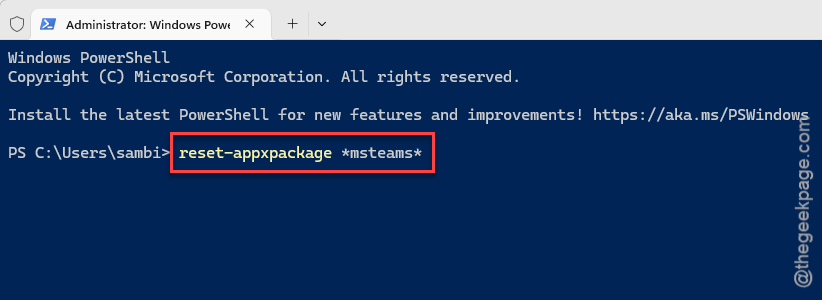
It won’t take much time for the Teams client to get re-registered. This will re-register the Microsoft Teams app on your machine.
Quit the Terminal console, and try to load up the MS Teams app. Check whether this works.