Issues with bibliography and citations can be divided into two broad categories. In the first case, the toolbars go completely missing, whereas in the other case, the corrupt plug-ins cause the citations to get misplaced or not appear in the document at all. We have covered both the aspects, and here are some resolutions you can apply to fix this issue.
Fix 1 – Enable the Missing Citation Add-ins
See whether any citations are not enabled in the MS Word settings; that is causing the misplaced or wrong citations in your document.
Step 1 – Load up the File tab. Next, tap the Options section.
Step 2 – Then, proceed to the Add-ins section. Click the Manage button next to COM Add-ins feature.

Step 3 – When the Add-ins feature loads up, check the citations add-ins that you use. Like – EndNote Cite While you Write or Zotero.com.
Step 4 – Tap OK to save the changes.
This will re-enable the missing add-ins in MS Word and make it functional.
Fix 2 – Modify the Zotero Settings (Zotero Users)
The corruption of the Zotero plug-in in MS Word can also cause the bibliography and citations to fail.
Step 1 – Load up the Zotero app. Proceed to Edit > Settings.
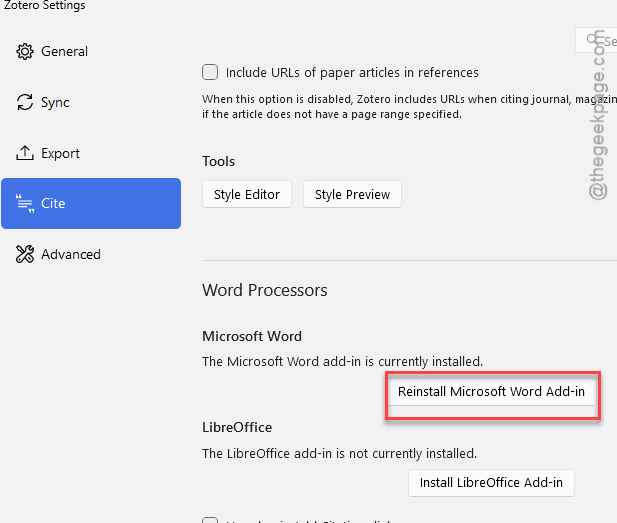
Step 2 – Go to the Cite tab. Locate the Word Processors.
Step 3 – Use the Reinstall Microsoft Word Add-in option.
There is a slim chance that it might fail. In that case, you have to manually rectify it.
Step 1 – Hit the Win+R keys. Then, paste this and hit Enter.
%appdata%\Microsoft\Word\STARTUP
Step 2 – Don’t close the Startup page. Now, go to the Zotero installation root directory. It is usually located here –
C:\Program Files (x86)\Zotero\extensions\[email protected]\install
Step 3 – Copy the Zotero.dotm file and paste it into the Word STARTUP folder that you have kept open.
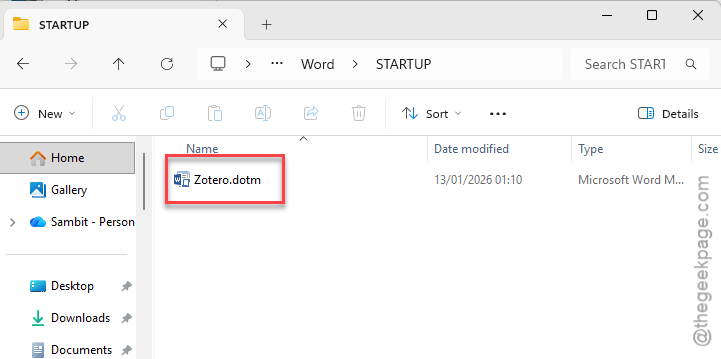
After performing these steps, do restart MS Word. Load the document and check the biblography and citation works.
Fix 3 – Clear the Mendeley Cite Add-in Cache
If you are using the Mendeley add-in, a corrupted cache can lead to citation errors.
Step 1 – Close the MS Word program.
Step 2 – Then, open a Run box. Paste this address and hit Enter.
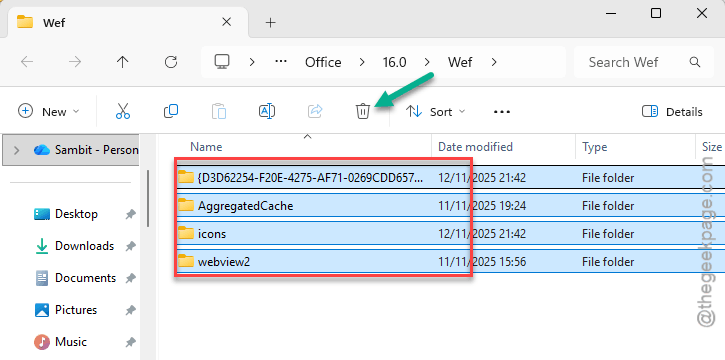
%LOCALAPPDATA%\Microsoft\Office\16.0\Wef
Step 3 – Delete everything from this folder.
Step 4 – Re-open the MS Word and try to log back to the Mendeley Cite.
This will clear the Mendeley Cite cache that is causing this problem.
Fix 4 – Disable the Tracking Feature
Microsoft Word’s track changes can sometimes conflict with the citations or bibliography in a document.
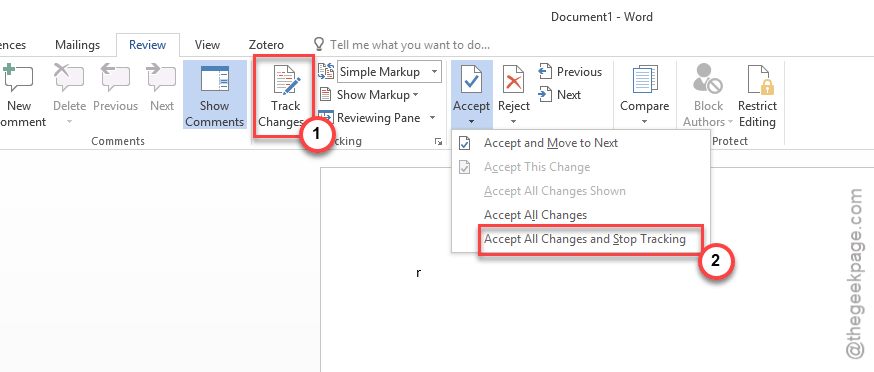
Step 1 – Get to the Review tab in Word.
Step 2 – Turn OFF the Track Changes settings.
Step 3 – Tap the Accept button and click Accept All Changes and Stop Tracking.
Step 4 – Go to the Citation Manager in MS Word. Then, use the Refresh or Update Citations and Bibliography.
This way, the citation manager can insert new citations without the interference of the tracking feature of the MS Word all the time.
Fix 5 – Disable the Macro Settings
If the citation plug-ins are installed but you are still not getting the
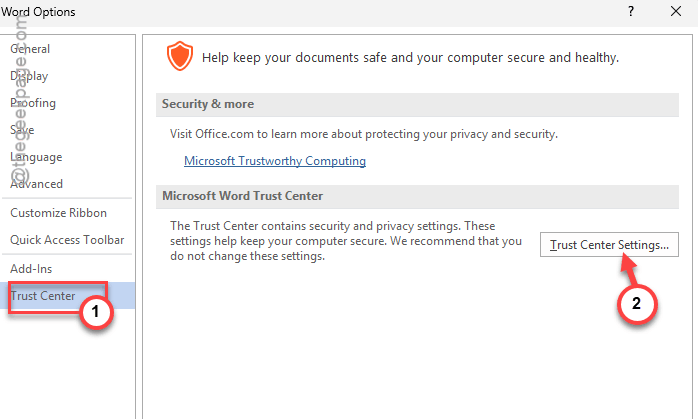
Step 1 – In the Microsoft Word document, proceed this way >
File > Options
Step 2 – In the Trust Center tab, tap the Trust Center Settings.
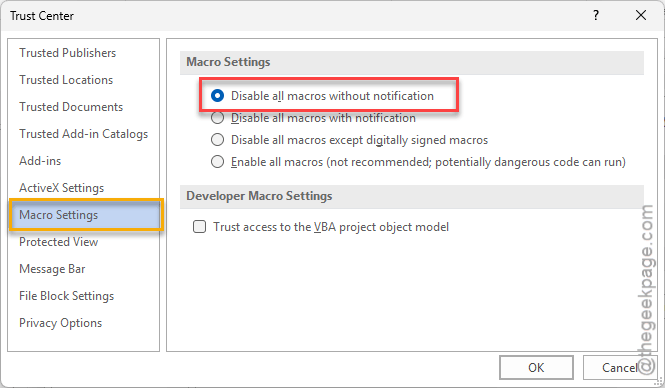
Step 3 – Go to the Macro tab. Use the Disable all macros with notifications option.
Step 4 – Save the changes.
See if the issue still persists.