If your Microsoft Word document is locked with a password you have forgotten or the ‘Restrict Editing’ panel is blocking you from making any changes, you may feel frustrated. It is not easy to bypass the password protection for the file. Though there are some workarounds available to bypass the password protection issue, there are some solutions that you can implement to fix other similar issues.
Quick Fix Table –
| Error Message | Recommend Fix |
| Enter password to open file | You must input password to open the file. Use third-party tools, if they are not available |
| This document is restricted | Use Fix 1 or Fix 3 |
| Read-only Recommended | Tap No. Then create a fresh copy from here – File > Save As |
Fix 1 – Save the File as RTF
As a workaround to this issue, you can just save the file in Rich Text Format (RTF) and, change it.
Step 1 – Open the locked document in MS Word. Then, go this way –
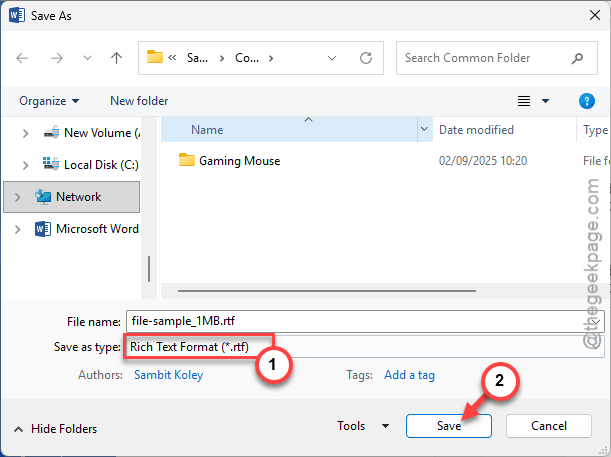
File > Save As
Step 2 – Choose the Rich Text Format (.rtf) from the drop-down and click Save to save the file in a location of your choice.
Close Microsoft Word.
Step 3 – Open the .rtf file that you have just saved there. It will open up in Word or Wordpad.
Step 4 (Optional) – Then, save the file in .docx format in Wordpad.
It will be accessible without a password again. Saving the file in .rtf format will remove the ‘Restrict Editing’ metadata. Check whether this works.
Fix 2 – Insert the Contents of Text File into a Blank Document
If you just need the content of the file in an editable format, you can copy the contents of the text file into the blank document.
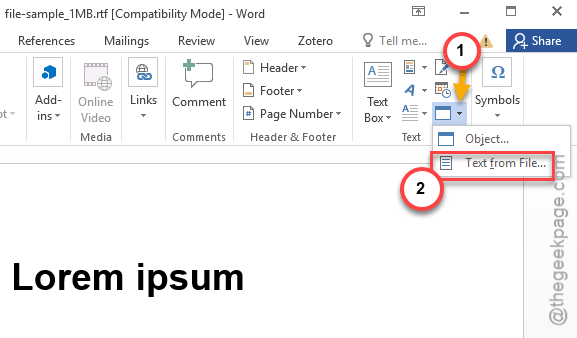
Step 1 – Open a blank new Word document. Go to the Insert tab.
Step 2 – Tap the small arrow button next to Object group and choose the Text from File.
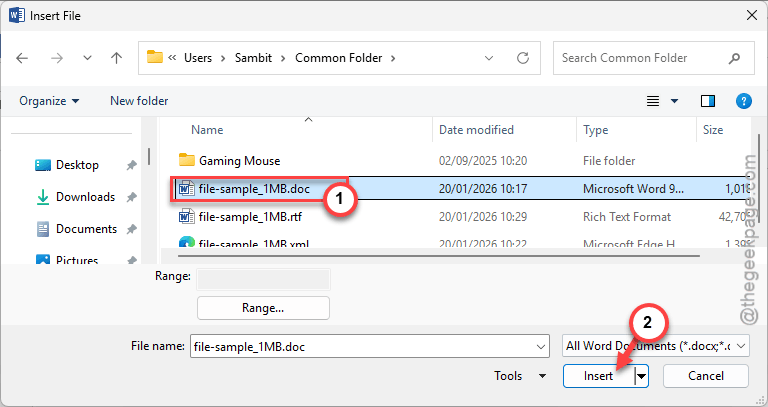
Step 3 – Select the password-protected document there and click Insert.
This will insert the contents of the document in a new, unprotected document.
Fix 3 – Delete the Password Requirement from File Code
If you have lost the password for the document, you can manually remove the password tag from the file.
Step 1 – To do this, close Microsoft Word, where you have opened the file.
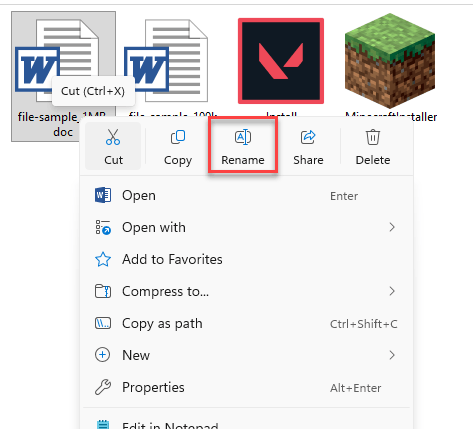
Step 2 – Next, reach the location of the file in File Explorer. Right-click the file and use the Rename function to change the extension .docx to .zip format.
Step 3 – Now, open the zip file. Find the settings.xml and double-tap it.
Step 4 – Choose to open it in Notepad, if required.
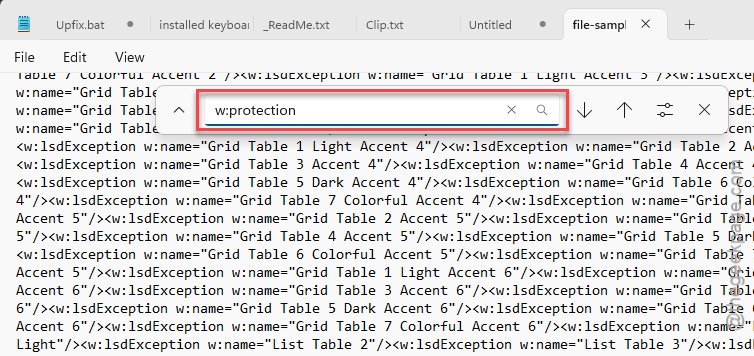
Step 5 – When this loads up in Notepad, press Ctrl+F to open the search panel. Search for <w:documentProtection.../> tag. Delete any such tag from the XML file.
Step 6 – Once you have done that, save the xml file again.
Step 7 – Rename the .zip to .docx format.
This will clear the password requirement for the file in MS Word.
Fix 4 – Disable Encrypt with Password Setting for File
If you already know the password of the file but want to disable the password setting for the file, you can do that directly from Microsoft Word.
Step 1 – Open the document in MS Word.
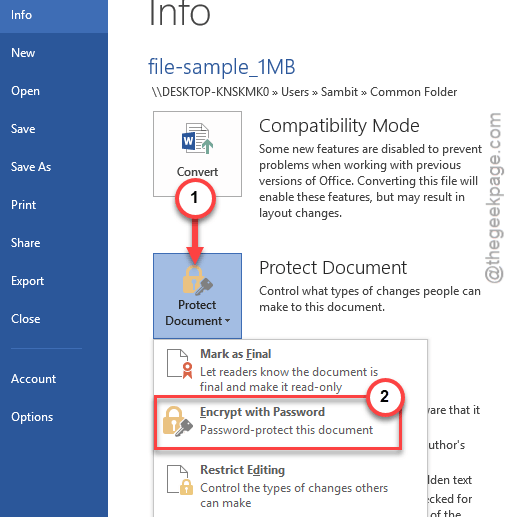
Step 2 – Then, go to the Info tab. Then, tap the Protect Document option. Use the Encrypt with Password option.
Step 3 – Make sure the password box is blank. Click OK to save the changes.
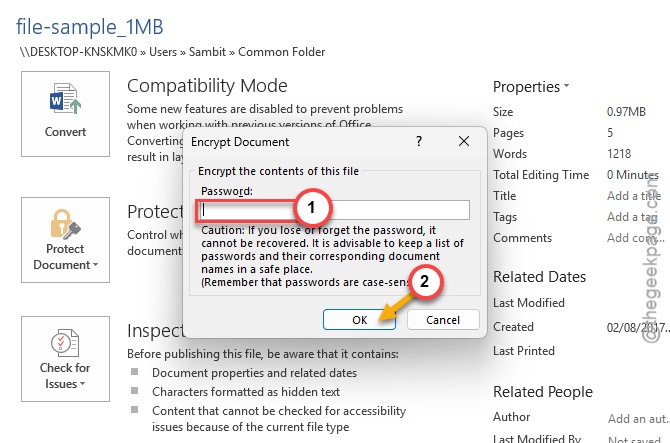
After saving these changes, save the document. This will fix the password protection issue that you are having on MS Word.