Does your iPhone’s Siri activate automatically without any prompt after the iOS 26 update? Some users have acknowledged this problem where Siri is automatically getting activated without any prompt. It can be problematic for users, as the frequent Siri activation can cause so many unwanted problems. So, here is a complete list of solutions that you can apply to troubleshoot the problem on your own.
Fix 1 – Disable the Double-Tap Home Bar Shortcut
The #1 cause for users to wake up Siri unintentionally is to double-tap the Home Bar shortcut on iPhone.
Step 1 – Open the iPhone Settings. Go to the Apple Intelligence & Siri settings.
Step 2 – Go to the Talk & Type to Siri feature.
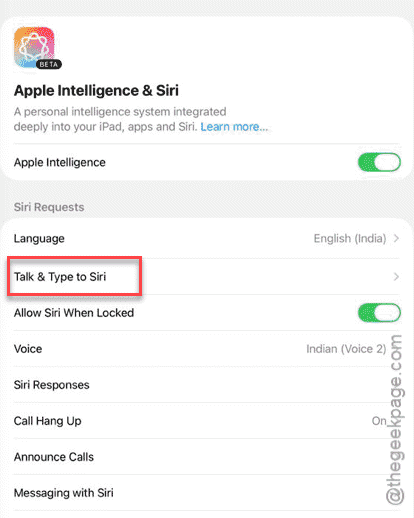
Step 3 – Find the Double-tap Bottom of Screen (or Home Bar Shortcut) setting, and turn it OFF from there.
This will prevent the accidental double-touch on the Home bar that randomly wakes Siri on the iPhone.
Fix 2 – Disable Always Listen for Siri
When Siri is set to listen and respond to your voice commands irrespective of the device position, it can wake up randomly.
Step 1 – To turn this off, go to the Accessibility settings on iPhone.
Step 2 – There is a General sub-section. Find the Siri there and open it up.
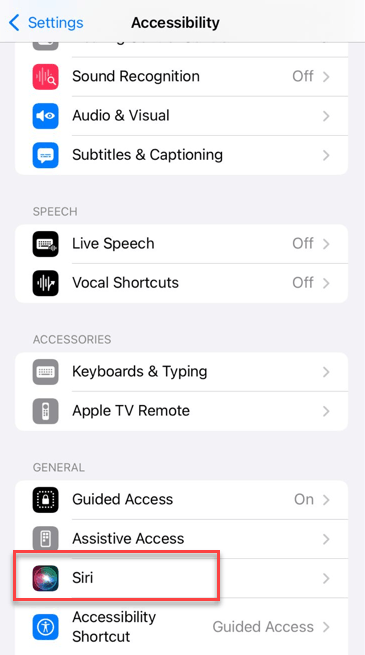
Step 3 – Set the Always Listen for Siri or Hey Siri to OFF.
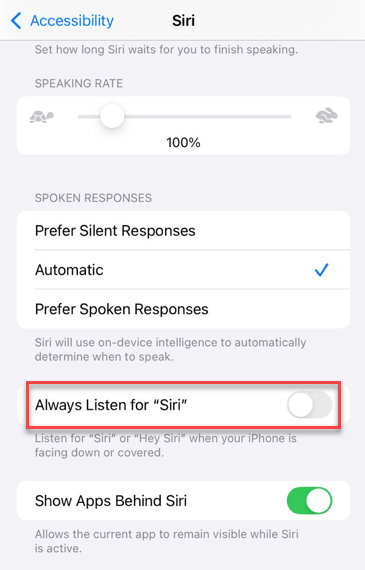
This way, Siri will only listen and respond to your calls when the screen is visible or the device is facing upwards.
Fix 3 – Change the Wake Word Sensitivity
Switching from the one-syllable ‘Siri’ to the double-syllable ‘Hey Siri’ will reduce the number of random Siri awakening events on the device.
Step 1 – Open the Apple Intelligence & Siri settings.
Step 2 – Tap the Talk & Type to Siri option.
Step 3 – Choose the Hey Siri option from there.
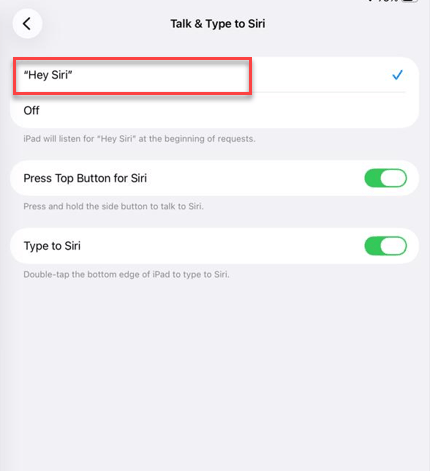
This way, Siri will only wake up when you say ‘Hey Siri’, not the ‘Siri’ prompt.
Fix 4 – Re-train the Apple Intelligence & Siri
If the Siri is getting activated in a busy, chiming environment, you should train Siri in accordance with your voice profile one more time.
Step 1 – Open the Apple Intelligence & Siri.
Step 2 – Open the Talk & Type to Siri settings once more. Then, settings to OFF.
Step 3 – Turn it back ON.
It will start the voice recognition setup. Go through it to train Siri to respond to your voice.
Step 4 – Complete the Siri setup.
Once you do this, Siri will create a sharper voice profile that ignores the surrounding chatter.
Fix 5 – Turn OFF Siri when Locked
If Siri is still responding to you, you should completely disable Siri when the device is in a locked state.
Step 1 – Proceed to the Apple Intelligence & Siri tab in the iPhone’s Settings.
Step 2 – Set the Allow Siri When Locked to OFF.
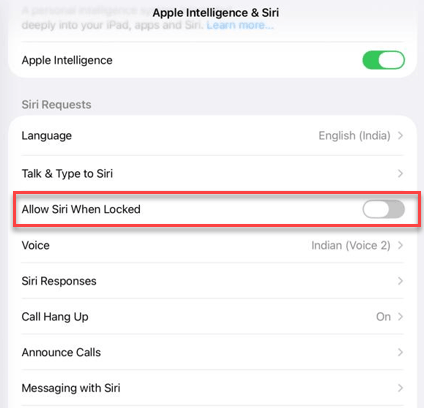
If Siri gets automatically activated while the iPhone is in your pocket or bag, this is will put an end to that. But, you can continue to use Siri at your will as well.
Hope these fixes have helped you solve the issue.