During Microsoft 365 outages, Microsoft Teams calls may suffer from various issues, like one-way audio, instant disconnections, and the ‘We couldn’t complete the call’ error. Usually, this is a server-side issue. So, there are only a limited number of things you can do to resolve this. Here are some tips, like using the alternative routes to use the Teams mobile app.
Quick Troubleshooting Chart –
| Issue | Recommended Fix |
| Call failed to connect | Sign out and restart the app (Fix 4) |
| One-way Audio Issue | Use the mobile as a hotspot. (Fix 2) |
| Join button is missing/spinning | Dial-in via Phone Number (Fix 3) |
Fix 1 – Load the Teams app in a browser
After an outage, Microsoft usually rolls out the patch fixes to the web clients faster than the desktop one.
Step 1 – Close the current Microsoft Teams client on the iPhone.
Step 2 – Open a browser of your choice. Then, load up an Incognito/Private tab.
Step 3 – Go to teams.microsoft.com in the browser. Sign in using your credentials to log in.
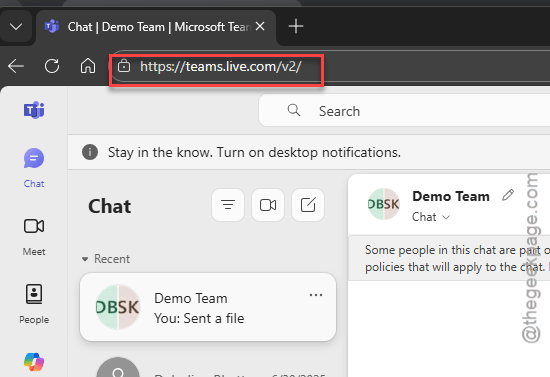
Step 4 – Select the Use the web app instead option there to load up the Microsoft Teams app in the web app.
Continue using the Teams web client.
Fix 2 – Switch to the cellular data in Teams Mobile App
As the mobile network routes through several CDNs, using it may fix the outage issue.
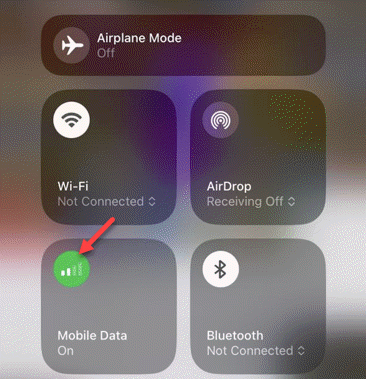
Step 1 – Disconnect your phone from the work/home Wi-Fi.
Step 2 – Later, turn on the cellular data on your iPhone. Load up the Teams Mobile app.
If you can’t use the Teams account on the mobile app and has to stay on your laptop, you can use the phone as a personal hotspot.
Check if this resolves the issue.
Fix 3 – Use the Dial-In Number
There is a dial-in function in Teams where you can just skip the internet calling (VoIP) using the number provided in the meeting directly on the calendar.
Step 1 – Open the meeting invite in the Calendar.
Step 2 – There will be a Join by Phone section. This is auto-generated when the meeting invitation is sent out.
Step 3 – Tap the phone number there. In most of the cases, the conference ID will be automatically dialed in during your call. But, you may have to manually input it, in case it is required.
This way, you can join the meeting skipping the internet calling.
Fix 4 – Hard Reset the MS Teams app
During outages the residual authentication tokens associated to your Teams account may cause this issue.
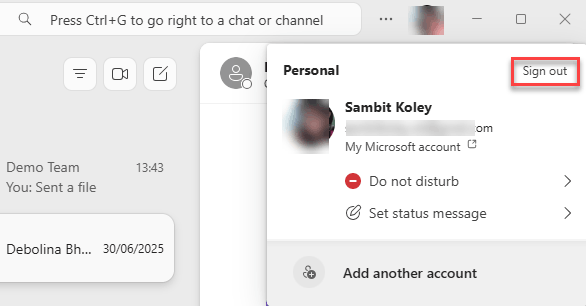
Step 1 – Tap the profile picture on the Microsoft Teams client. Tap the Sign out button.
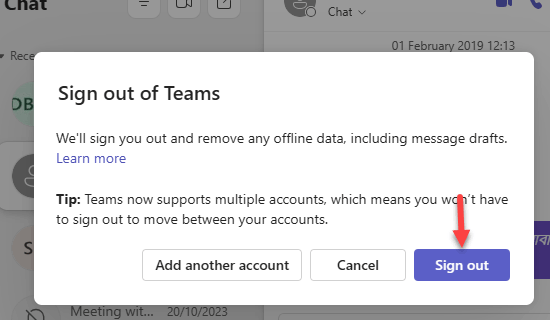
Step 2 – Ignore the warning message that pops up and tap Sign out.
Step 3 – Close the Teams client. Wait for 1-2 minutes.
Step 4 – Relaunch the Microsoft Teams app. Sign back into your account.
Check if this helps.
Fix 5 – Use a VPN to Different Region
These outages usually happen in a particular region, which you can bypass completely using a VPN. A VPN, or Virtual Private Network, routes your connection to the main server through a different route than your default ISP path.
Step 1 – If you are already using a VPN, select a country or a completely different region.
Step 2 – Reboot the MS Teams client.
See whether you can establish a stable connection and start a call.
NOTE – Check whether VPN is allowed in your organization. Microsoft Teams may block unauthorized traffic from unknown location if the conditional access is at play.