When Microsoft Teams authentication fails, it can contaminate other Microsoft 365 apps. This is because all these Microsoft 365 apps share the same Single Sign-On system, where one such authentication failure can fail the entire chain of synchronized services. We have explored all the possible scenarios for the authentication failure in Microsoft Teams app. This Quick Fix Table should guide you towards the particular resolution according to your problem status.
Quick Fix Table –
| Error Code | Recommend Fix |
| Something went wrong | Fix 4 – Disconnect and reconnect Work/School account |
| Error 1001 | Fix 2 – Repair the AAD Broker Plugin |
| Endless login loop | Fix 3 – Delete the IdentityCache folder |
Fix 1 – Implement the Protection Policy Registry Patch
Sometimes Windows’ own encryption services can prohibit Microsoft Teams from reading saved Teams credentials.
Step 1 – Hit the Win+R buttons together. Then, type this there and click OK to load up the Registry Editor.
regedit
Step 2 – Navigate to this address –
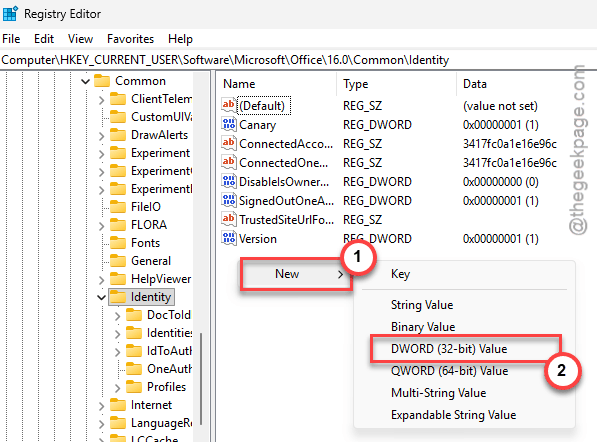
HKEY_CURRENT_USER\Software\Microsoft\Office\16.0\Common\Identity
Step 3 – Next, right-click the space, and tap New > DWORD (32-bit) Value to create a new value.
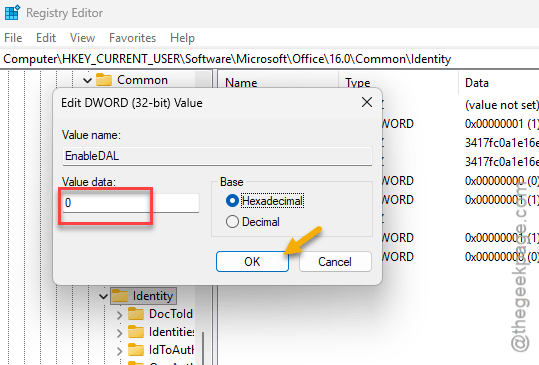
Step 4 – Name it EnableDAL value.
Step 5 – Double-tap the same value to 0.
Step 6 – After this, navigate to this address –
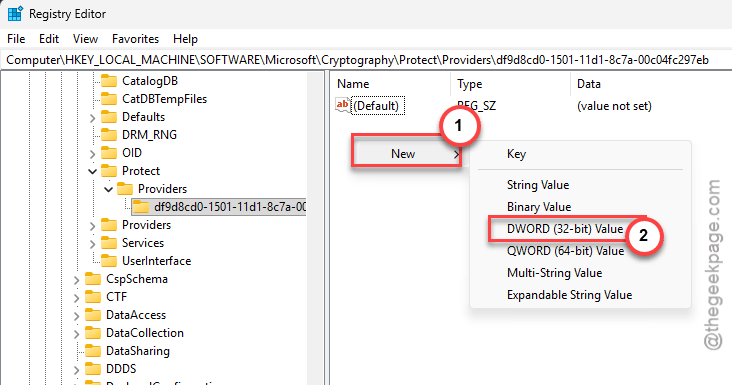
HKEY_LOCAL_MACHINE\Software\Microsoft\Cryptography\Protect\Providers\df9d8cd0-1501-11d1-8c7a-00c04fc297eb
Step 7 – Create a new DWORD using on the right-hand side. UseNew > DWORD (32-bit) Value to create one.
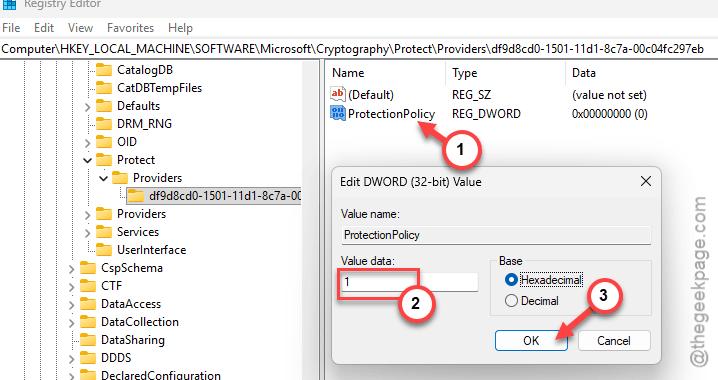
Step 8 – Name it ProtectionPolicy.
Step 9 – Set the value to 1.
Once you have changed this value, return to the Teams client and try to log in again.
Fix 2 – Repair the AAD Broker Plugin
The AAD Broker Plugin is used as a connector between the Microsoft Teams server and the app runing on your machine.
Step 1 – To do this, press the Win+X buttons. Tap to open up the Terminal (Admin) to load up the terminal.
Step 2 – Make sure you are on a PowerShell terminal. Copy-paste this command, and hit Enter to repair the AAD Broker Plugin.
if (-not (Get-AppxPackage Microsoft.AAD.BrokerPlugin)) { Add-AppxPackage -Register "$env:windir\SystemApps\Microsoft.AAD.BrokerPlugin_cw5n1h2txyewy\Appxmanifest.xml" -DisableDevelopmentMode -ForceApplicationShutdown } Get-AppxPackage Microsoft.AAD.BrokerPlugin
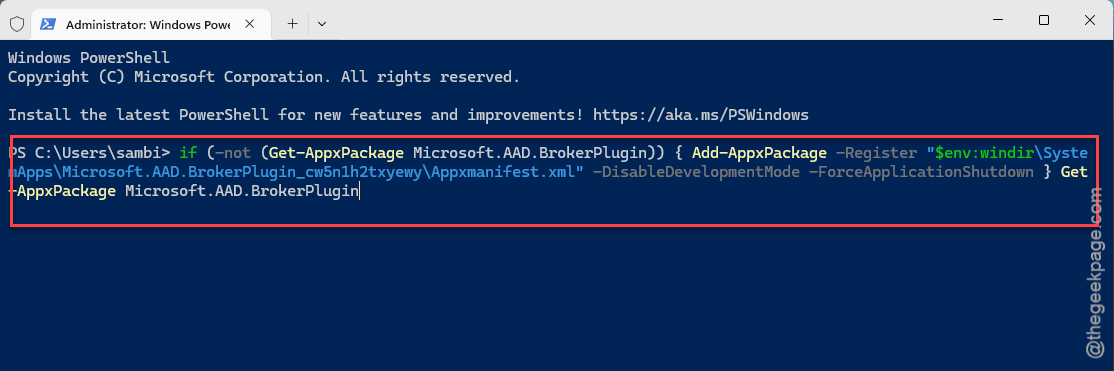
Step 3 – After running the aforementioned command, close the shell terminal.
Try to log in to your Microsoft Teams account again and check if this works.
Fix 3 – Clear the Teams Authentication Cache
Clear the Teams authentication cache from your machine.
Step 1 – Close all the Microsoft Office apps (like Microsoft Word, Outlook, Teams, etc.) running on your machine.
Step 2 – Then, use the Win+R buttons. Place this address there, and click OK.
%localappdata%\Microsoft\
Step 3 – Find these three folders, and delete these folders.
IdentityCache
OneAuth
TokenBroker
Step 4 – Restart the computer.
Relaunch the Microsoft Teams client, and check whether you can log in or not.
Fix 4 – Disconnect and Reconnect the Work/School account
Microsoft Teams uses the credentials associated with the work/school account that you have already logged into on your Windows machine.
Step 1 – Load up the Windows Settings. Proceed to the Accounts tab.
Step 2 – Then, open up the Access work or school account.
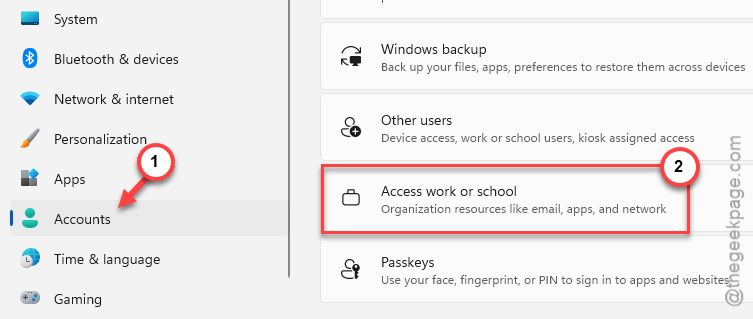
Step 3 – Find the account that you using Teams/ Outlook credentials.
Step 4 – Select it and tap Disconnect.
Step 5 – Restart your computer.
Step 6 – Return to the same Settings console –
Account > Access work or school
Step 7 – Use the Connect button there to reconnect it again.
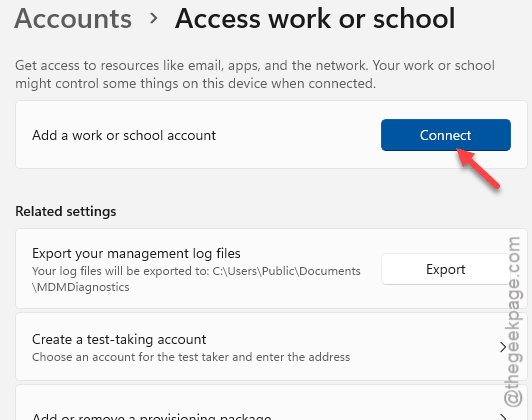
Once you have done this, there won’t be no further issues of logging into the Teams client.
Fix 5 – Clear the Teams Generic Credentials
The corruption in the saved up Microsoft Teams credentials to lead to such issues.
Step 1 – Search for Credential Manager and open up the utility from there.
Step 2 – Tap the Windows Credentials.
Step 3 – Find every msteams entry and remove them from there.
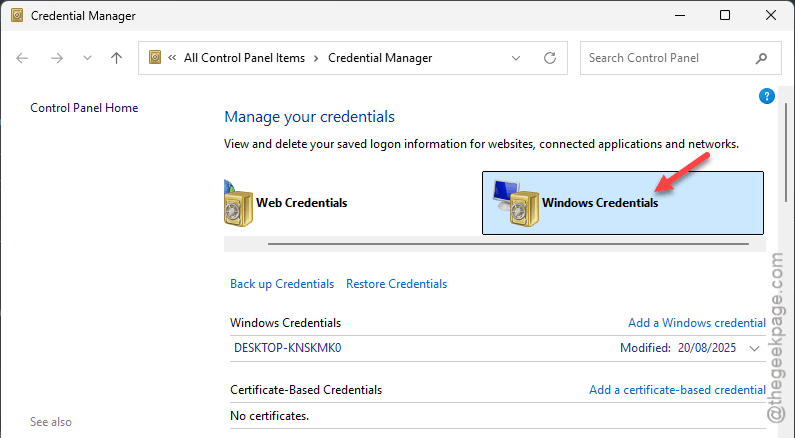
This will remove the Microsoft Teams credentials from your machine.
Step 4 – After this, you can log into the Microsoft Teams account and use the app.
There won’t be any authentication-related issues.