Can’t hear the keyboard sound from your iPhone after the iOS 26 update? There are several reports flooding in various Reddit, Apple Community threads where users have alerted about this problem where the keyboard sound is not audible to the users. This is due to the glitch in the Silent Mode system or a conflict with the iOS 26 predictive text sounds bug. Here is a complete list of solutions covering all the possible aspects that can tone down or remove the keyboard sound from the iPhones.
Fix 1 – Refresh the Silent Switch/Action Button
If the Action Button on the iPhone is toggled to silent mode, the keyboard sounds will disappear.
Step 1 – Take a look at the Action Button or Alert Slider status on the iPhone.
Step 2 – Check whether it is tweaked to Silent mode. Keyboard sounds will be muted if your iPhone is in silent mode.
Step 3 – Toggle the Action Button/Alert Slider to Ringer Mode.
See if you can hear the keyboard.
Fix 2 – Refresh the Keyboard Feedback Settings
Tweak the keyboard feedback settings to enable sound and haptics on the iPhone.
Step 1 – Open the iPhone Settings first. Next, proceed to the Sounds & Haptics tab.
Step 2 – Tap the Keyboard Feedback option.
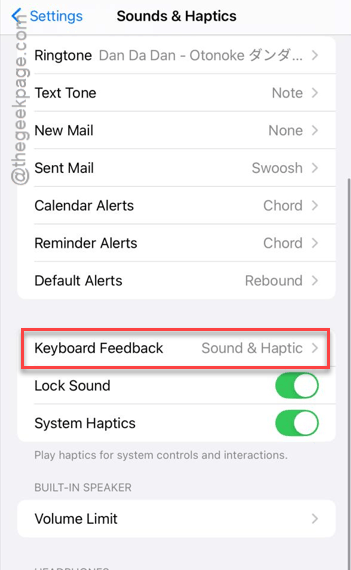
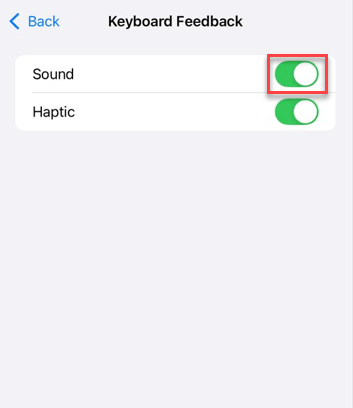
Step 3 – Tweak the Sound to OFF mode. Wait for a few seconds. Then, turn it ON.
Step 4 – Do the same thing to refresh the Haptic settings.
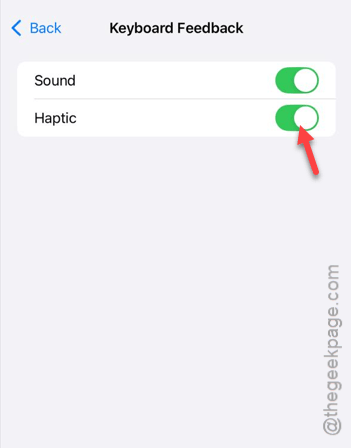
This should refresh the haptic settings on the iPhone.
Fix 3 – Disable Predictive/Slide Interference
The swipe typing feature can sometimes suppress the keyboard tap sound on the iPhone. It is more evident after the iOS 26 update.
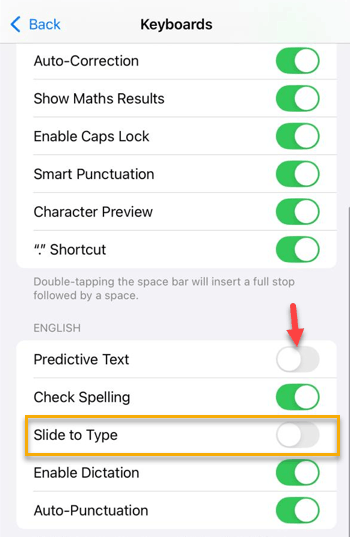
Step 1 – Proceed to the General tab on the iPhone Settings. Then, go to the Keyboard settings.
Step 2 – Find the Slide to Type feature and turn it OFF. Set the Predictive text to OFF mode as well.
Step 3 – Restart the iPhone.
See if this restores the normal volume level for the keyboard sound.
Fix 4 – Reset the Keyboard Settings
Reset the iPhone’s keyboard to the default settings on the iPhone.
Step 1 – Proceed this way –
General > Transfer or reset iPhone
Step 2 – Then, tap the Reset button.
Step 3 – After this, use the Reset Keyboard Dictionary settings.
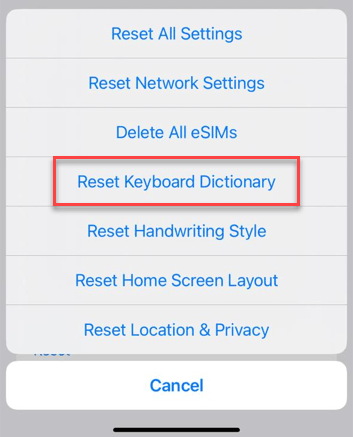
You are required to input your Apple Passcode to verify your action. Once you do this, the keyboard modifications will be reset to default.
After resetting the keyboard settings to the default version, the keyboard sound should be restored.
Fix 5 – Disable the Attention Aware Volume Dimming
If you are typing while looking away from the keyboard, Attention-Aware features can dampen the keyboard sound significantly.
Step 1 – In the iPhone Settings, proceed to the Face ID & Passcode tab.
Step 2 – Then, input the Apple passcode to proceed.
Step 3 – Find the Attention-Aware Features option and turn it OFF.
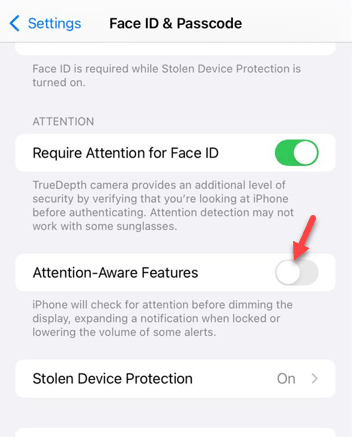
Once you have disabled the Attention-aware features on the iPhone, the issue will be resolved.