After getting the iOS 26 update on their devices, many iPhone users have complained about this volume bug, where the system sounds, like keyboard taps, lock sounds, and message alerts, vary widely from each other. It is often caused by some bugs in iOS 26 but can be easily taken care of. Here is a detailed guide on how to troubleshoot this system sound playing at different levels on iOS 26.
Fix 1 – Turn off the Attention Aware Dimming
When the attention-aware feature is turned on, iPhone can dim or boost the system volume according to whether you are looking towards the device.
Step 1 – In the iPhone Settings, proceed to the Face ID & Passcode tab.
Step 2 – Then, input the Apple passcode to proceed.
Step 3 – Find the Attention-Aware Features option and turn it OFF.
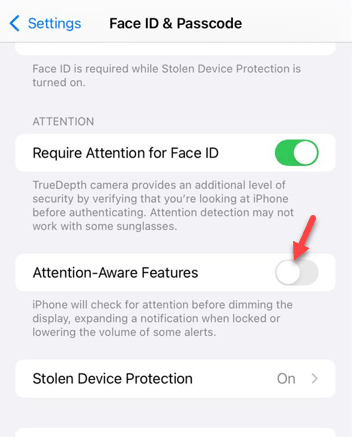
After disabling the attention-aware features, do check the system volume level.
Fix 2 – Turn off Automatic Audio Suppression
While the automatic audio suppression system is designed to suppress high volumes in headphones, bugs in iOS 26 can cause it to fluctuate system volume.
Step 1 – Proceed to the Sounds & Haptics tab.
Step 2 – Go to the Headphone Safety option.
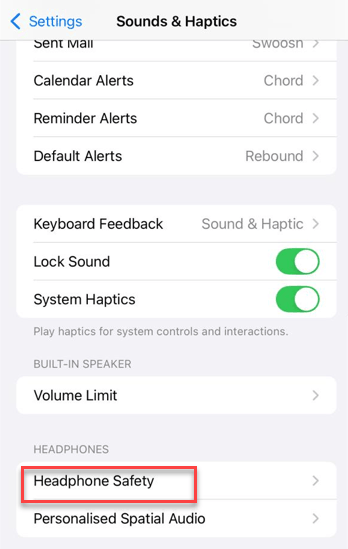
Step 3 – Toggle the Reduce Loud Audio to Off mode.
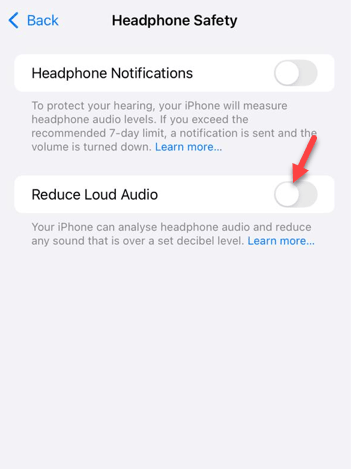
After disabling the automatic audio suppression feature, this
Fix 3 – Disable Audio Ducking Feature
The Audio Ducking feature, if it is enabled, can dip the system sounds whenever any app alert or notification triggers the device.
Step 1 – Go to the Accessibility tab.
Step 2 – Next, go to the VoiceOver settings.
Step 3 – Go this way –
Audio > Audio Ducking
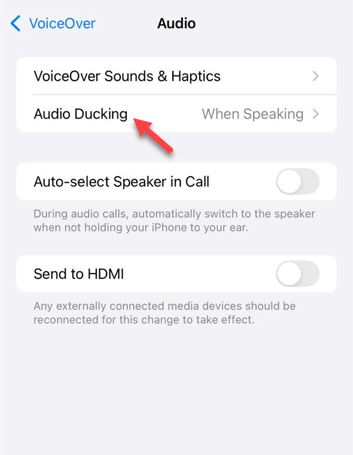
Step 4 – Turn OFF the Audio Ducking feature.
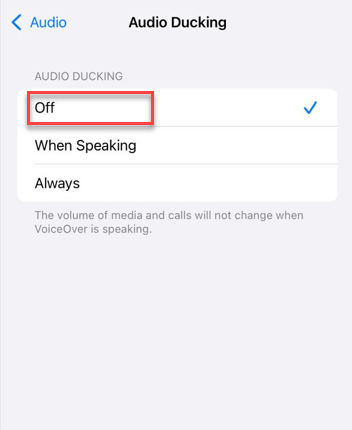
After turning it off, you can check the current volume level of the iPhone.
Fix 4 – Lock Ringer and Alert Volume
iOS 26 can confuse between the media volume and Ringer/Alert Volume, if the Change with the Buttons feature is turned On.
Step 1 – Proceed to the Sounds & Haptics tab.
Step 2 – In the Ringer and Alerts section, toggle the Change with Buttons to OFF mode.
Step 3 – Manually adjust the slider to your preferred level.
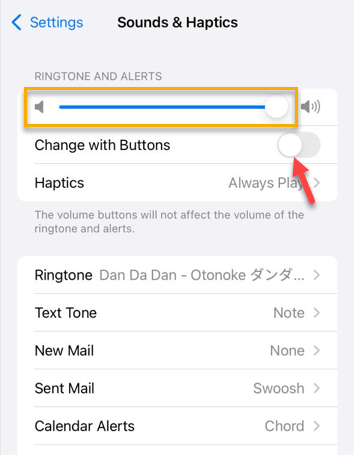
Try to check the current volume level
Fix 5 – Refresh the Audio Sensitivity
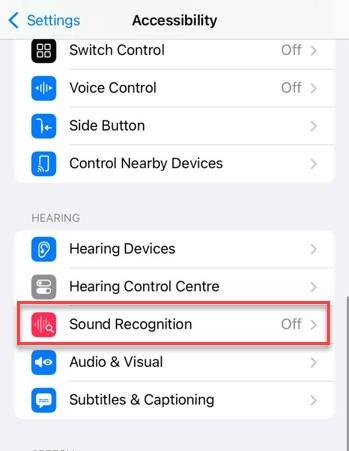
The Sound Recognition feature of the iPhone allows you to listen for sounds that can reduce the volume constantly in the background.
Step 1 – Open the iPhone Settings panel. Then, go to the Accessibility page one more time.
Step 2 – Then, scroll down to find the Sound Recognition feature.
Step 3 – If you have found it ON, turn it OFF.
Step 4 – Now, you have to do a force-restart procedure. To do that, press the Volume Up key and release it at once.
Step 5 – Next, press-release the Volume Down key. Then, press and hold the Side button (Power button) on the device until the apple logo shows up on the screen.
After force restarting the device, the volume won’t jump errtically again.
Hope these fixes have helped you solve the issue.