When you update a Named Range, Excel should update every cell that is included in the range. However, the Data Validation may sometimes crash the old range coordinates or fail to expand if the new data is over the cell boundaries that you have defined before. Here is a detailed list of guides to fix this issue.
Quick Fix: Data Validation List Errors
| Issue | Recommended Fix |
| New items missing from list | Convert source data to an official Excel Table (Ctrl+T) |
| List shows old range coordinates | Update the ‘Refers to’ box in the Name Manager (Ctrl+F3) |
| Dropdown is blank or broken | Use the INDIRECT function in the Data Validation source box |
Fix 1 – Convert Source Data to an Official Table
Pointing a Named Range to an official table in Excel automatically adjusts for any changes you make.
Step 1 – Select the list of items in the workbook, and tap Ctrl+T buttons together.
Step 2 – Give this new table a name (e,g., ProdList).
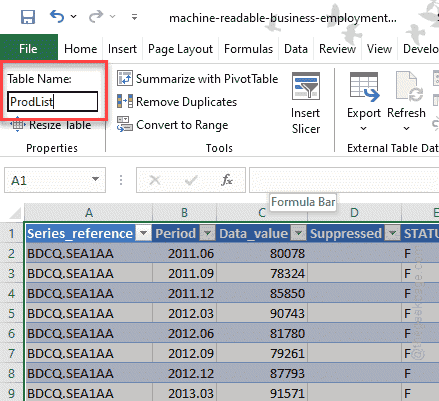
Step 3 – Press the Ctrl+F3 to load up the Name Manager. Set the Named Range referring to the table name, (e.g., =ProdList[ColumnName]).
Now any item you add to that table will automatically be added to every drop-down menu using that name.
Fix 2 – Update the Name Manager
Sometimes the edit that you commit won’t actually save to the coordinates.
Step 1 – Press the Ctrl+F3 to open up the Name Manager.
Step 2 – Select the name you are using.
Step 3 – Look at the ‘Refers to:‘ box at the bottom. Manually adjust the range parameter to make sure that any data entered is within the specified range.
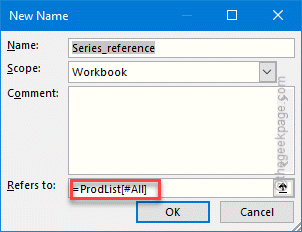
Example – If you want to input the data in row 11, the range =$A$1:$A$10 won’t work. Increasing the range should work to 100 should do the job – =$A$1:$A$100.
This will provide ample room for any possible data to grow.
Fix 3 – Use a Dynamic OFFSET Formula
If you can’t use a table as a data source, you can use the OFFSET formula to count how many items are there in the table column.
Step 1 – Load up the Name Manager once more.
Step 2 – Set the Refers to: value to this –
=OFFSET(\$A\$1, 0, 0, COUNTA(\$A:\$A), 1)
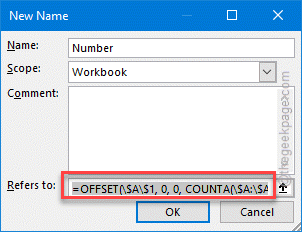
Explanation – This formula starts at A1 and expands downward based on how many non-empty cells it can find in the Coulmn A. As you add data, the Named Range expands automatically. You have to change it according to your preference.
Fix 4 – Use the INDIRECT Function
Sometimes, the validation may stop working if the source data is present on a different sheet that has been removed or renamed.
Step 1 – Go to the Data tab. In the Data Tools section, find the Data Validation settings. Tap it once.
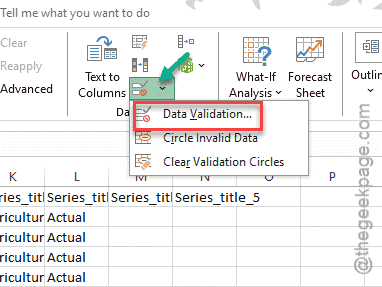
Step 2 – In the Source box, type this –
=INDIRECT("MyListName")
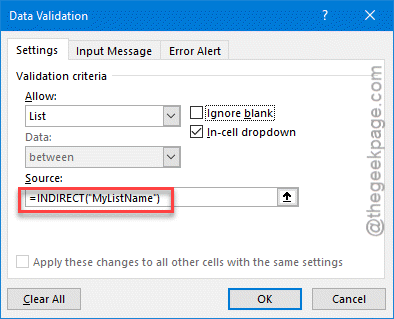
This way, the data validation won’t automatically break if the source list is on a different sheet, even if it is renamed or moved.
Fix 5 – Re-select the Name in Data Validation
When you create the first Data Validation list, Excel automatically creates the range. Sometimes, even when you update the Name Range, the range does not update.
Step 1 – Select the cells containing your drop-down lists.
Step 2 – Go to the Data tab. Then, use the Data Validation tab.
Step 3 – In the Source box, delete whatever you can find there. Then, retype your list name (=MyListName).
Step 4 – Click OK.
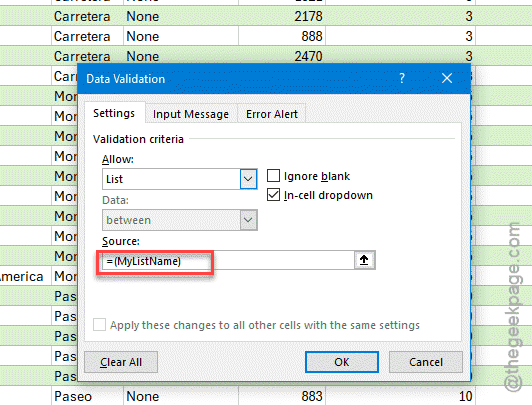
This will force the cache and enforce the validation tool. Check if this works.