Tired of snapping your fingers only to have the Apple Watch ignore your prompts? If the Apple Watch you are using is not responding to your gestures or feels extremely sticky or unresponsive, it happens due to software glitches or sensor interferences. Whether it is a recalibration issue or a simple settings toggle, here are some fixes to solve the issue yourself.
Quick Fix Table ~
| Symptom | Primary Fix |
| Double Tap ignored | Toggle Gestures Off/On |
| Delayed or lagged reaction | Enable Reduce Motion |
| Intermittent Recognition | Tighten Watch band |
Fix 1 – Sensor and wrist surface cleaning
The optical and electrical heart sensors placed on the back surface of the Apple Watch require a clear path to detect the readings.
Step 1 – Wipe the glass side of the Apple Watch and your wrist with a dry, clean microfiber cloth.
Step 2 – Ensure the watch band is fit enough that there is no gap between your wrist and the watch back surface.
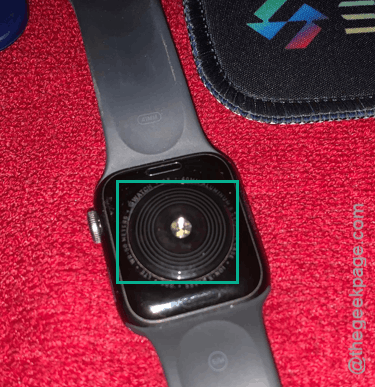
Sometimes, a thick layer of heavy lotion or cream can cause a slippery barrier that restricts the sensor’s functionality.
Fix 2 – Tweak the Gestures Refresh
Sometimes the gestures may hang due to some glitches. Refreshing the gesture settings should resolve the issue.
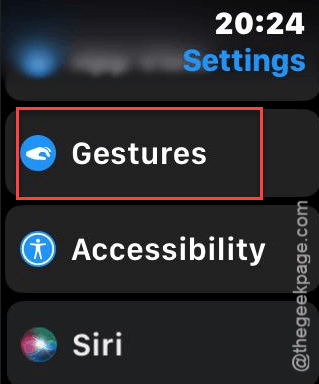
Step 1 – On the Apple Watch, go to the Settings tab. Open up the Gestures settings.
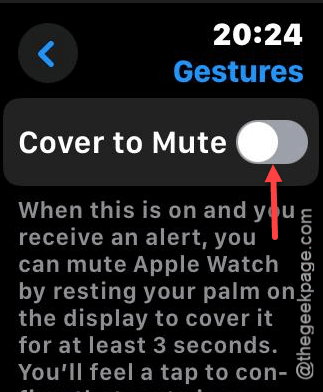
Step 2 – Toggle the specific gestures to OFF mode.
Step 3 – Now, hold the Side Button and Digital Crown buttons togeher for 5-7 seconds.
Step 4 – Once the watch reboots up, go this way –
Settings > Gestures
Step 5 – Set them to ON mode.
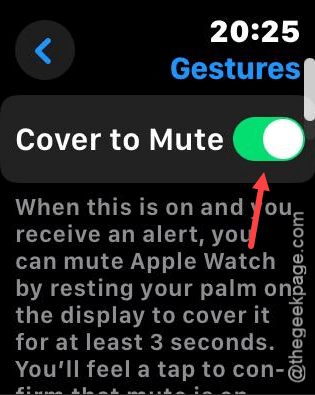
Refreshing the gestures should fix the unresponsiveness of the watch gestures.
Fix 3 – Recalibrate System Motion Data
The internal sensors may have destabilized, which often requires a simple recalibration to set everything up.
Step 1 – On the iPhone, go to the Settings console. Then, go to the Privacy & Security tab. Go to the Location Services button.
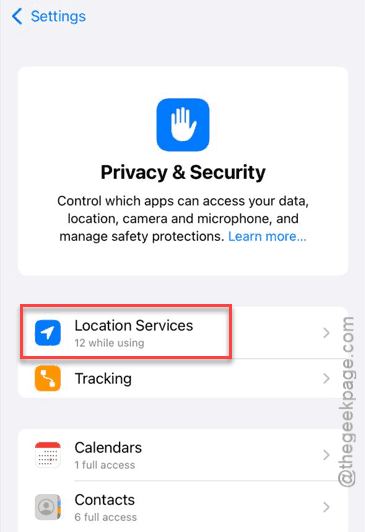
Step 2 – Open up the System Services.
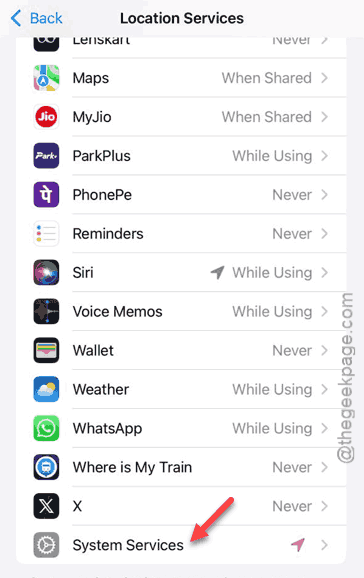
Step 3 – Toggle the Motion Calibration & Distance to OFF and back ON.
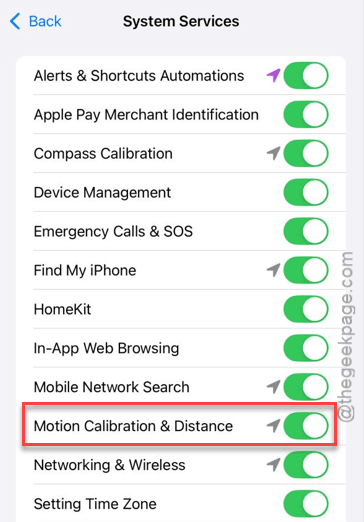
Keep the watch on your wrist for a 10-20 minutes of outdoor walk. This will re-sync the sensors wth your movement patterns.
Fix 4 – Verify the Wrist Detection Status
The gestures on Apple Watch automatically turn off if it detects no wrist position, to save power and as a security measure.
Step 1 – Go to the Settings window on your Watch.
Step 2 – Proceed to the Passcode tab.
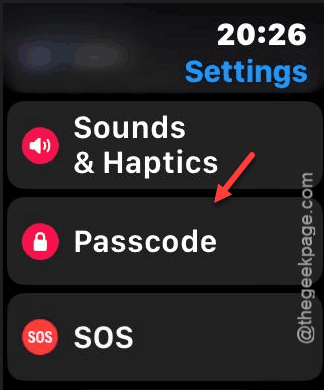
Step 3 – Make sure the Wrist Detection is turned ON.
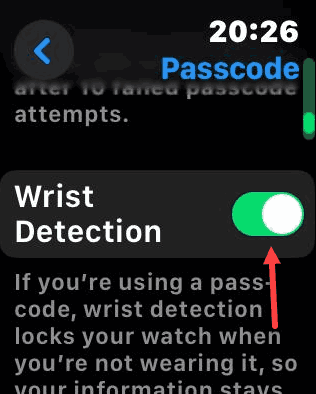
This way, you may check whether the watch is detecting your wrist or not.
Fix 5 – Enable the Reduce Motion Feature
Some users have enabled the reduce motion feature and have resolved the issue.
Step 1 – Load up the Watch app on your iPhone. Go to the My Watch tab.
Step 2 – Proceed to the Accessibility tab.
Step 3 – Find the Reduce Transparency feature and turn it ON.
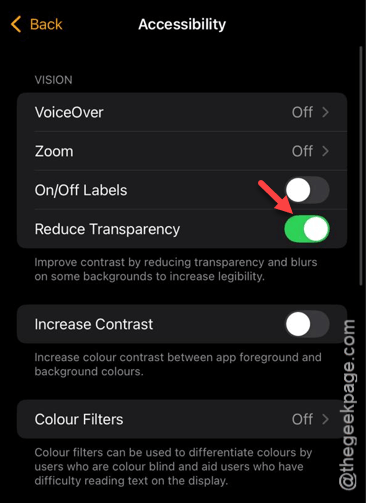
This should reduce the heavy animations and transparency of the UI elements, which may sometimes hamper the display gestures.
Hope these fixes have helped you!