Getting no touch response from the Apple Watch screen after it got submerged in the water? If you ever found yourself in such situations, don’t worry. Sometimes, if some of the water is still trapped inside the Apple Watch, the watch display or other watch functions may not work. In that case, don’t try to force anything, and just follow these countermeasures.
NOTE – Treat these fixes as important tips and follow them serially for an effective result.
Fix 1 – Power Off and Let it Dry
Just power off the Apple Watch and let it dry somewhere safe.
Step 1 – Press and hold the side button for a few seconds.
Step 2 – Then, try to slide across the surface in order to power off the watch.
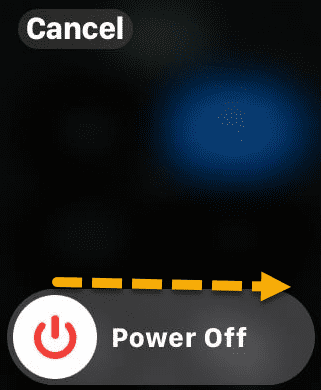
There is a chance that this may not work, as the touchscreen surface is still irresponsive. In that case, follow the steps of the next solution to dry out the watch.
Fix 2 – Dry the Apple Watch Properly
You should not use the Apple Watch until it is completely dry.
Step 1 – Wipe the watch surface with a fresh, soft cloth to dry it out.
Step 2 – Then, keep the Apple Watch in a cool, dry place for at least 4–5 hours. You should put the watch in a clean rice or silica bag, which is a popular choice. Do leave it overnight for drying properly.
Step 3 – Finally, take out your iPhone from the bag.
Check whether the touch screen is working or not.
Fix 3 – Eject the trapped water
Your Apple Watch has the Water Lock function, which can automatically lock the watch when it detects water in the Apple Watch. You can’t use the touch screen on the Apple Watch until you turn off the Water Lock.
Step 1 – Look for the 💧 icon on your Apple Watch. If it is there, tap and hold the digital crown.
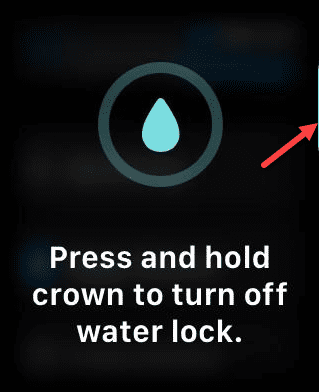
Step 2 – You will feel the Apple Watch is vibrating. Continue to hold the digital crown while Apple Watch ejects out the water through the speaker grills on the side.
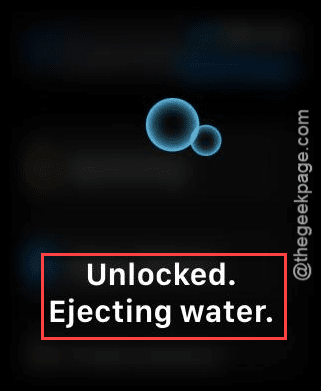
Step 3 – Do this for 2-3 times (press and hold the crown for a 10-15 seconds).
After the water is ejected out, the Apple Watch is completely functional once again.
NOTE – On older Apple Watch models running on watchOS 8 or earlier, you may need to rotate the digital crown instead of pressing it. It works the same way.
Fix 4 – Try Force Restart the Apple Watch
The final solution in our list is to force-restart the Apple Watch.
Step 1 – At first, press and hold the digital crown and the side button of your Apple Watch for 10–15 seconds.
Step 2 – Release those buttons when you see the Apple logo on the watch display.
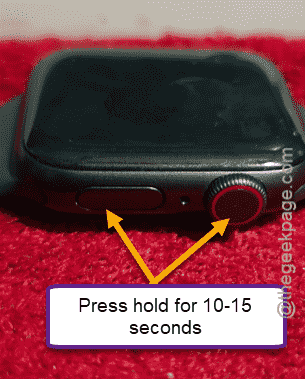
Wait for it to become functional. Then, try to test out the
Final Resolution – Contact Apple Support
If your Apple Watch is still unresponsive, there is a chance of water ingress or a water-damaged component (mainly the digitizer). You should not waste any time and take the Apple Watch to an Apple Service Center. You may also book your appointment in advance from Apple Support.