Does your shared Microsoft Teams screen looks blurry or hazy? Sometimes, when you share your screen with others during a meeting, it may appear blurry due to slow, unstable internet connection. But, if there are no network related issues and, the MS Teams shared screen looks too blurry, you must apply these fixes to solve the issue.
Fix 1 – Disable the Optimize for playing video feature
It seems that video optimization feature may cause some issues while sharing just your screen with others.
Step 1 – Join the meeting or start the meeting.
Step 2 – Now, tap the share option in the toolbar.
Step 3 – Then, turn off the Optimize for playing video feature in there. Tap Share finally to share the screen with others.
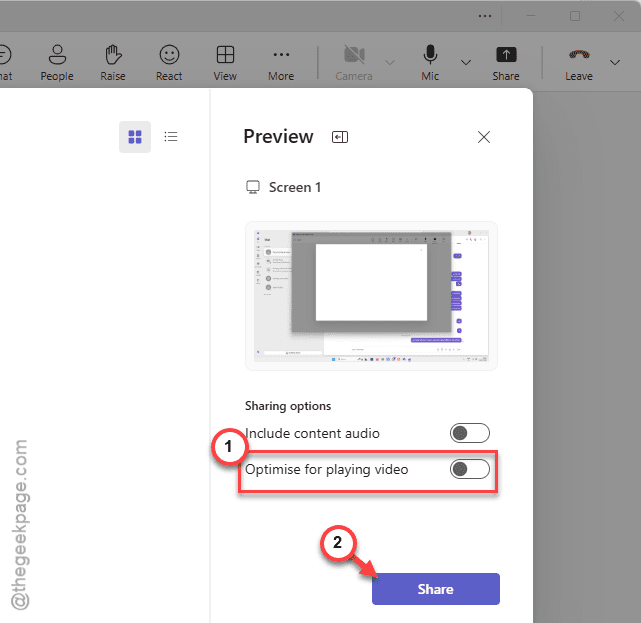
This will essentially fix the blurry or jittery effect that you are having on the shared screen for your team members.
Fix 2 – Update the Teams client and refresh
Install any pending update for the MS Teams client, and then, sign out of your Teams account, and later sign in.
Step 1 – If any update is pending for your Teams client, tap the three-dot button, and tap Update and restart to update the MS Teams client.
Step 2 – Then, click your profile image in the same menu bar, and tap Sign out. Close MS Teams and then, relaunch it.
Step 3 – Try to share the screen and check now.
Test whether the screen is still blurry or not.
Fix 3 – Set the Video Quality to High
You should enable the high quality video mode in the Teams meetings.
Step 1 – Open the Teams settings. Then, tap the ⋮ button, and tap Settings.
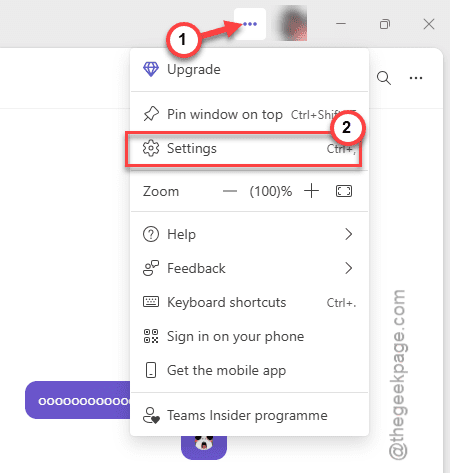
Step 2 – Go to the General tab. Make sure to enable the Enhance Video Quality settings.
Step 3 – Enable any High fidelity meeting mode or Optimize for video quality settings.
Step 4 – Later, restart the MS Teams app.
Keep in mind that that actual settings may vary across MS Teams tenants.
NOTE – These options are subject to availability and may not be available on the Teams client for everyone.
Fix 4 – Share the Entire Screen Instead of Window
If you just share a particular window, it does blur out other windows, supposedly causing this issue. So, instead, you should share the window instead of screen 1 or 2.
Step 1 – Start sharing your screen with others in MS Teams.
Step 2 – Then, choose the Screen 1 or 2, instead of sharing only the window of an app or so.
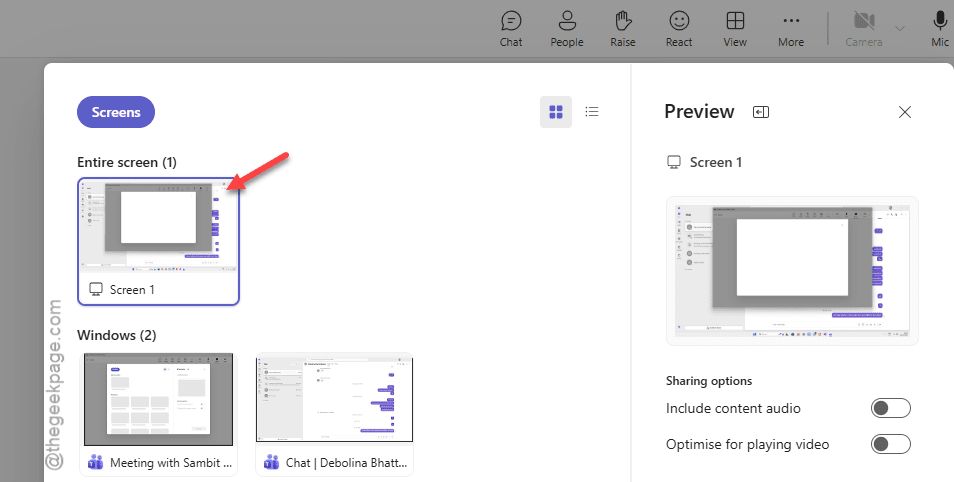
Step 3 – If you are using a multi-monitor setup, you should just choose the screen where the MS Teams is opened.
This should avoid any blurry screen sharing effect.
Fix 5 – Set the Screen Share to Fit to Frame/ Actual Size
This extra blur effect that you are getting can be happening due to scale issue in MS Teams.
Step 1 – Start to share your screen in the Microsoft Teams client.
Step 2 – Now, tap the three-dot button on the sharing toolbar, which is at the top of the meeting window.
Step 3 – Next, tap the More ⋯ button, and select any of the Actual size or Fit to frame mode.
This way, you are sharing your screen without any kind of scaling effect imposed upon the shared feed.
NOTE – You may ask your team members to view the shared screen in actual size format by using the ⋯ (More) ⇾ Actual Size option. This will eradicate any further display scaling effects.
Fix 6 – Use a strong Wi-Fi network connection (5 GHz)
The primary reason behind a blurred or jittery shared display page during a Teams meeting is the network connection. If your Wi-Fi router supports dual banding, connect your device to a 5GHz network, which will significantly reduce the network latency. This way, you can actually share your screen without any blurred out effects.
Fix 7 – Disable the Battery Saver mode
The power saving mode on the laptops does put on restriction on display effects. It can limit the system performance, limit the background activity, and restrict power-consuming tasks like screen sharing.
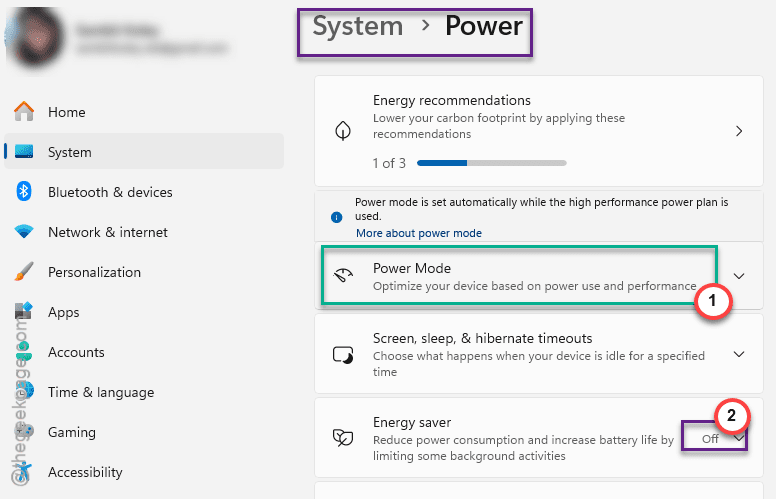
Step 1 – Open the System settings on Windows. Go to the Power settings, next.
Step 2 – Set the Power Mode to Best Performance mode.
Step 3 – Then, turn off the Energy saver mode from there.
Check if this helps.