Having problem installing the Minecraft Bedrock edition on your computer? It seems that this problem has become a well-versed topic in the Xbox forum, where a considerable size of gamers have faced this problem. According to them, the installation of Bedrock edition of Minecraft is getting stuck there.
Fix 1 – Repair or reset the Gaming Services
you must repair or reset the gaming services to fix this problem.
Step 1 – At first, open up windows Settings and go to the Apps tab. Then, tap the Installed apps option to load it up.
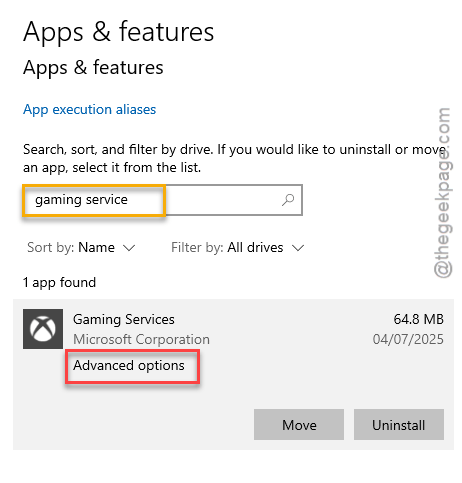
Step 2 – You’ll find a search box on the right-hand side. Search for Gaming services.
Step 3 – Now tap the three dot button next to the Gaming Services option and tap Advanced options.
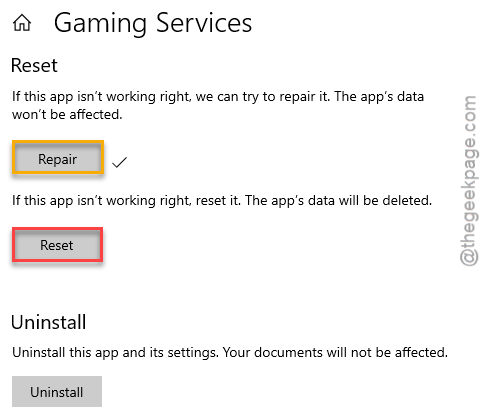
Step 4 – Use the Repair option first, and then, tap the Reset option to reset the gaming services module.
Try to install the Minecraft bedrock edition once again.
Fix 2 – Cancel other Minecraft downloads in Store
You cannot update or install the Minecraft bedrock edition if you are already updating any app (related to Minecraft or not) on the Microsoft Store.
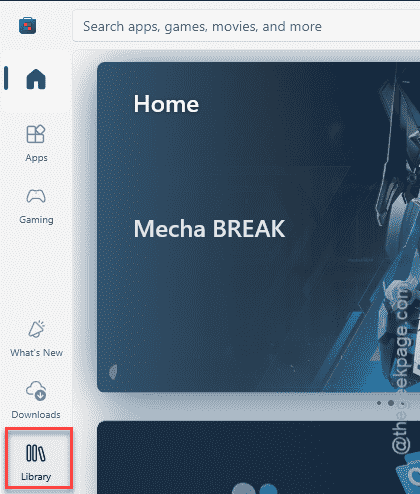
Step 1 – Open up the Microsoft Store. Then, have to go to the Library section from the left-hand tab.
Step 2 – Scroll up or down through the entire Library to check whether any apps or games are downloading.
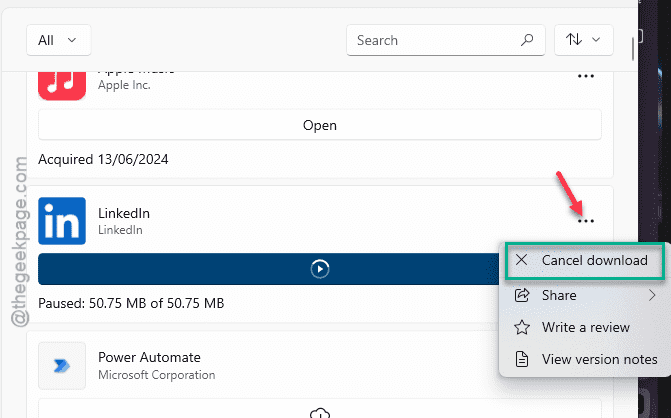
Step 3 – If any game or app is updating, at the three-dot button next to it and use the Cancel download option.
Step 4 – This way, make sure that no other app like Minecraft launcher or Minecraft Java Edition or any other app is downloading in the store.
Now try to install the game once more, and it won’t throw up any error again.
NOTE – If you are currently installing any of the Minecraft editions from the Minecraft launcher, stop that installation immediately. Then, try to install the Minecraft bedrock edition again.
Fix 3 – Update the Minecraft from Store
Instead of using the Xbox app to install or update the Minecraft bedrock edition, you should stick to the Microsoft Store method.
Step 1 – Just open up the Microsoft Store on your computer.
Step 2 – Search for the Minecraft Bedrock edition or the Minecraft game you own. Then proceed to install it from there.
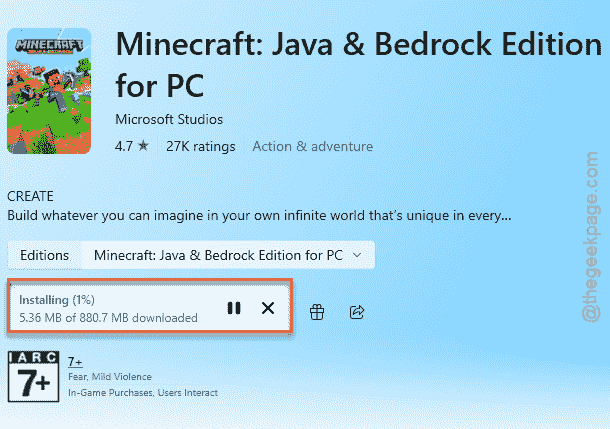
You will get to play the Minecraft bedrock edition in no time at all. There won’t be any waiting to install error any more.
Fix 4 – Clear the Store cache
Corruption in the Microsoft Store cache can interfere with the standard installation process of the Minecraft bedrock edition.
Step 1 – Cancel the update or installation task on Microsoft Store and close it.
Step 2 – Next, press the Windows button and the R button together.
Step 3 – As the Run dialogue box appears, paste this and hit Enter.
wsreset
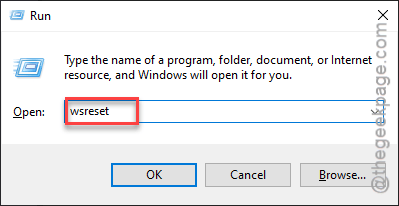
This will reset the entire Microsoft Store local cache. Once you have cleared the cache, go ahead and install the Minecraft bedrock edition.
Fix 5 – Uninstall or disable the mods in Minecraft Launcher
If you are using any modes on your Minecraft launcher, it can interfere with resolution of the Minecraft bedrock edition on your system.
The mods on the Minecraft game enhances the gameplay experience. Disable those mods from the Minecraft Launcher to fix this issue.