A small set of Apple Watch users sometimes can face audio delay or stuttering effects during calls or music sessions. A slight bit of delay is not unusual for any Bluetooth device. But, if the audio or call signals are getting continuously interrupted, there must be a reason behind the that. Generally, this is just a glitch, which can be solved if you just follow these solutions.
Fix 1 – Reset the Bluetooth Connection
Just refresh the whole connection settings on the Apple Watch and iPhone to finally resolve the issue.
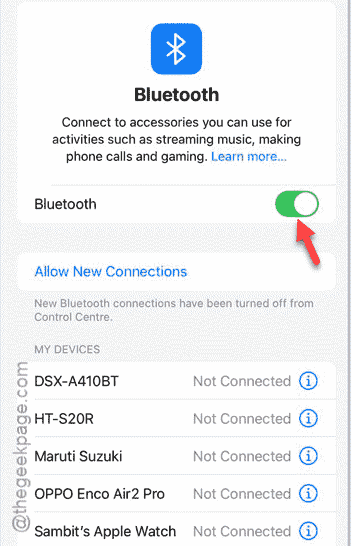
Step 1 – Go to the iPhone Settings. Open the Bluetooth settings and turn it off from there.
Step 2 – Then, wait for 10 seconds and refresh the Bluetooth to On mode.
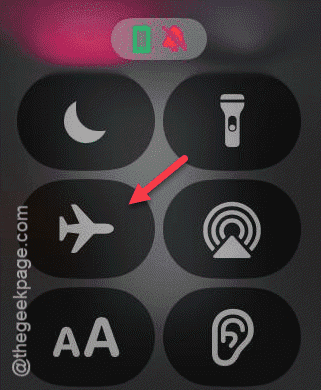
Step 3 – On the Apple Watch, swipe up to view the Control Center.
Step 4 – Then, turn on Airplane mode on the Apple Watch. Later, turn off the Airplane mode to refresh the network settings, including the Bluetooth handshake protocol.
After refreshing the whole system, try to play music or call someone from your Apple Watch.
Fix 2 – Restart both the Apple Watch and iPhone
If that does not fix the issue, a fresh restart of both the device should do the job.
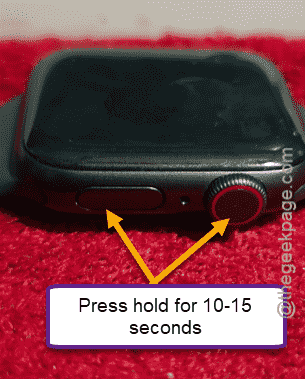
Step 1 – Hold the Digital Crown and Side button together on the Apple Watch until the Apple logo shows up on the watch.
Step 2 – Next, restart the iPhone normally. Just shut it down using the Power button in the Control Center of the iPhone.
Step 3 – Keep both the devices close after rebooting them.
This way, they will get reconnected and play some music. This time, there won’t be any stutter or sudden drop in the audio track.
Fix 3 – Unpair and re-pair the Bluetooth Audio Device
If the stuttering is still present there, you can just unpair and re-pair the Bluetooth audio device.
Step 1 – Load up the Bluetooth settings on the iPhone.
Step 2 – Find the AirPods or any other Bluetooth audio device that you are using. Tap the ℹ button to load up that device settings.
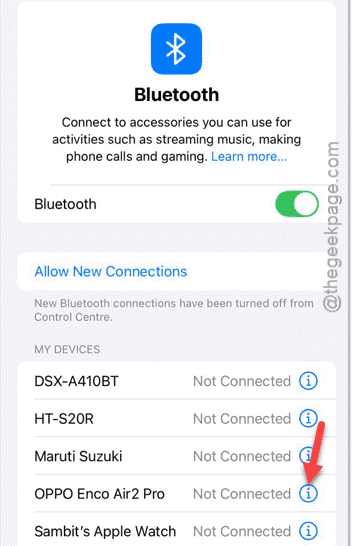
Step 3 – Then, choose to Forget this Device option to delete the device from your iPhone.
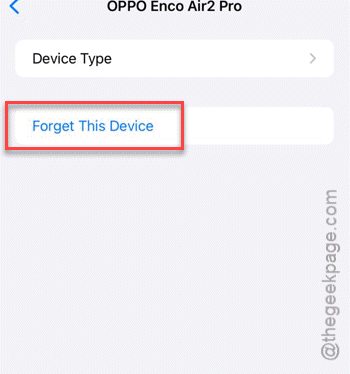
Step 4 – Put your Bluetooth device in pairing mode.
Step 5 – Come back to the Bluetooth page. You will find the device in the Other Devices section.
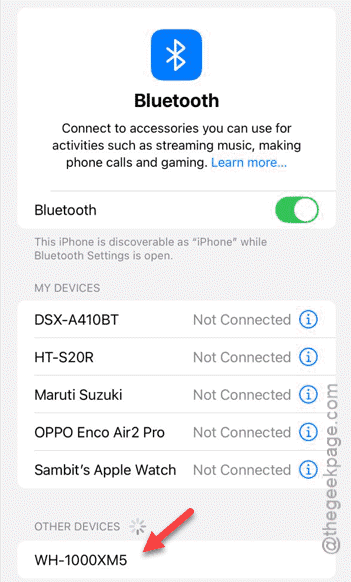
Step 6 – Tap the device once to pair it up with your iPhone.
Once the device has paired up, use it to identify and fix the issue.
Fix 4 – Reduce Wireless Interference Phenomenon
If you have too many wireless electronic devices in the proximity of your Apple Watch and iPhone. Here are some tips that you can follow to reduce the wireless interference as much as possible~
Step 1 – Move away from the Wi-Fi routers, TVs or microwaves. The electronic signal from these devices can cause some Bluetooth devices to stutter, inducing unnecessary sound.
Step 2 – Don’t use too many Bluetooth devices in proximity of each other.
Step 3 – Test the audio outside your room or away from your desk.
If you adhere to these instructions, there should not be any external sound. Hope these fixes have helped you!