You load into a game that ran perfectly last month. Ten minutes in, the whole PC hitches. Sound loops, screen freezes, then it snaps back like nothing happened. And it’s not your hardware. Build 26200 shipped with a handful of small bugs that gang up on games. The fixes below knock them out one at a time.
What’s Actually Going On
This build has a few separate problems that all look like the same stutter. Confusing? Very. That’s why one single fix rarely cures it.
The desktop slideshow feature spikes a process called DWM.exe (the Desktop Window Manager — it draws everything on your screen). When it spikes, the entire system locks up for a beat. Not just the game.
USB power saving misbehaves too. Empty USB hubs drop into low-power mode, and the polling spike on the way back interrupts the CPU mid-frame.
And some motherboard apps — MSI Center, HyperX Ngenuity — clash with this build so badly that they cause hitching all on their own. Fun, right?
Fix 1 – Switch Your Wallpaper Off Slideshow
Sounds unrelated, I know. But the slideshow refresh is the single biggest DWM.exe trigger in this build.
1 – Right-click an empty spot on your desktop and select Personalize.
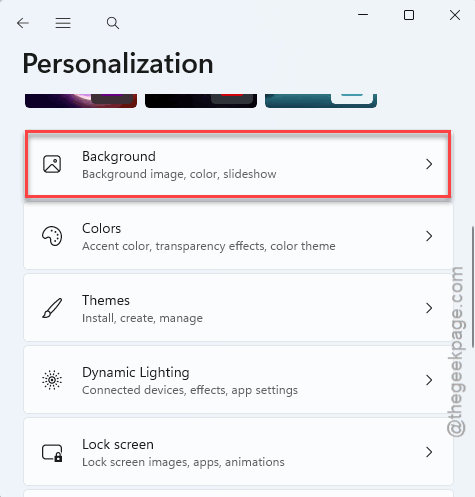
2 – Click Background. It’s the first option on that page.
3 – Find the Personalize your background dropdown.
4 – Change it from Slideshow to Picture or Solid Color.
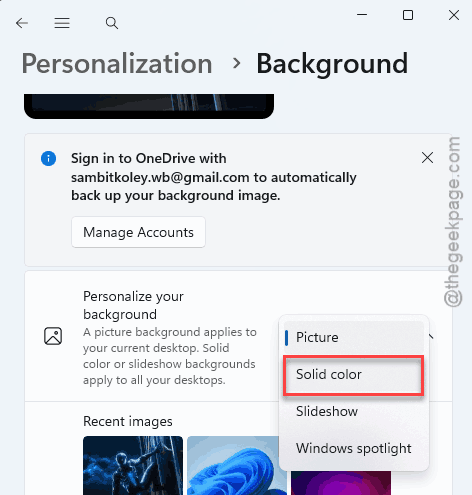
The change applies instantly (no restart needed). If your freezes came every few minutes like clockwork, this was probably the one — that rhythm matches the slideshow’s refresh timer.
Fix 2 – Turn Off USB Selective Suspend
This setting lets Windows power down USB ports to save a little energy. On this build, the wake-up causes CPU interruptions you feel as stutter.
1 – Click Start, type control panel, and open it.
2 – Go to Power Options.
3 – Click Change plan settings next to your active plan.
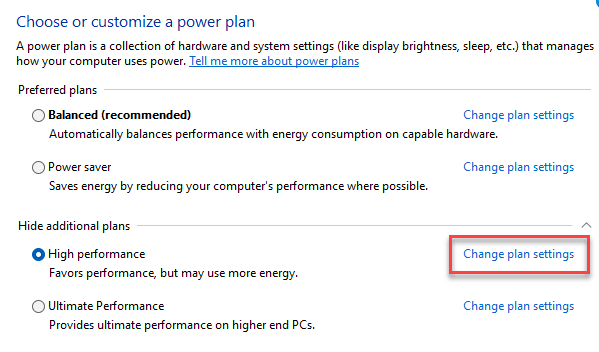
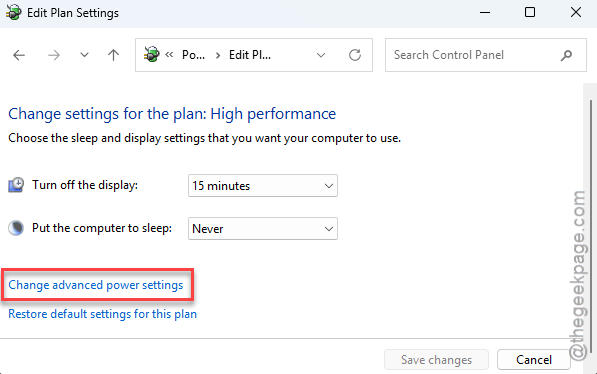
4 – Click Change advanced power settings. A small window opens.
5 – Expand USB settings, then expand USB selective suspend setting.
6 – Change it to Disabled and click OK.
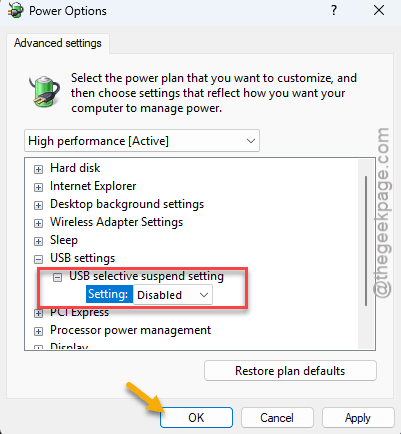
Your PC will use a tiny bit more power at idle. Worth it.
Fix 3 – Uninstall MSI Center and Ngenuity
Got a hitch every time RGB lighting changes or a stat overlay refreshes? These apps are the usual suspects. Recent updates to them conflict hard with Build 26200.
1 – Press Windows + I to open Settings.
2 – Go to Apps, then Installed apps.
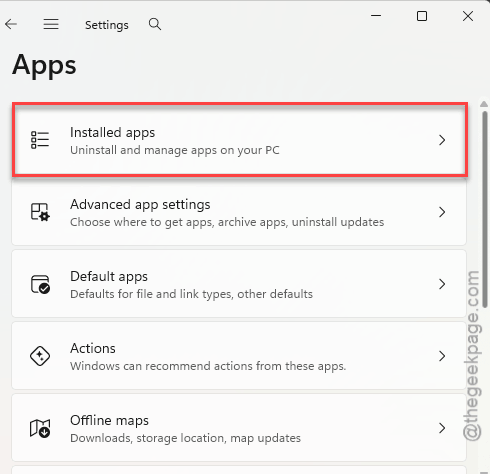
3 – Type MSI in the search box at the top. Way faster than scrolling the full list.
4 – Click the three dots (⋯) next to MSI Center and select Uninstall.
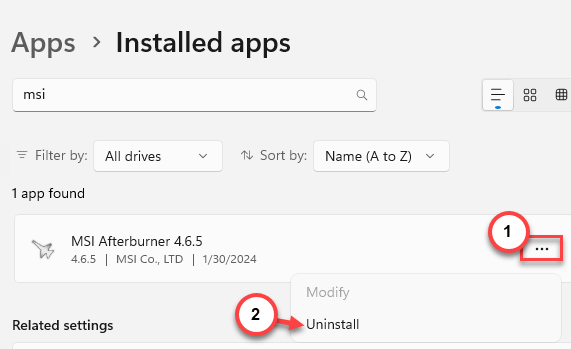
5 – Repeat the search for Dragon Center and HyperX Ngenuity if you have them.
6 – Restart your PC.
Worried about losing fan control? Your fan curves live in the BIOS, not the app — they keep working without it.
Fix 4 – Kill the Invisible Command Prompt Loops
Some broken startup apps on this build spawn command prompts over and over in the background. You never see a window (they run hidden), but they eat CPU the whole time.
1 – Press Windows + R, type cmd, and press Enter.
2 – Type this, and press Enter.
taskkill /f /im conhost.exe
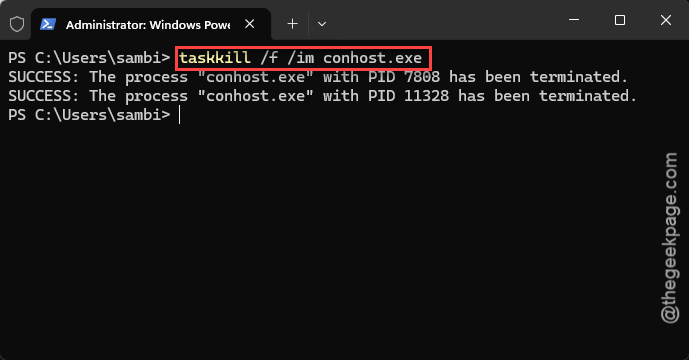
That wipes out every rogue console instance in one shot. Did the stutter stop right away? Then one of your startup apps is the real culprit — go through Settings > Apps > Startup and turn off anything you don’t recognize, or the loops will just come back next boot.
Fix 5 – Disable Fullscreen Optimizations for the Game
This build introduced a rhythmic stutter tied to the fullscreen optimization layer. Turning it off per game bypasses it.
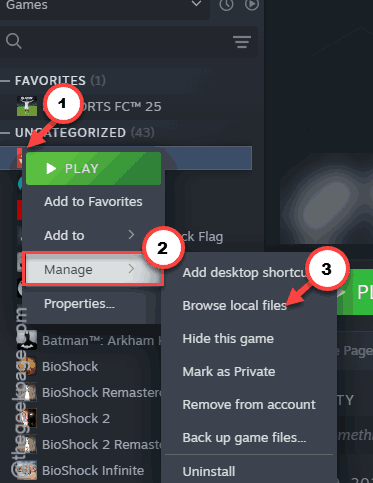
1 – Find the game’s .exe file in File Explorer. For Steam games: right-click the game in your library, then Manage > Browse local files.
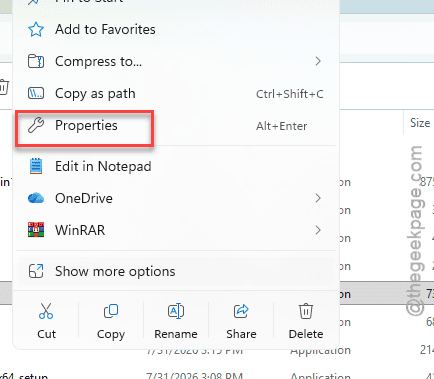
2 – Right-click the .exe and select Properties.
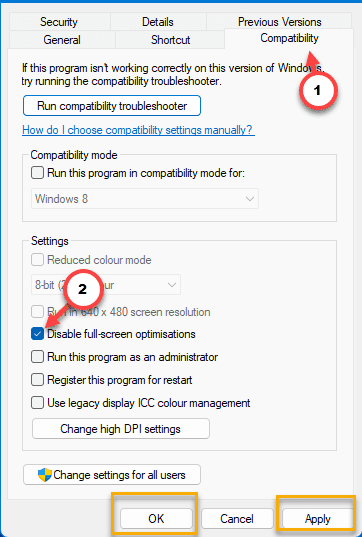
3 – Open the Compatibility tab.
4 – Check the box for Disable fullscreen optimizations.
5 – Click Apply, then OK, and launch the game.
You’ll need to repeat this for each game that stutters. Tedious? A bit. But it’s a one-time thing per game.
Fix 6 – Turn Off Auto HDR
Auto HDR tries to upgrade the colors of non-HDR games on the fly. On this build it fights the game’s own color handling and drops frames doing it.
1 – Press Windows + I to open Settings.
2 – Go to System, then Display.
3 – Click HDR.
4 – Switch the Auto HDR toggle to Off.
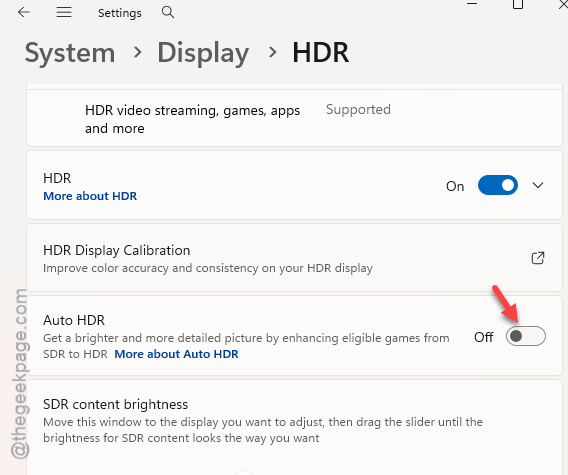
Games that support HDR natively still get it. This only stops Windows from faking it for the ones that don’t.
Fix 7 – Roll Back the Latest Update
Still freezing after all of the above? One user on the same build reported that rolling back the most recent update got things “just barely playable” again. Not a cure — their words, not mine — but a real improvement while Microsoft works on a patch.
1 – Open Settings with Windows + I.
2 – Go to Windows Update, then Update history.
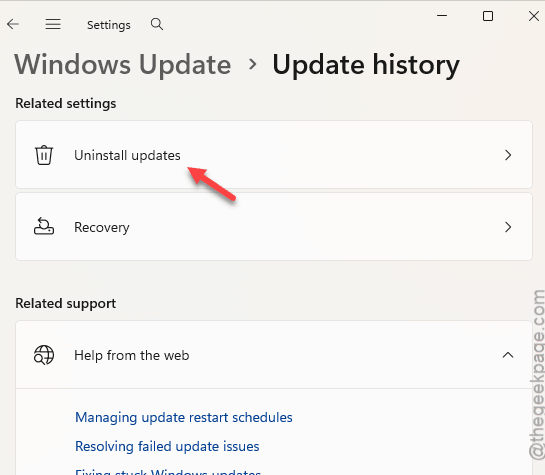
3 – Scroll to the bottom and click Uninstall updates.
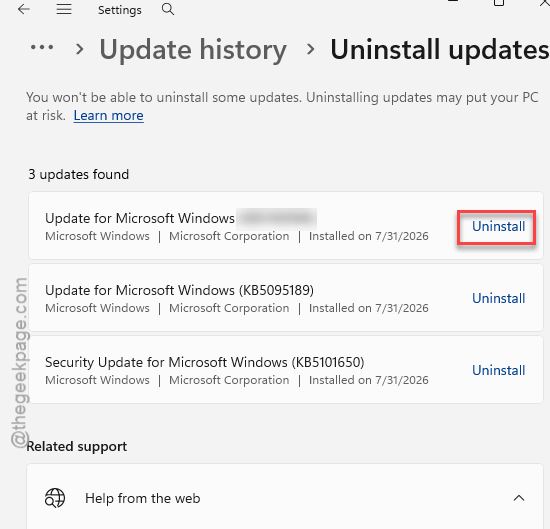
4 – Pick the most recent update and click Uninstall.
5 – Restart when asked. The rollback takes a few minutes — let it finish.
Windows will try to reinstall the same update later, so pause updates for a week or two under Windows Update > Pause updates.
So It Doesn’t Happen Again
- Keep your wallpaper on a static picture until Microsoft patches the DWM spike. A slideshow is not worth frozen games.
- Skip optional preview updates on your gaming PC. Let other people find these bugs first.
- Check for updates to MSI Center or Ngenuity before reinstalling either one. And honestly? If you only used them for RGB, leave them off.
Quick Answers
Is Build 26200 stuttering happening to everyone?
No, but it’s widespread. It hits hardest if you use a slideshow wallpaper, run MSI or HyperX software, or have several USB hubs connected. People with none of those mostly dodged it. That’s why two identical PCs can behave completely differently on this build.
Will rolling back the update fully fix the stuttering?
Probably not fully. Users who rolled back describe it as noticeably better, not perfect. Try the wallpaper, USB, and software fixes first — those target the actual bugs. Rollback is the fallback when the stutter survives everything else.
Does turning off Auto HDR make my games look worse?
Only games without native HDR lose anything, and what they lose is an artificial effect. Games built with real HDR support keep it. Most people notice smoother frames immediately and can’t spot any color difference at all.
How do I know if conhost.exe loops are my problem?
Open Task Manager with Ctrl + Shift + Esc and sort by name. A healthy PC shows a few conhost.exe entries. A dozen or more that keep multiplying? That’s the loop. The taskkill command in Fix 4 clears them instantly.