The monitor wakes up, and your gorgeous OLED suddenly looks like a radioactive swamp. Everything green-tinted. Every single wake. Here’s the short of it: HDR metadata. When the display sleeps, Windows stores the graphics state. And on wake, it sometimes reloads a corrupted color table, pushing every pixel toward green. Fast Startup makes it worse by writing that broken state to disk, and a bad monitor color profile can bake the tint in.
Most of the time, one hotkey clears it.
Fix 1 – Toggle HDR With the Hotkey
1 – Press Windows + Alt + B. The screen flashes black and HDR switches off.
2 – Wait about 3 seconds.
3 – Press Windows + Alt + B again to turn HDR back on.
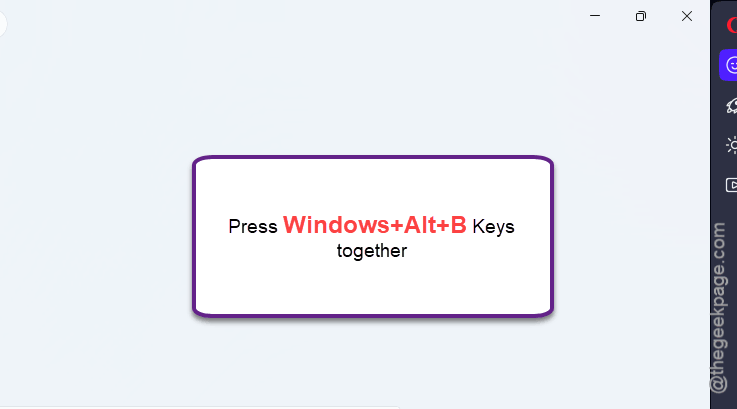
That forces the graphics stack to reload the HDR metadata from scratch. Green gone, no reboot. But this is a per-wake cure — the fixes below stop the tint from coming back.
Fix 2 – Restart the Desktop Window Manager
Hotkey didn’t clear it? Kick the compositor instead. DWM (the process that draws everything on your screen) holds the corrupted color table in video memory.
1 – Press Ctrl + Shift + Esc to open Task Manager.
2 – Find Desktop Window Manager in the process list.
3 – Right-click it and select End task. Confirm if it asks.
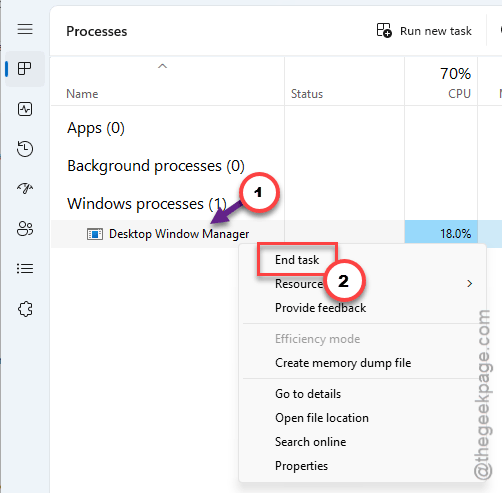
The screen flickers, then everything redraws. That’s DWM restarting itself automatically. And yes, it always comes back on its own — colors should return neutral.
Fix 3 – Rule Out the Simple Stuff
Three quick checks. Thirty seconds total.
1 – Unplug both ends of your HDMI or DisplayPort cable, then plug them back in firmly. But don’t skip this one — a loose pin can literally drop a color channel.
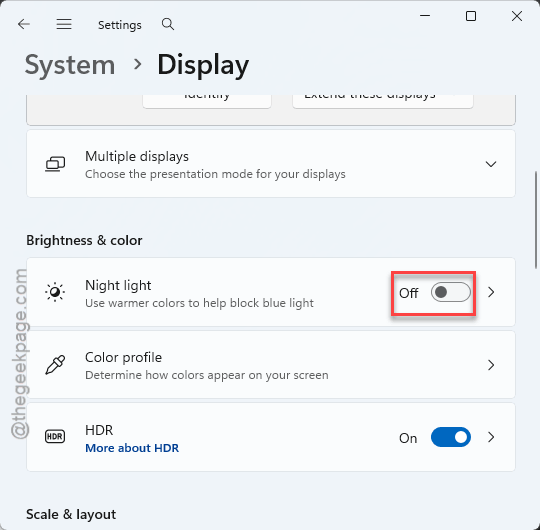
2 – Go to Settings > System > Display and flip Night light on, then off. This resets the color warmth.
3 – Go to Settings > Accessibility > Color filters and make sure the toggle is completely Off.
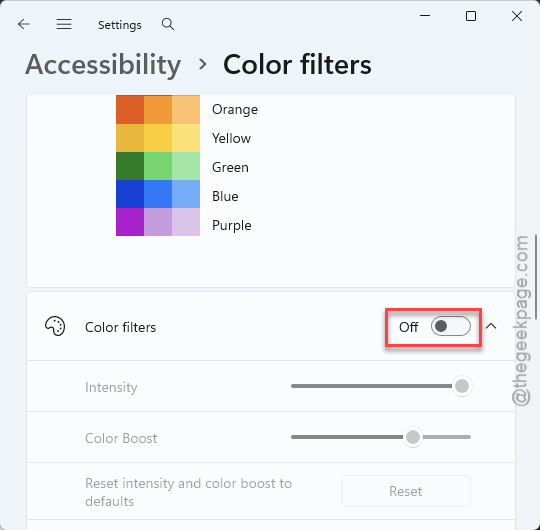
Check if this works.
Fix 4 – Turn Off Fast Startup
Fast Startup writes the graphics kernel state to disk at shutdown. Bugged state in, bugged colors out on every wake. So stop it from saving.
1 – Click Start, type “Choose a power plan”, and open it.
2 – Click Choose what the power buttons do in the left sidebar.
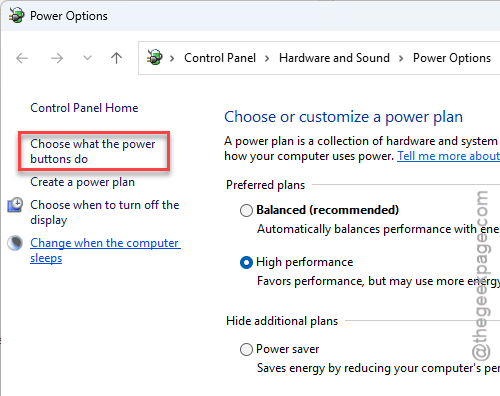
3 – Click Change settings that are currently unavailable near the top. This unlocks the checkboxes below it.
4 – Uncheck Turn on fast startup.
5 – Click Save changes.
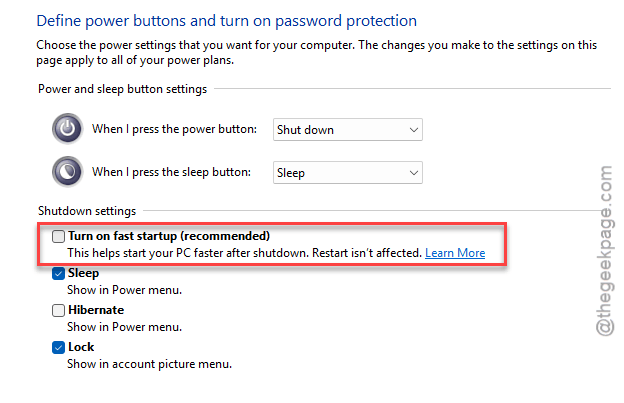
Boot takes a few seconds longer now. Fair trade.
Fix 5 – Remove the Corrupted Color Profile
Windows checks your monitor’s ICC profile (a small file describing the display’s colors) when waking from sleep. A corrupted profile fails that check. And the tint sticks.
1 – Click Start, type “Color Management”, and open it.
2 – Select your OLED monitor from the device dropdown at the top.
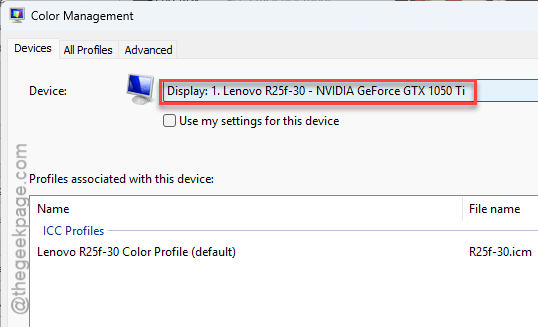
3 – Click the profile shown in the list.
4 – Click Remove.
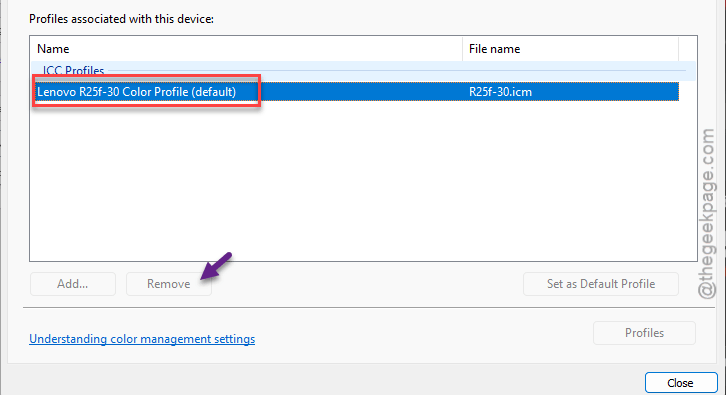
Windows falls back to a default profile. If your screen came factory-calibrated, you can grab the manufacturer’s profile from their website later.
Fix 6 – Calibrate the Green Out
Tint mild but stubborn? Recalibrate by eye.
1 – Open the Start menu, search “Calibrate display color”, and launch it.
2 – Click Next through the intro screens until you reach Adjust color balance.
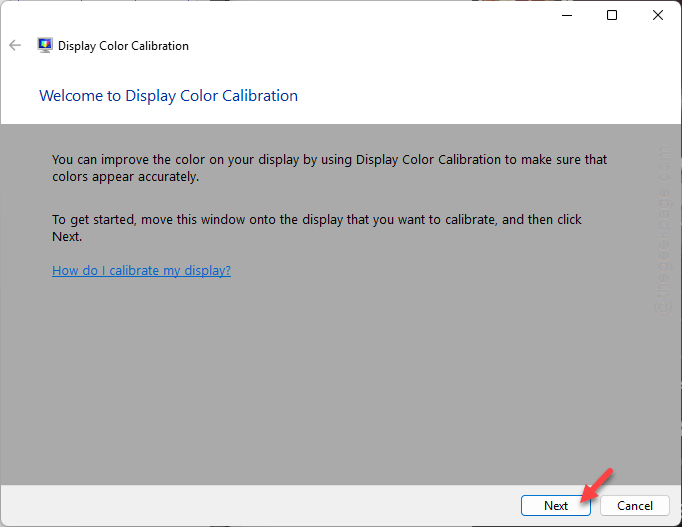
3 – Drag the Green slider to the left until neutral grays look clean instead of minty.
4 – Click Next, then Finish to save the updated profile.
Check if this works.
Fix 7 – Update or Reinstall the Graphics Driver
1 – Right-click the Start button and select Device Manager.
2 – Expand Display adapters.
3 – Right-click your GPU and choose Update driver, then Search automatically for drivers.
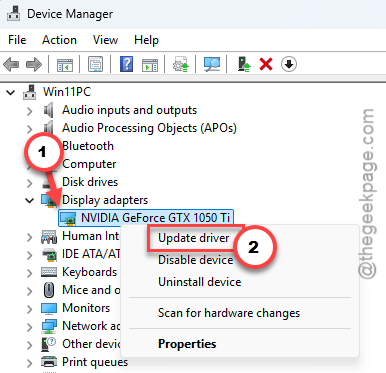
4 – Already up to date? Right-click the GPU again and pick Uninstall device instead.
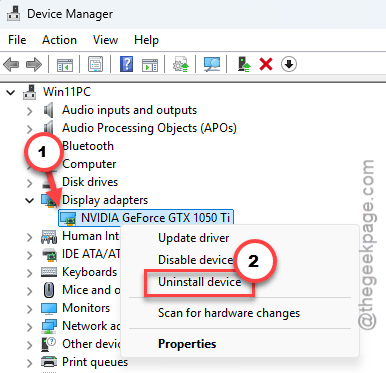
5 – Restart your PC. Windows reinstalls a clean display driver on its own during boot (the screen may sit at low resolution for a minute — normal). Sounds scary. Isn’t.
Keep It From Coming Back
- Leave HDR off for everyday desktop work. Toggle it on with Windows + Alt + B only when you’re actually watching HDR content — that sidesteps the wake bug entirely.
- Keep Fast Startup off. It saves a broken graphics state more often than it saves you time.
- Recheck the tint after every GPU driver update. The bug has a habit of riding back in on fresh drivers.
People Also Ask
Why is my HDR turning green?
The HDR metadata got corrupted when your PC woke from sleep, so Windows applies a broken color table to everything. Press Windows + Alt + B twice (off, pause, on) to force a clean reload. Turning off Fast Startup keeps the bad state from being saved.
Why does my OLED have a green tint?
If the tint appears after sleep and vanishes when you toggle HDR or restart Desktop Window Manager, it’s software — a corrupted color table or ICC profile, not the panel. A tint that survives reboots and shows on other devices’ input points to the monitor itself.