HDR on Windows breaks something every year, and this year it’s browser video. You pay for the fancy monitor, flip on HDR, and YouTube turns into a slideshow. SDR video? Perfectly smooth. Of course. I’ve chased this exact stutter across three machines. The fixes below are ordered from least to most invasive — work down the list.
Why This Happens
The stutter lives in the handoff between your browser and Windows. Chromium (the engine inside both Chrome and Edge) renders video through a translation layer called ANGLE, which currently picks a DirectX path that chokes on HDR streams.
Windows makes it worse with MPO — Multi-Plane Overlay, a trick that draws video on its own hardware layer. Great on paper. But during HDR window transitions, it drops frames on the floor.
And if you own an Nvidia RTX card, the AI video enhancers pile on top. RTX Super Resolution trying to upscale a native HDR stream just overloads the GPU. Nobody at any of these companies seems to test the whole stack together. So here we are.
Fix 1 – Change the ANGLE Graphics Backend
This swaps out the rendering path that’s causing the fight. It’s a browser flag — an experimental setting, hidden but harmless to change.
1 – Open Chrome or Edge, type chrome://flags (or edge://flags) in the address bar, and press Enter.
2 – Type angle in the search bar at the top of the page.
3 – Find Choose ANGLE graphics backend.
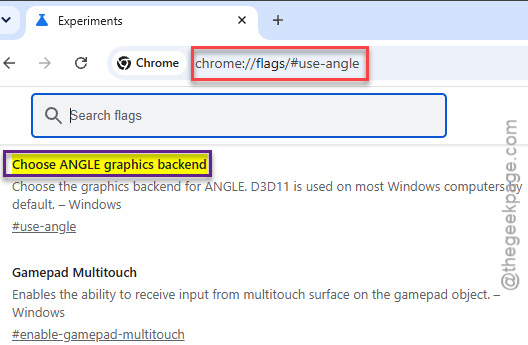
4 – Change the dropdown from Default to D3D11on12, D3D9, or OpenGL.
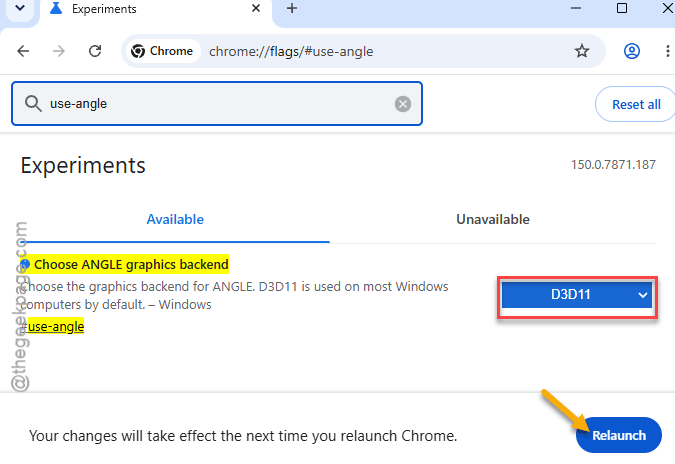
5 – Click the Relaunch button at the bottom of the screen.
Try D3D11on12 first. Still stuttering after the relaunch? Come back and try OpenGL. Different GPUs favor different backends — mildly infuriating, but it takes seconds to test each.
Fix 2 – Turn Off the RTX Video Enhancers
Disabling the RTX Video Enhancers should fix this issue.
1 – At first, right-click your desktop and open the NVIDIA Control Panel.
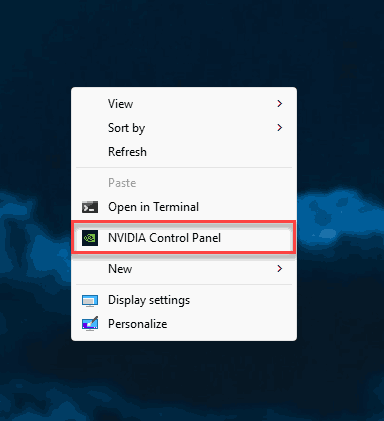
2 – Expand the Video section in the left sidebar and click Adjust video image settings.
3 – Find the RTX Video Enhancement section on the right side.
4 – Uncheck both Super resolution and High Dynamic Range.
5 – Click Apply at the bottom right, then restart your browser.
Native HDR content loses nothing here. The stream was already HDR — the AI layer was just repainting it and dropping frames for the privilege.
Fix 3 – Disable Hardware-Accelerated Video Decode
This hands decoding to your CPU instead of the GPU. Blunt? Sure. But it bypasses the broken GPU path completely, and any CPU from the last decade streams video without breaking a sweat.
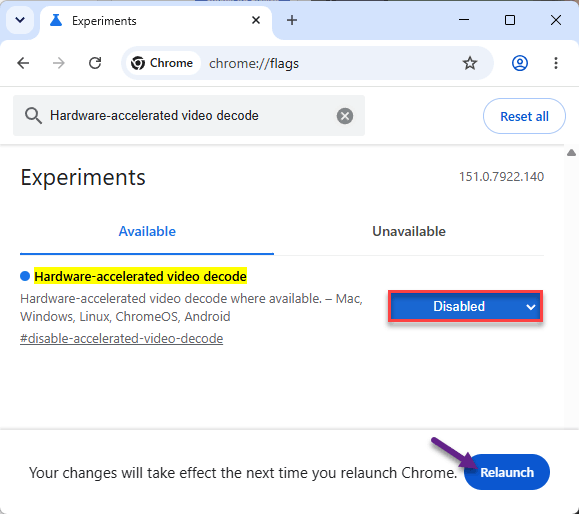
1 – Go back to chrome://flags (or edge://flags) like in Fix 1.
2 – Search for Hardware-accelerated video decode.
3 – Set it to Disabled.
4 – Relaunch the browser.
Laptop users, note: CPU decoding eats more battery. On a desktop you will not notice a thing.
Fix 4 – Disable MPO Through the Registry
Multi-Plane Overlay has been breaking things since Windows 10 — flickering then, frame drops now. There’s no settings toggle for it. Registry only, because apparently that’s fine.
Quick safety note: the registry is Windows’ core settings database. Follow the exact path below and nothing else.
1 – Press Windows + R, type regedit, and press Ctrl + Shift + Enter to run it as administrator.
2 – Go to HKEY_LOCAL_MACHINE\SOFTWARE\Microsoft\Windows\Dwm — paste the path into the address bar at the top.
3 – Right-click the Dwm folder in the left pane and select New > DWORD (32-bit) Value.
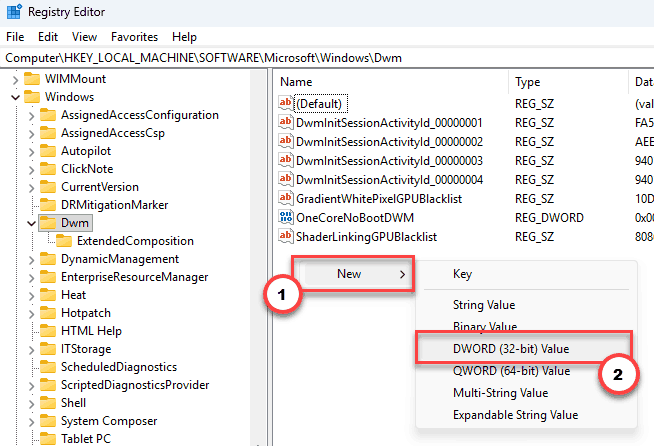
4 – Name it OverlayTestMode.
5 – Double-click it and set the value data to 5.
6 – Click OK and restart your computer.
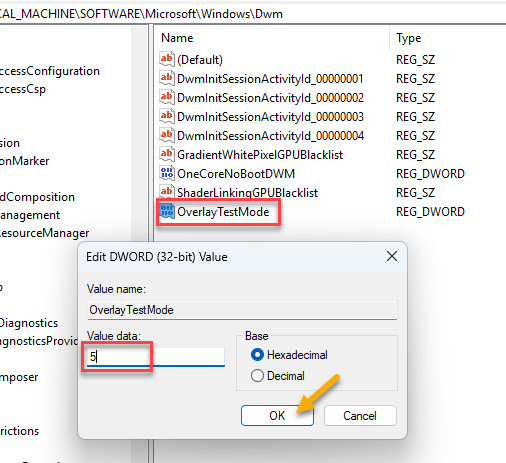
To undo it later, delete that value and reboot. Gone like it never happened.
Fix 5 – Force the Browser Into SDR Mode
You can trick the browser into treating your monitor as SDR, so it never requests the broken HDR stream. The rest of Windows keeps HDR — only the browser opts out.
1 – Right-click your Chrome or Edge shortcut and select Properties.
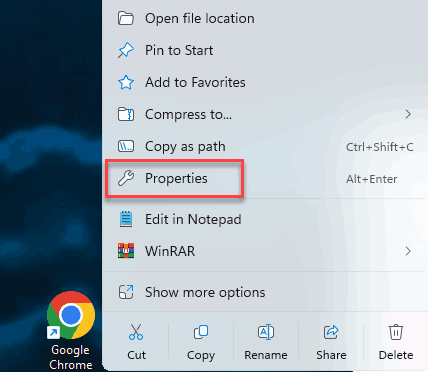
2 – In the Target box, click at the very end of the existing text.
3 – Add a space, then paste:
--force-color-profile=srgb
4 – Click Apply, then OK.
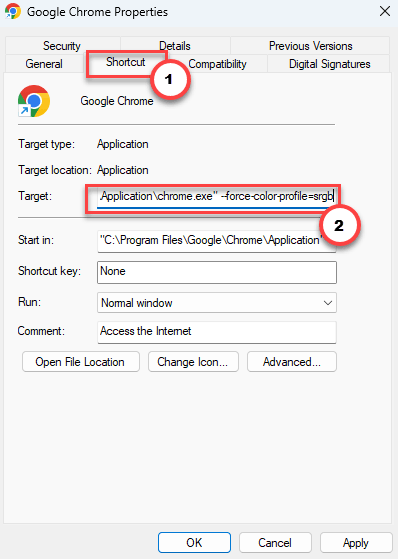
5 – Close the browser fully and reopen it from that shortcut.
Videos play in SDR from now on. Less pop, zero stutter. Your call whether that trade is worth it as a stopgap.
Fix 6 – Turn Off PlayReady DRM in Edge
Netflix-specific, this one. The DRM handshake (the copy-protection check before playback) stalls video frames on the newest display driver stack.
1 – In Edge, go to edge://flags.
2 – Search for PlayReady DRM for Windows 10.
3 – Set it to Disabled and relaunch.
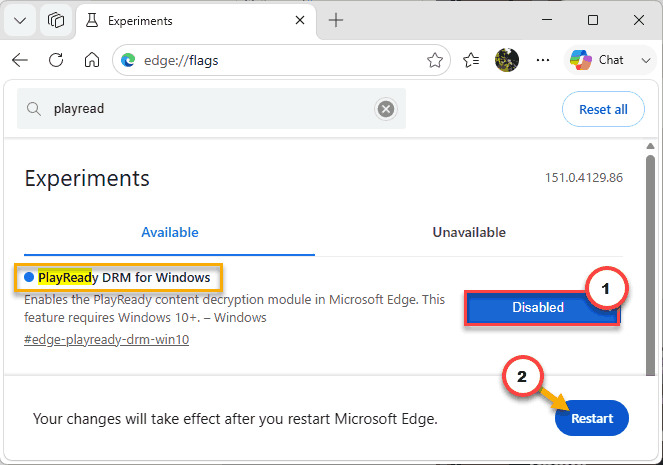
Edge falls back to the same DRM system Chrome uses. Netflix may serve a slightly lower resolution tier that way — smooth beats sharp when you’re watching an actual stutter-fest, though.
Fix 7 – Watch Through the Native App Instead
The nuclear option: skip the browser entirely. The Netflix app from the Microsoft Store uses a different rendering path that dodges this whole Chromium bug.
1 – At first, launch the Microsoft Store
2 – Then, search for the app, and install it.
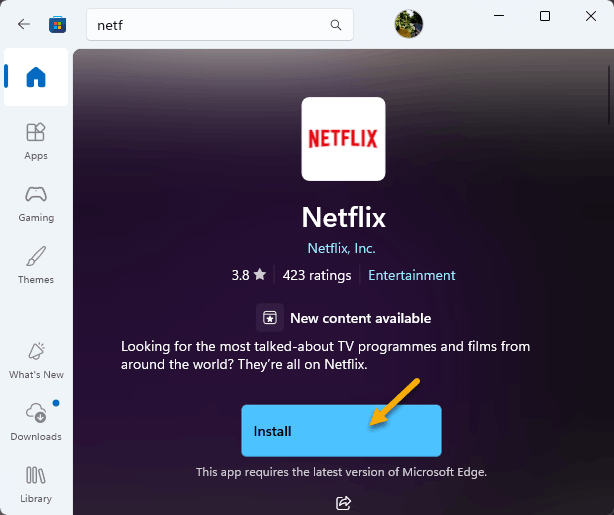
It should not take more than two minutes. And honestly, for HDR content on Windows, the native apps have always been the stable route — this bug just makes it obvious.
How to Prevent This
- After every big Windows 11 or GPU driver update, test one HDR video before settling in for a movie. This class of bug always rides in on updates.
- Keep the RTX video enhancers off unless you actually watch low-res SDR content. That’s the only case they help.
- Remember any flags you changed. Browser updates reset flags now and then, and a returning stutter usually just means a reset flag. Check there first.
People Also Ask
Why do HDR videos stutter in Chrome but not in apps?
Chrome and Edge render video through Chromium’s ANGLE layer, which currently picks a DirectX path that fails on HDR streams. Native apps like Netflix from the Microsoft Store use a different rendering API entirely, so the bug never touches them.
Is it safe to change chrome://flags settings?
Generally yes. Flags are experimental toggles, and the worst realistic outcome is odd rendering until you change the flag back. Anything you set can be reverted to Default on the same page. Note that browser updates sometimes reset them for you.
Does disabling MPO cause any problems?
For most people, no — plenty of gamers disable it to stop flickering. The OverlayTestMode registry value forces Windows to composite video the traditional way, which can use slightly more GPU. Delete the value and reboot to restore the default anytime.