You press the shiny new Copilot key on your keyboard. And Windows Search pops up. Not Copilot. Every single time. The key exists for one job, and it’s doing the wrong one.
Why This Happens
Windows has a rule baked in. No Copilot available? Fall back to Search. So the key defaults to the search box whenever Copilot can’t run.When can’t it run? A few reasons. You might be on a local account instead of a Microsoft one. The Copilot app might not be installed at all on a fresh PC.
Or your region blocks Copilot entirely. Or a work or school policy has switched off AI features across the whole machine.
So the key isn’t broken. It’s doing exactly what it’s told when Copilot is out of reach.
Fix 1 – Set What the Key Does
Windows 11 has a dedicated toggle for this. Check it first.
1 – Press Windows + I to open Settings.
2 – Click Personalization in the left sidebar.
3 – Scroll down the right pane and click Text input.
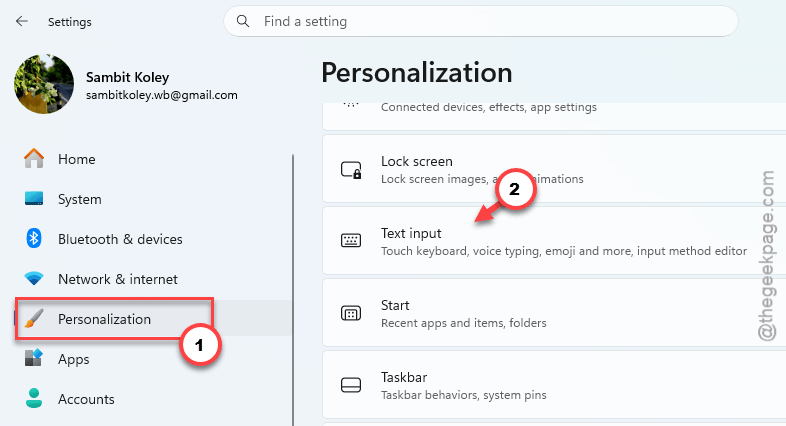
4 – Open the Keyboard settings, next. Find Customize Copilot key on keyboard.
5 – Open the dropdown and make sure it says Copilot — not Search and not Custom.
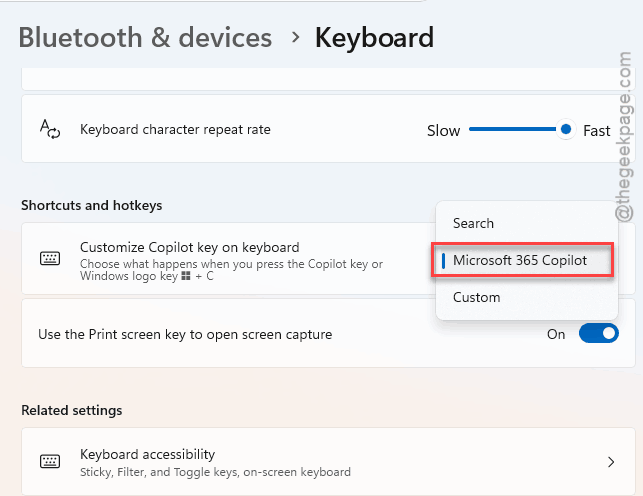
If it was already set to Copilot but the key still opens Search, Copilot itself isn’t reachable. Keep going.
Fix 2 – Sign In With a Microsoft Account
Copilot won’t run on a local account. It needs a Microsoft account behind it. On a local login, the key has nothing to open, so it drops back to Search.
1 – Press Windows + I to open Settings.
2 – Click Accounts, then Your info.
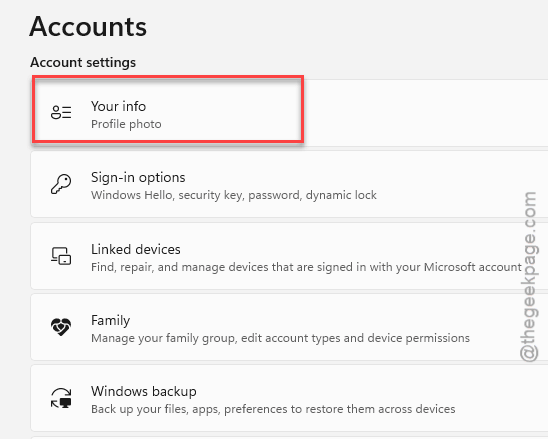
3 – Use the Sign in with a Microsoft account instead option.
4 – Then, follow the prompts to sign in or create an account.
Check if this works.
Fix 3 – Install the Copilot App
Quick check. The key maps to the actual Copilot app, and some fresh installs of Windows don’t include it.
1 – Open the Microsoft Store.
2 – Search for Microsoft Copilot.
3 – Then, install the official app.
Once it’s on your PC, the key has something real to point at.
Fix 4 – Unblock Copilot in Group Policy
On a work or school PC? An admin policy may have shut Copilot off entirely. That’s the classic cause when nothing above helps. This needs Windows 11 Pro or higher.
1 – At first, press Windows + R.
2 – Then, type gpedit.msc, and press Enter.
3 – In the left pane, expand User Configuration, then Administrative Templates, then Windows Components.
4 – Click Windows Copilot.
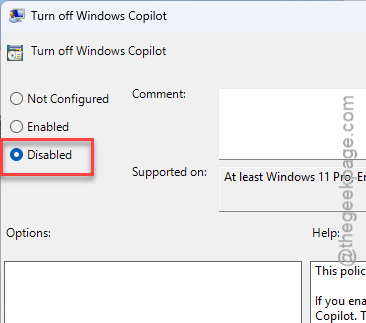
5 – Double-click Turn off Windows Copilot in the right pane.
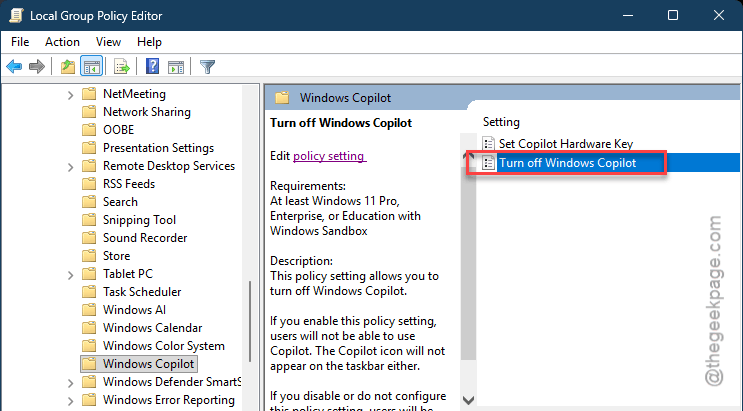
6 – Set it to Disabled, then click OK.
7 – Restart your PC.
If your machine is managed by an IT department, you may not have the access to change this. In that case, ask them — the block is on their end.
Fix 5 – Remap the Key With PowerToys
Copilot blocked in your region and you just want the key to do something useful? Microsoft’s free PowerToys tool lets you point it anywhere — a website, an app, whatever.
1 – Download Microsoft PowerToys from the Microsoft Store and install it.
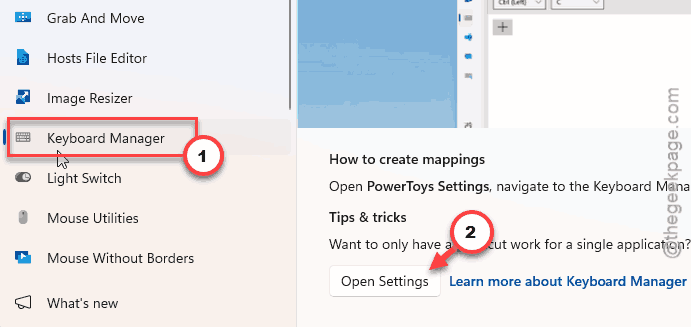
2 – Open PowerToys and click Keyboard Manager in the left menu.
3 – Click Remap a key.
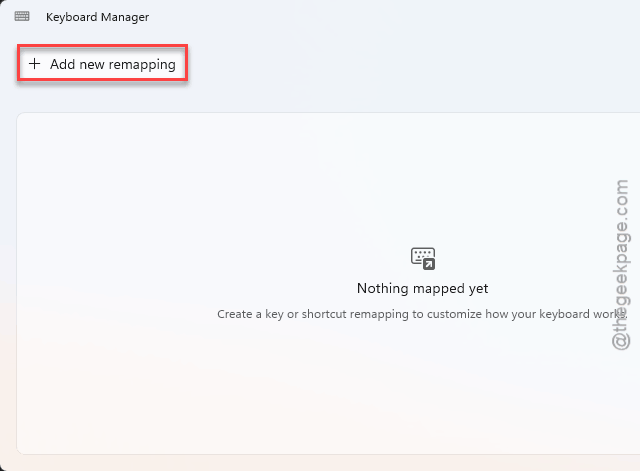
4 – Click the + button to add a new mapping.
5 – For the key to remap, press your Copilot key. It usually registers as Left Shift + Windows + F23.
6 – Set the right side to whatever you want the key to do instead.
7 – Click OK at the top to save.
How to Prevent This
– Stay signed in with a Microsoft account if you want the key working. Local accounts always fall back to Search.
– After a clean Windows install, check that the Copilot app is actually there before blaming the key.
– On a personal PC, leave the Copilot group policy alone.
People Also Ask
Why does my Copilot key open Windows Search?
Because Copilot isn’t reachable, so the key falls back to Search by design. The usual reasons are a local account instead of a Microsoft one, a missing Copilot app, or a region or work policy that blocks it. Sign in with a Microsoft account and check the key setting under Personalization > Text input.
How do I change what the Copilot key does?
Go to Settings > Personalization > Text input and open Customize Copilot key on keyboard. You can set it to Copilot or Search there. For anything else — a website, a different app — use Microsoft PowerToys and its Keyboard Manager to remap the key however you like.