You click Draft with Copilot in Outlook. And nothing. Or it spins, then throws a vague error. No email. No draft. Just a dead button where the AI used to be. Annoying when you were mid-thought.
Why This Happens
Short version? Copilot in classic Outlook leans on a live connection back to Microsoft’s servers. When that handshake breaks, the Draft feature just quits on you.
And there are a few reasons the handshake breaks. Your Microsoft 365 Copilot license check might time out. Your saved sign-in tokens might go stale. Sometimes your Windows account quietly loses its link to the cloud.
But here’s the part most people miss. A lot of this wasn’t your fault at all. There was an actual bug on Microsoft’s end. Their own Outlook team pushed a server-side fix on May 27, 2026.
So before you go tearing your setup apart? Start with the easy stuff. Odds are good it’s already handled.
Fix 1 – Update Outlook and Restart It
This is the one that fixes it for most people.
1 – In Outlook, click File in the top left.
2 – Click Office Account on the left side.
3 – Click Update Options, then Enable Updates.
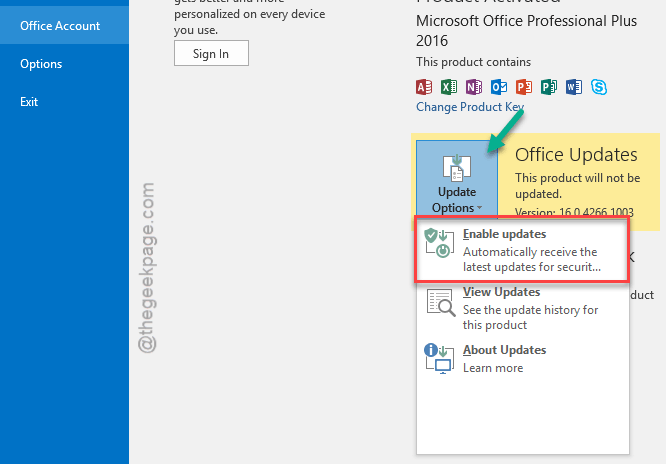
If you turned updates off earlier to dodge this problem, this step turns them back on. Important — the fix can’t reach you with updates disabled.
4 – Click Update Options again, then Update Now. Let it finish.
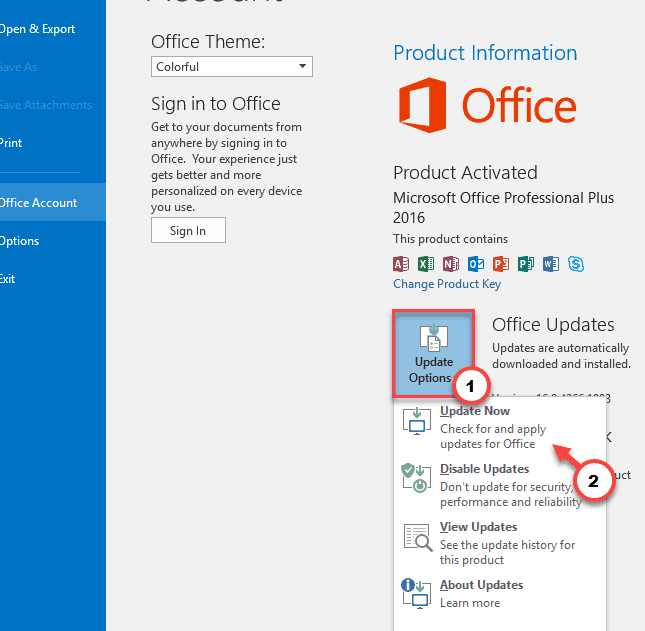
5 – Close Outlook completely. Then reopen it.
Try the Draft button again. For a good chunk of people, that’s the whole story.
Fix 2 – Force a License Sync
Copilot checks that your subscription is active before it does anything. If that check hangs, the feature times out.
1 – Click File, then Office Account.
2 – Click Update Options.
3 – Click Update Now. This pings Microsoft and re-confirms your Copilot license in one go.
Worth doing even if Fix 1 seemed to work. It’s quick.
Fix 3 – Clear Your Cached Sign-In Tokens
Windows keeps your Office sign-in details saved so you’re not typing passwords all day. Wiping them forces a fresh login handshake.
1 – Click Start and type Credential Manager.
2 – Open it, then click Windows Credentials.
3 – Scroll the list and find every entry that starts with MicrosoftOffice16.
4 – Click each one, then click Remove. Don’t worry — Office rebuilds these the next time you sign in.
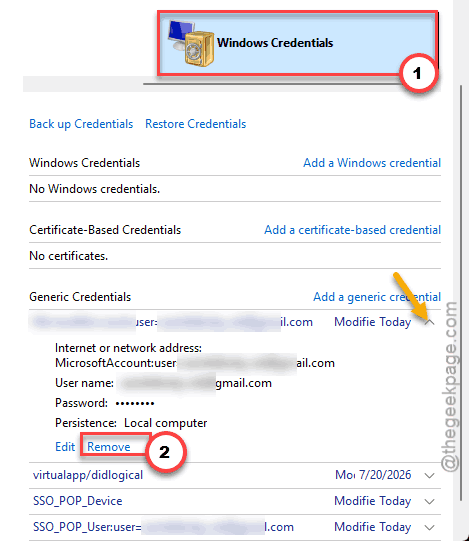
5 – Reopen Outlook. It may ask you to sign in again. Let it.
Fix 4 – Reconnect Your Work or School Account
If your Windows profile drifts out of sync with the cloud, it silently kills Copilot’s requests. Reconnecting the account fixes the link.
1 – Press Windows + I to open Settings.
2 – Click Accounts.
3 – Click Access work or school.
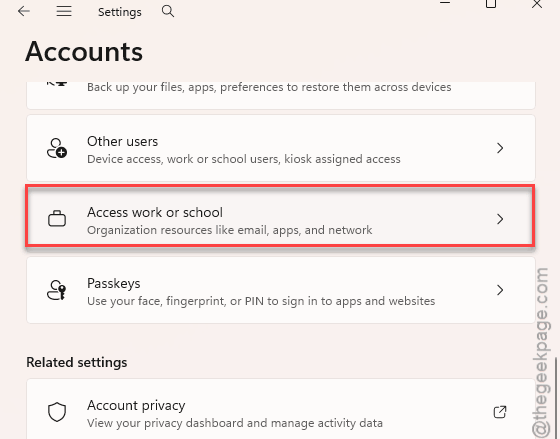
4 – Click your account, then click Disconnect.
5 – Restart your PC.
6 – Come back to the same screen and sign back in with Connect.
Fix 5 – Run an Online Repair on Office
Still stuck? Time to repair the install itself.
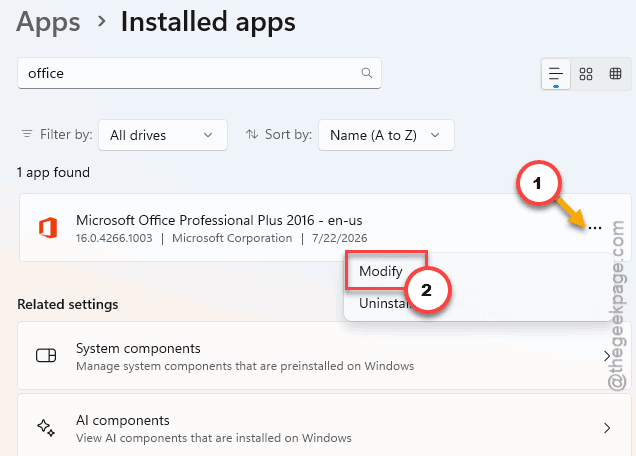
1 – Press Windows + I, go to Apps, then Installed apps.
2 – Find Microsoft 365, click the three dots (⋯) next to it, and choose Modify.
3 – Pick Online Repair and let it run.
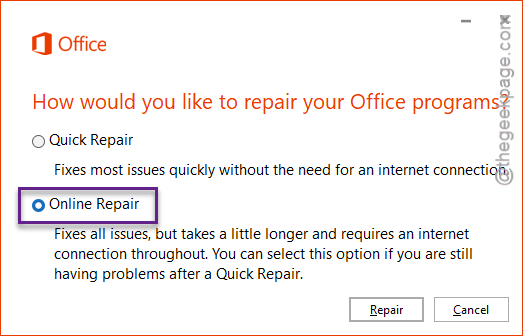
This reinstalls the broken Copilot add-in pieces without touching your emails. Takes a while, so grab a coffee.
Fix 6 – Delete the Office Identity Key
Nuclear option. Save this for when nothing above worked.
1 – Press Windows + R, type regedit, and press Enter.
2 – In the address bar at the top, paste this and press Enter:
HKEY_CURRENT_USER\Software\Microsoft\Office\16.0\Common\Identity
3 – In the left pane, right-click the Identity folder and choose Delete.
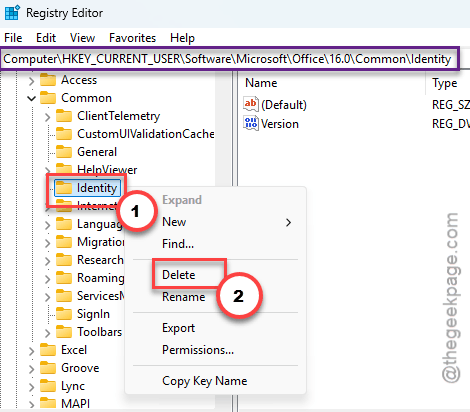
4 – Close the registry editor and restart your PC.
When you reopen Outlook, it builds a clean identity from scratch. Sign in when prompted and test Copilot again.
How to Prevent This
– Leave Outlook updates on. This whole thing was a bug Microsoft fixed in an update — turning updates off just locks you out of the cure.
– Restart Outlook fully once a week or so. Fresh sessions dodge the stale-token problem before it starts.
– Don’t roll back your Office version to skip a glitch unless you truly have to. You’ll miss the fix that follows.
– Keep your work or school account signed in and synced. A drifting account is the quiet cause behind half of these.
People Also Ask
Why is Copilot not working in old Outlook?
Usually it’s a broken connection to Microsoft’s servers — a timed-out license check or a stale sign-in token. There was also a real bug that Microsoft patched server-side in May 2026. Update Outlook and restart it fully. That clears most cases on its own.
How do I get rid of the draft Copilot created in Outlook?
Just select the drafted text and delete it like any other text, then write your own. Copilot never sends anything on its own — the draft only sits in your compose window until you choose to send. Nothing leaves your outbox without you clicking Send.