Having some problem with the Read Aloud feature on the Microsoft Edge browser? Edge users utilize this Read Aloud feature extensively to read PDFs, webpage, reports directly from the Microsoft Edge browser. It seems that this particular issue has stem from misconfigured network settings, microphone driver problem or outdated Edge version. Apart from that, there is the new PDF viewer flag that may have interfered with the normal read aloud function on Microsoft Edge. These solutions should help you resolve this problem.
If you want to just a brief overlook, here is the Quick Fix table for you~
| Issue Cause | Quick Fix | Time Needed |
|---|---|---|
| New PDF Viewer Flag | Open edge://flags, and disable New PDF Viewer flag | 2 min |
| Corrupted network configuration | Elevate a Command Prompt window with admin rights. Then, execute this code – netsh winsock reset | 3-4 min |
| Obsolete Edge version | Update Microsoft Edge | 2-3 min |
But, if you want the detailed step-by-step guide, go through these ~
Fix 1 – Disable the New PDF Viewer flag in MS Edge
The ‘New PDF Viewer’ flag, while useful to enhance the preset setup to access the PDF files, can break some features like Read Aloud.
Step 1 – At first, open a new tab in Microsoft Edge. Then, paste this there and hit Enter.
edge://flags
Step 2 – Once you have opened up the Flags page, search for the New PDF Viewer there.
Step 3 – Once you have got to the flag, set it to Disabled mode from there.
Step 4 – After disabling the flag, you will get a relaunch button to relaunch the MS Edge browser.
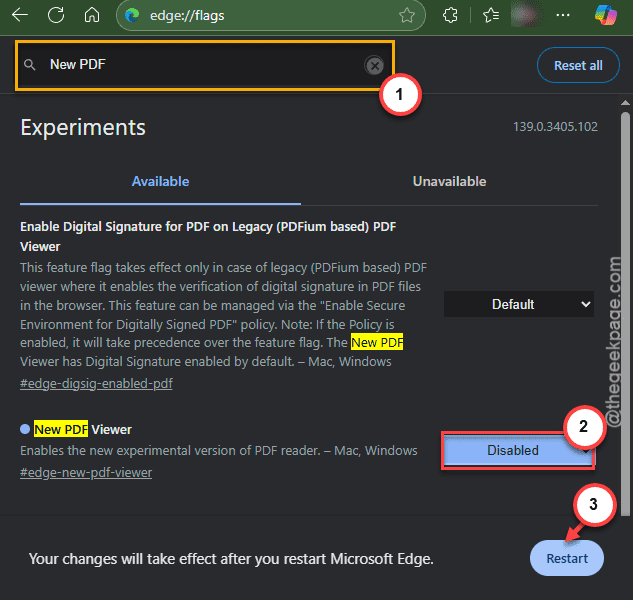
Once the browser window relaunches, you can use the read aloud function again.
Fix 2 – Flash the PC’s network configuration
The current network profile that you are using on the device can cause such problems with the Read aloud mechanism on Microsoft Edge.
Step 1 – Type the cmd in the search box. Next, right-click the Command Prompt there, and tap the Run as administrator option.
Step 2 – Then, paste these codes there, one-by-one and hit Enter to flush the network configuration and reset all of them back to normal.
netsh winsock reset
netsh int ip reset
ipconfig /release
ipconfig /renew
ipconfig /flushdns
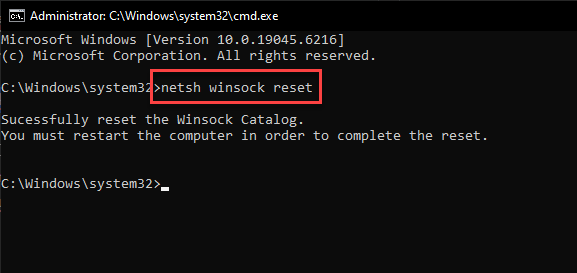
After running all of these codes, quit the CMD terminal. Then, restart your computer once.
Once you have restarted, check whether the read aloud is working or not.
Fix 3 – Update the Edge to latest build
It can be just be a glitch or bug in the Microsoft Edge browser.
Step 1 – On the Microsoft Edge, tap the three-dot button on the right corner. Tap the Help & Feedback option.
Step 2 – Tap the About Microsoft Edge option.
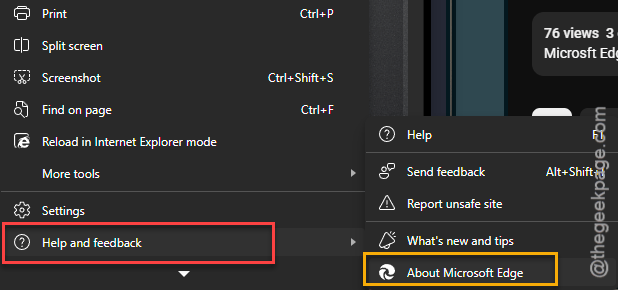
It will scan for the latest Edge browser update.
Step 3 – If there is an update pending for MS Edge, it will install the latest version of the browser automatically. Tap the Relaunch button once the installation has finished.
Once the update process has finished, try using the Read aloud option again in the MS Edge.
Bonus Tip (Workaround)~ Use Flexi PDF Reader
If you are still having the issue with the Read Aloud feature on MS Edge, you can use other third-party tools such Flexi PDF Reader to read aloud the Edge browser.
Step 1 – Load up the Flexi PDF Reader on your Microsoft Edge browser.
Step 2 – Then, tap the Get option to install it on your browser. Click the Add extension option to add it.
Step 3 – Once the extension is added, you can use it to access the PDF.
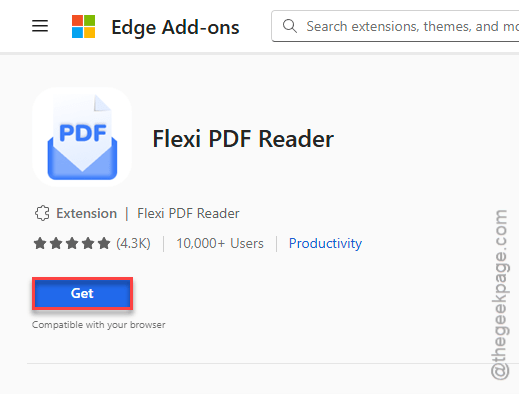
This can be a suitable alternative to the usual read aloud feature on MS Edge.
FAQs –
1. Why the Read Aloud is not working in Microsoft Edge?
The problem of the Read Aloud in MS Edge seems to have stem from the network/proxy or windows sockets wired behaviour. On the other hand, certain flags can also create issues with the read aloud structure of the Edge. But, sometimes, the read aloud function may be blocked on some of the secure documents due to privacy or other sort of restrictions applied by the PDF creator.
2. Does Read Aloud work offline in Microsoft Edge?
Yes. The Read Aloud function of Microsoft Edge works just fine in offline mode. But, the Read Aloud needs system-installed voice modules on Windows to function properly. The other voice services require an internet connection.
3. Why the Read Aloud is greyed out in Microsoft Edge?
The restriction imposed by the PDF owner can disable or limit the read aloud feature on some PDF, documents or images. Typically, these files have copyright-protected contents and can’t be read aloud using Edge in the standard way. You can just copy-paste the text contents elsewhere and then use the read aloud function.