Spell check just stopped working in Edge. You’re typing in Gmail, a comment box, some random text field — and misspelled words used to get those red squiggles. Now? Nothing. Words look fine even when they’re clearly not.
And it usually happens out of nowhere. One Edge update later and the whole thing is broken. Annoying.
Why This Happens
Short version: Edge updates love to reset spell check settings. Especially Enhanced Spellcheck.
There’s this hidden page — edge://settings/languages/writingAssistanceLanguages — where each installed language has its own toggle for spellcheck and grammar. After certain Edge updates? Those toggles flip off. For some reason. No warning. No notification. Spellcheck just dies quietly.
And it’s not just Edge that needs to be set up. Spell check needs Windows configured too. Both layers have to play nice. If either one is off, no squiggles. Anywhere.
There was also a real bug in older Edge builds. Microsoft patched it in stable release 136.0.3240.64. Anything older than that? You might just be stuck with broken spellcheck no matter what you toggle. So updating is non-negotiable.
Fix 1 – Update Edge to 136.0.3240.64 or Later
Start here. Microsoft fixed a real spellcheck bug in this build. If you’re on anything older, the rest of these fixes might not even matter.
1 – Open Microsoft Edge.
2 – Click the three-dot menu (⋯) in the top-right corner.
3 – Hover over Help and feedback.
4 – Click About Microsoft Edge.
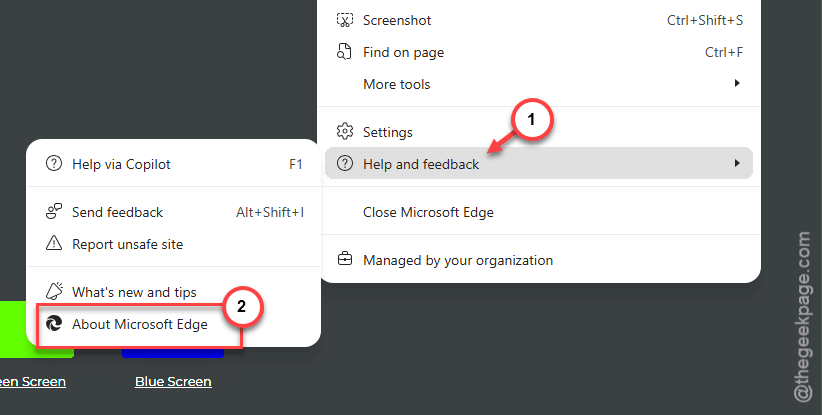
5 – Edge checks for updates automatically on this page. Let it install whatever it finds.
6 – Click Restart when it prompts you.
Check the version number at the top after restart. Should say 136.0.3240.64 or higher. If yes, move to Fix 2.
Fix 2 – Switch the Enhanced Editor to Basic
Microsoft Editor or specifically the Enhanced Editor mode sometimes hijacks spellcheck and breaks it. Switching to Basic fixes it for a lot of people.
1 – Open Edge Settings (three-dot menu ⋯ → Settings).
2 – Click Languages in the left sidebar.
3 – Scroll to Use grammar and spell-check assistance section.
4 – Then, choose the Basic mode. Or just turn writing assistance off entirely if you don’t care about grammar suggestions.
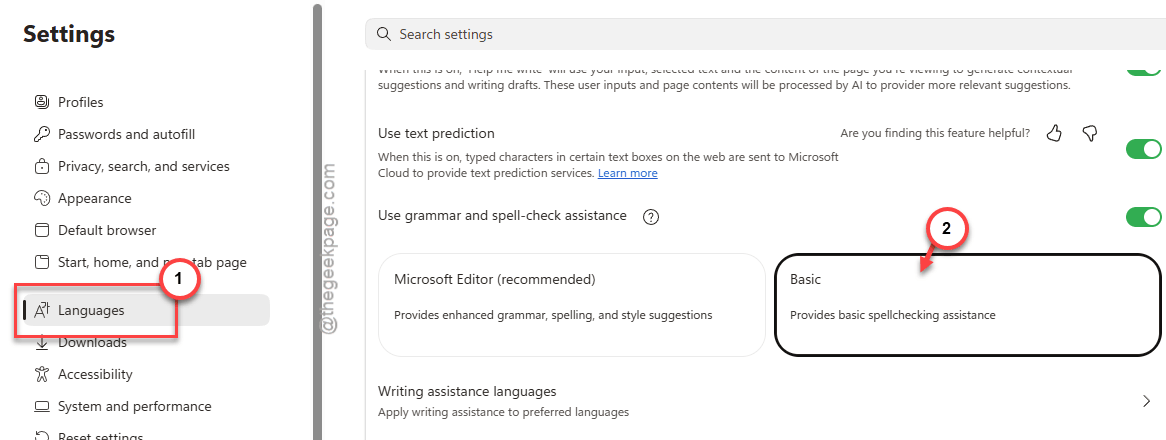
Basic uses Edge’s standard spellcheck. Less fancy. But way more reliable. The Enhanced version has been buggy for a while now.
Fix 3 – Re-enable Enhanced Spellcheck for Each Language
This is the big one. Edge updates silently turn these toggles off. And almost nobody knows where to look.
1 – Open Edge.
2 – Click the address bar at the top and paste this:
edge://settings/languages/writingAssistanceLanguages
3 – Press Enter.
4 – You’ll see a list of installed languages — English (United States), English (UK), whatever you’ve added over time.
5 – For each language, make sure both Enhanced Spellcheck and Grammar are toggled on.
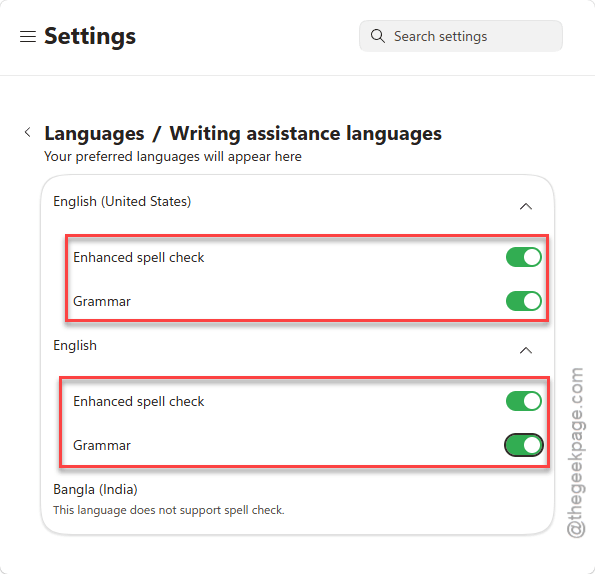
Probably they’re off. That’s the whole problem. Especially after a recent update.
Restart Edge. Try typing something misspelled in any text field. Squiggles should be back.
Fix 4 – Check the Main Spellcheck Toggle
Quick one. Edge has a master spellcheck switch buried in Languages settings.
1 – Open Edge, click the three-dot menu (⋯), then click Settings.
2 – Click Languages in the left sidebar.
3 – Find the Use grammar and spell-check assistance section and turn it On.
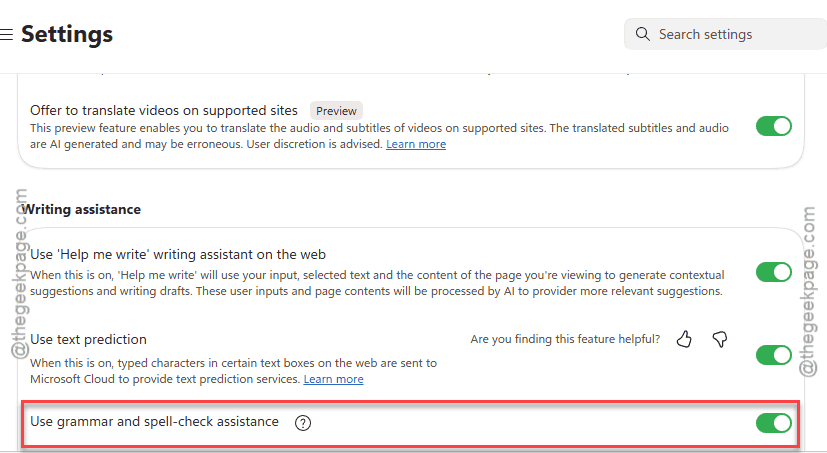
And here’s the catch — English (United States) and English (United Kingdom) are different languages to Edge. If spellcheck is on for US but you write in UK English? No squiggles. Turn on whichever you actually use. Or both.
Fix 5 – Fix the Windows-Level Spell Check Setting
Edge isn’t the only piece. Windows itself has a spell check setting. Both have to be on.
1 – Press Windows + I to open Settings.
2 – Click Time and language in the left sidebar.
3 – Click Typing.
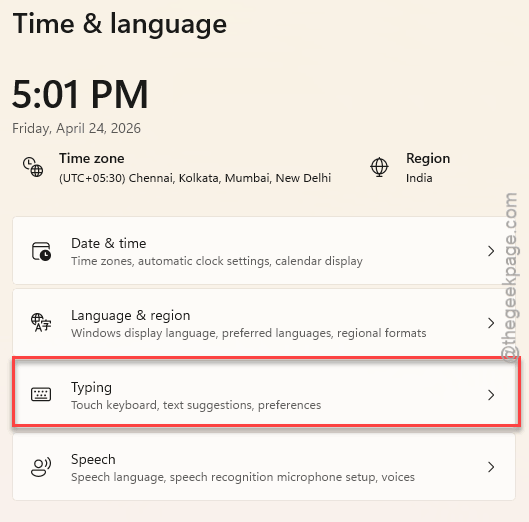
4 – Find Highlight misspelt words. Toggle it on.
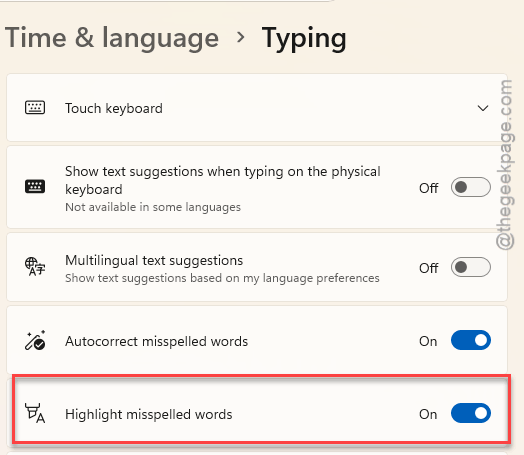
While you’re there — leave Autocorrect misspelt words alone. Edge ignores autocorrect entirely. Only the highlight toggle matters for those red squiggles.
Fix 6 – Install the Right Language Pack
If your language isn’t fully installed at the Windows level, Edge has nothing to spell check against. Common one if you recently changed system languages.
1 – Open Settings (Windows + I).
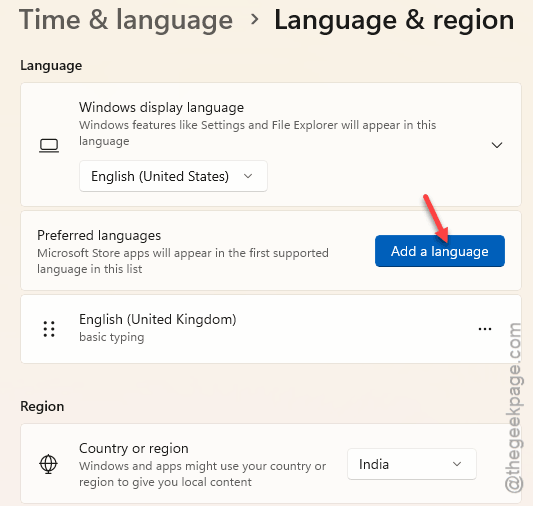
2 – Click Time and language, then Language and region.
3 – Look at your installed languages list at the top.
4 – If the language you write in isn’t there, click Add a language, search for it, and install it.
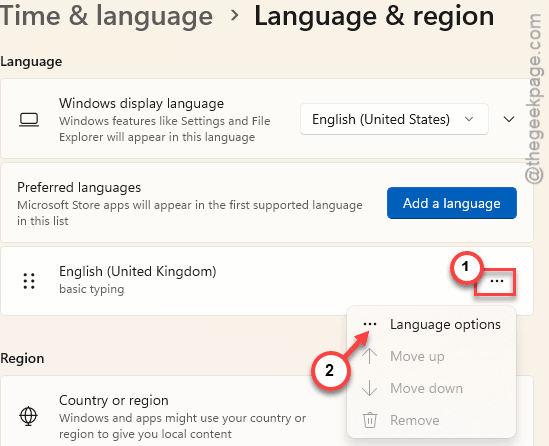
5 – Click the three dots (⋯) next to the language and click Language options.
6 – Scroll down to Language features. Make sure Spell check (Basic Typing feature) is installed. If not, click to download it.
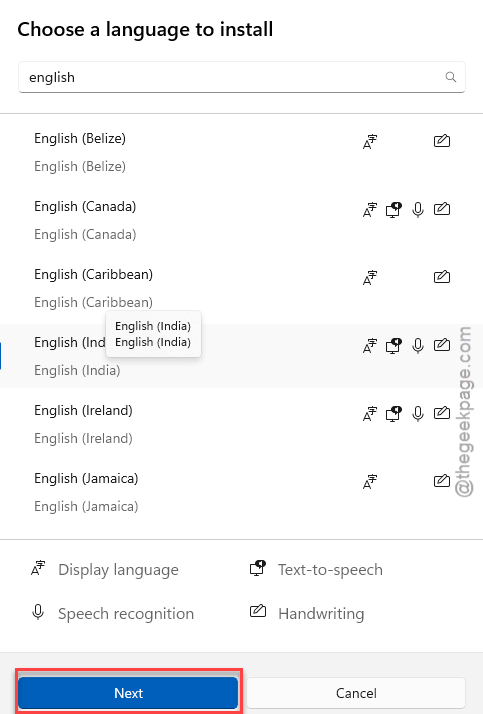
Restart Edge after the pack finishes installing. Sometimes a full PC restart is needed too.
Fix 7 – Reset Edge if Nothing Else Works
Nuclear option. Use only if Fixes 1-6 didn’t move the needle.
Type this in the address bar:
edge://settings/reset
Press Enter, then click Restore settings to their default values.
A warning pops up. Click Reset to confirm.
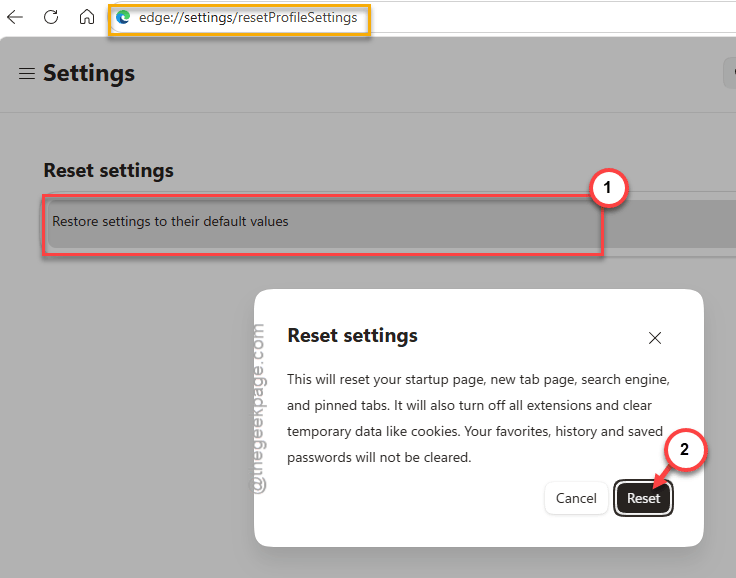
This wipes startup settings, pinned tabs, and extensions. Keeps your favorites and passwords though. After the reset, redo Fix 2 — yes, the spellcheck toggles will be off again.
How to Prevent This
- After every Edge update, swing by edge://settings/languages/writingAssistanceLanguages. Updates love to flip those toggles off. Annoying but easy to fix.
- Stay on the latest stable Edge. The 136.0.3240.64 fix is the baseline now. Anything older is asking for trouble.
- Stick with Basic writing assistance unless you really want grammar suggestions. Less to break.
- Type in multiple languages? Install each one’s pack at the Windows level too. Don’t rely on Edge alone.
People Also Ask
Why is my spell check not working on Microsoft Edge?
Most of the time? An Edge update reset your Enhanced Spellcheck toggles. Go to edge://settings/languages/writingAssistanceLanguages and turn them back on for each language. Also check Windows — Settings > Time and language > Typing > Highlight misspelt words has to be on. Both layers matter.
What is Ctrl+Shift+R in Edge?
It’s a hard refresh. Reloads the current page from scratch and ignores anything cached. Useful when a webpage acts weird or shows old content. Doesn’t touch spellcheck though — that’s a totally separate setting. People mix the two up sometimes.
Why is my Microsoft spell check not working?
Could be a few things. The big one — your language pack isn’t fully installed. Check Settings > Time and language > Language and region. Make sure spell check is downloaded for your language. Also the Edge-side toggle might be off after an update. Both need to be on.