You launch Windows Sandbox. It thinks for a second. Then it dies with error 0x80070015. No sandbox. Just the crash. And the error code tells you nothing useful.
Why This Happens
Quick background first. Windows Sandbox is a throwaway mini-Windows that runs inside your real Windows — handy for testing sketchy files without risk. It’s built on a stack of virtualization pieces working together.And 0x80070015 basically means one of those pieces isn’t running when Sandbox tries to start. The code itself translates to “the device is not ready.”So what’s not ready? Usually a background service that Sandbox depends on. Other times it’s a corrupted virtual drive file left over from a bad session. Or the virtualization feature underneath got into a weird half-on state. Annoying, but all fixable.
Fix 1 – Start the Services Sandbox Depends On
This is the fix for most people. Try to start the sandbox services.
1 – Press Windows + R, type services.msc, and press Enter. This opens the Services list.
2 – Scroll down and double-click HV Host Compute Service.
3 – Set Startup type to Automatic. If the status shows Stopped, click Start. Then click OK.
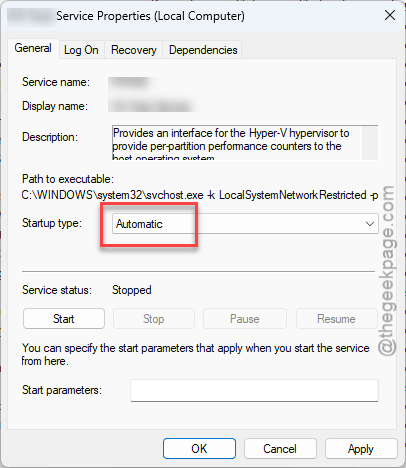
4 – Do the same for Network Virtualization Service — Startup type Automatic, then Start, then OK.
5 – Now find Virtual Disk. Set its Startup type to Manual, click Start, then OK.
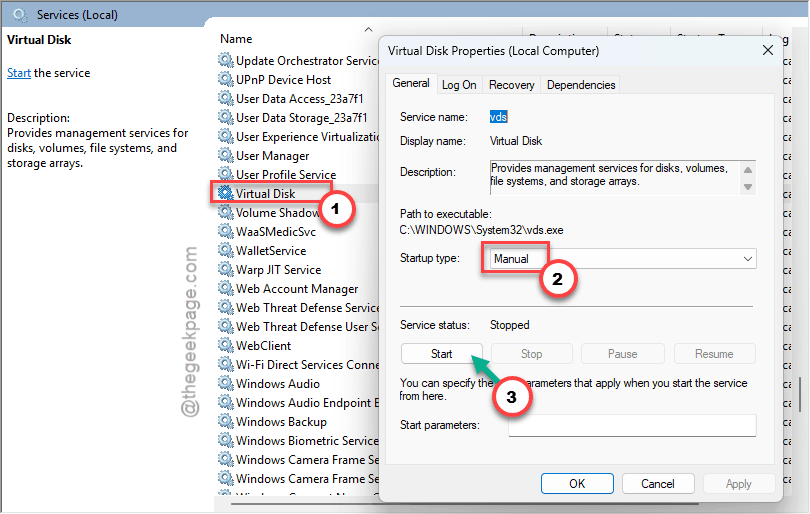
6 – Close the Services window and open Windows Sandbox again.
If the error’s gone, you’re set. If not, keep going.
Fix 2 – Restart the Hyper-V Host Compute Service
Quick one. Sometimes that main service is technically running but stuck on a frozen leftover task. A restart clears it.
1 – At first, press Windows + R.
2 – Then, type services.msc, and press Enter.
3 – Then, right-click Hyper-V Host Compute Service and choose Restart.
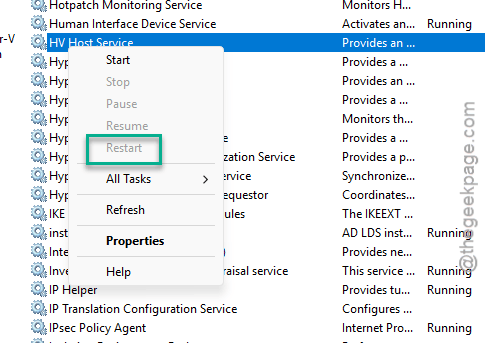
Then try Sandbox again. Takes ten seconds.
Fix 3 – Delete the Corrupted Sandbox Drive
Windows keeps a virtual drive file that Sandbox spins up from. If that file got corrupted, every launch fails. Deleting it makes Windows build a fresh one automatically. Don’t worry — it’s a cache file, not your data.
1 – Press Windows + E to open File Explorer.
2 – Paste this into the address bar at the top and press Enter:
C:\ProgramData\Microsoft\Windows\Containers\BaseImages
3 – Delete any files ending in .vhdx inside that folder.
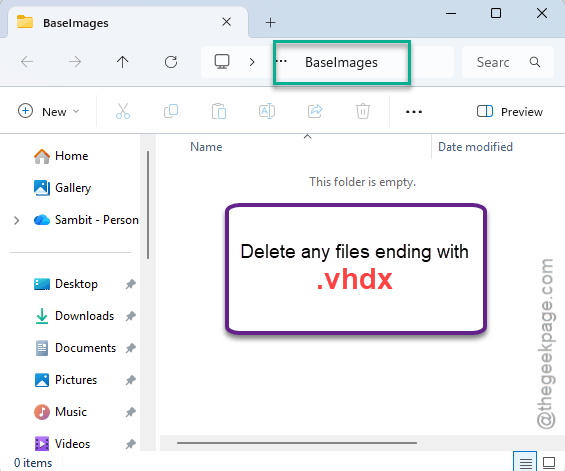
4 – Restart your PC, then launch Sandbox. Windows rebuilds the drive on its own.
Fix 4 – Re-Enable Virtual Machine Platform
The feature Sandbox sits on can get stuck half-on. Toggling it off and on forces Windows to rewrite its setup cleanly.
1 – Click Start, type Turn Windows features on or off, and open it.
2 – Scroll down and uncheck the Virtual Machine Platform.
3 – Click OK and restart when asked.
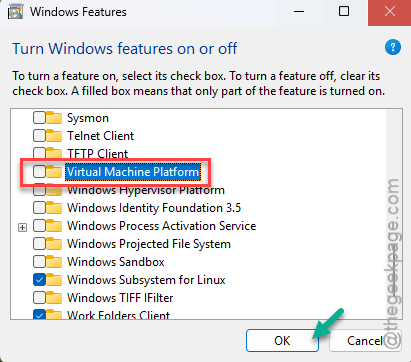
4 – Open that same window again and re-check Virtual Machine Platform.
5 – Click OK and restart one more time.
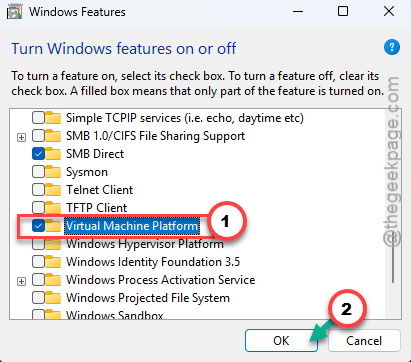
Check if this works.
Fix 5 – Repair the WMI Repository
Still crashing? WMI is the system that lets Windows talk to the virtualization layer. When it breaks, Sandbox can’t get the answers it needs.
1 – Open Command Prompt as administrator. To do that, right-click Command Prompt in the search box and, tap Run as Administrator.
2 – Then, run this and press Enter:
mofcomp %systemroot%\system32\wbem\cimwin32.mof
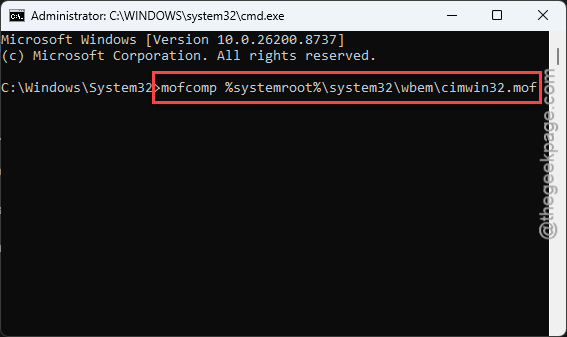
It rebuilds the broken part of WMI. Restart your PC afterward.
Fix 6 – Force the Hypervisor to Launch
Last resort. This command tells it to always start the hypervisor.
1 – Open Command Prompt as administrator again.
2 – Type this exactly and press Enter:
bcdedit /set hypervisorlaunchtype auto
3 – Restart your PC.
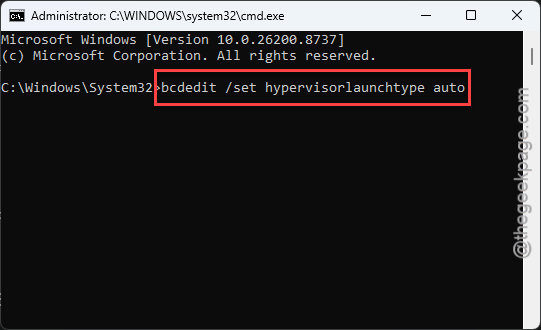
4 – Launch Windows Sandbox once more.
How to Prevent This
– Leave the Hyper-V and virtualization services on Automatic. If they only start on demand, they sometimes just don’t.
– Keep Windows updated. Microsoft has patched Sandbox startup bugs before, so the fix may already be waiting in an update.
– Close Sandbox properly instead of force-killing it. Abrupt shutdowns are what corrupt that virtual drive file.
– Don’t disable Virtual Machine Platform to free up resources. Sandbox falls apart without it.
People Also Ask
How do I fix Windows Sandbox failing to initialize?
Most startup failures come down to a stopped background service. Open services.msc and make sure Hyper-V Host Compute Service and Network Virtualization Service are set to Automatic and running. Start them if they’re stopped.
What does reason code 0x80070015 mean?
It translates to “the device is not ready.” In plain terms, something Sandbox depends on — usually a virtualization service — wasn’t running when it tried to launch. Starting those services, or deleting the cached virtual drive if it’s corrupted, is what fixes it.