Does the virtual machine not capturing any of the mouse input from your host device? The mouse and keyboard are two essential instruments to control a virtual machine. So, losing access to either of them can be detrimental for the users. This seems to be a normal settings mismatch error in the Hyper-V manager settings, that is causing this problem.
Fix 1 – Get the Integration Services on Hyper-V Manager
The main reason behind the mouse not working in the Hyper V is the absence of the integration services.
Step 1 – Load up the Hyper-V Manager utility on your computer.
Step 2 – Next, find the virtual machine which can’t capture the mouse input. Right-click it and tap Connect or Resume to start the machine if it was paused.
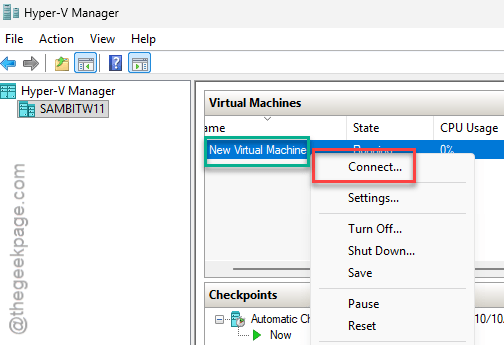
Step 3 – While the virtual machine is running in the Hyper-V, tap the Action button in the file menu. Then, tap the Insert Integration Services Setup Disk option.
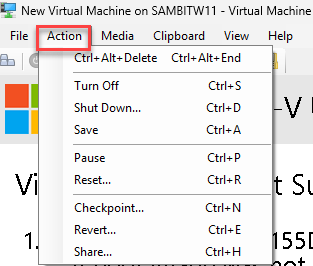
Integration Support system is installed from a virtual disk mounted in the host OS.
Step 4 – So, tap the Install Hyper-V Integration Services option to install it right away.
NOTE – If you see just the File Explorer console, run the setup.exe file, located at this address –
D:\support\x86
Step 5 – Now, the rest of this process may vary from users to situations. Like, if you have already installed the Integrated Services, you should replace the components.
Step 6 – Once the installation has finished, you will receive a prompt to restart the guest OS.
Once the device restarts, reconnect the virtual machine. This time, the mouse and keyboard will work flawlessly.
Fix 2 – Disable the Enhanced Mode in Hyper-V
The Enhanced Mode in Hyper-V may cause interfere with the mouse input. Disabling it may help you resolve the issue.
NOTE – Disabling the Enhanced Mode will turn off the cross-OS clipboard capabilities.
Step 1 – In the Hyper-V Manager window, find the virtual machine.
Step 2 – Next, right-click that VM and tap Connect.
Step 3 – Tap the View option in the menu-bar and uncheck the Enhanced Session from there.
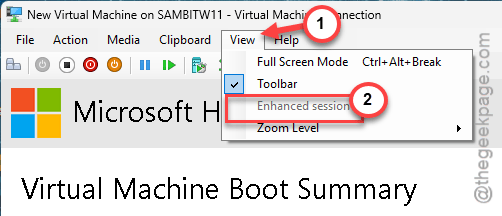
The connection to the virtual machine will be restarted. It should be reconnected after a few seconds. Check the status of your issue.
Fix 3 – Enable the VM Integration Services
Check whether the VM Integration service components are enabled.
Step 1 – Load up the Hyper V Manager. Right-click the virtual machine, and tap the Settings option.
Step 2 – Next, go to the Management part. Choose the Integration Services from the left pane.
Step 3 – Then, check all these boxes there~
Operating system shutdown
Time synchronization
Data Exchange
Heartbeat
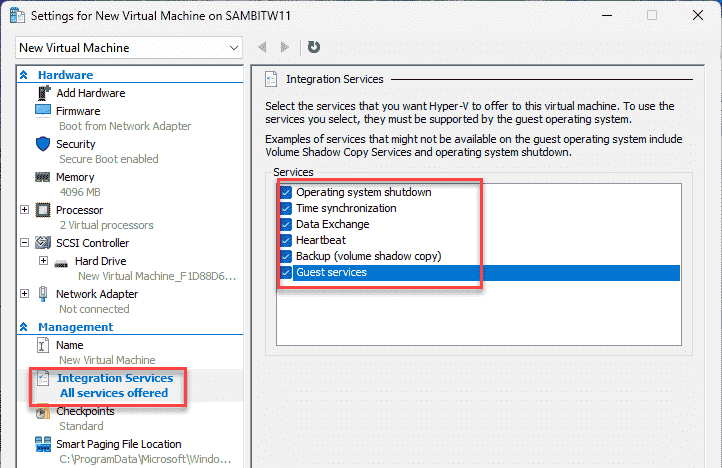
Step 4 – Tap the Apply and OK option to apply the modified changes.
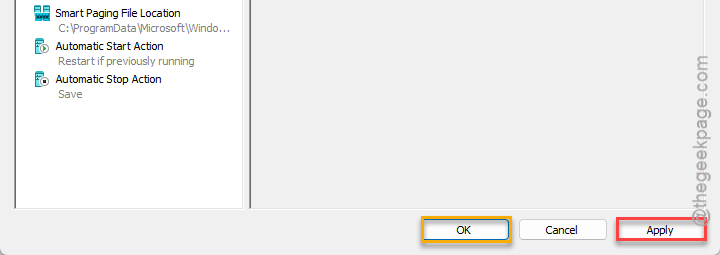
Reconnect the virtual machine, and check whether this works out.
Even if the Integration Services are installed for the Hyper-V Manager, it may not be enabled for the particular VM and for the particular user type.
Step 1 – Open up the PowerShell as an administrator.
Step 2 – Then, input this code from the shell to check the current status of the integration service for the VM.
Get-VMIntegrationService -VMName "TestVM"
Don’t forget to replace the TestVM with the actual name of the virtual machine in the code.
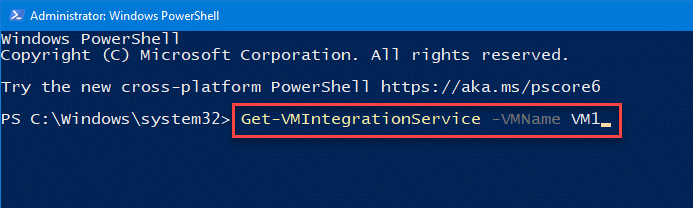
You can now view the current status of the components of the integration services.
Step 3 – If any of the component is tagged ‘False’, understand it is turned off.
Step 4 – You can re-enable such service using this code. Replace the TestVM with the name of your virtual machine.
Enable-VMIntegrationService -VMName "TestVM" -Name "Guest Service Interface"
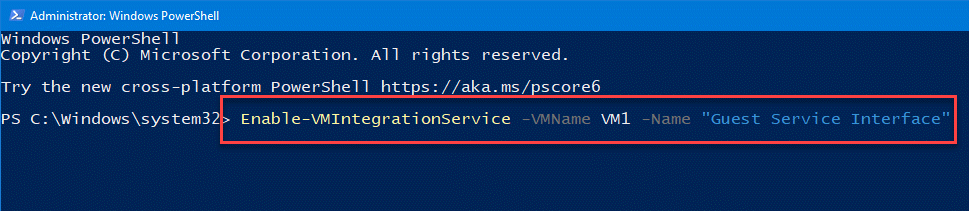
This particular command does enable the Guest Service Interface for the VM. Change it to activate any other component of integration service.
Fix 4 – Install the latest version of Mouse drivers
If the virtual machine is still unable to capture the mouse, you should install the latest version of the mouse driver.
Step 1 – Press the Win+R keys together. Next, tap the Device Manager to load it up.
Step 2 – In the Device Manager page, expand the Mice and other pointing devices.
Step 3 – Right-click the mouse driver and tap Update driver.
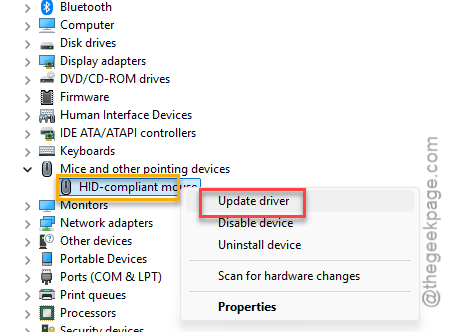
Follow the on-screen steps to install the latest version of mouse driver update.
You can also download the latest mouse driver package directly from OEM websites and use them. Make sure you are using a compatible driver on both the host and guest OS.
Final Words –
We can see that the problem with the mouse capturing in Hyper-V is directly linked with the Hyper-V Integration Services. If the services are running properly, you can expect the mouse to work just fine.