The Coriolis storm is what kills your game. It’s not the sandworm or the other players. The moment the storm rolls in, Dune: Awakening throws an Out of Video Memory error and drops you to the desktop. You can very easily fix this issue, following these steps.
The Short Version
Storms are heavy. The game has to stream huge dust textures and light them in real time. So VRAM (the memory on your graphics card) fills up fast.
And the game’s default texture pool is too small for that spike. Ray tracing and frame generation eat more on top. Overflow goes to regular RAM, and if Windows runs short there too, it closes the game.
Then there’s the weird one. On some Intel 13th and 14th gen CPUs, the error isn’t about VRAM at all. The CPU gets unstable under the load, and the game blames the graphics card. Misleading? Very.
Fix 1 – Raise the Texture Streaming Pool in Engine.ini
Best fix for most people. It tells the game to set aside more VRAM for the storm.
1 – Close the game.
2 – Press Windows + R, paste this, and press Enter.
%localappdata%\DuneAwakening\Saved\Config\WindowsClient
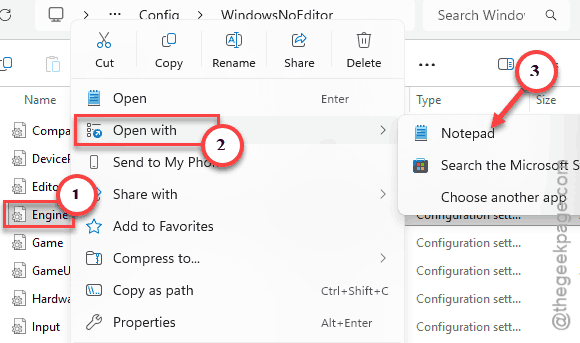
3 – Right-click Engine.ini and open it with Notepad.
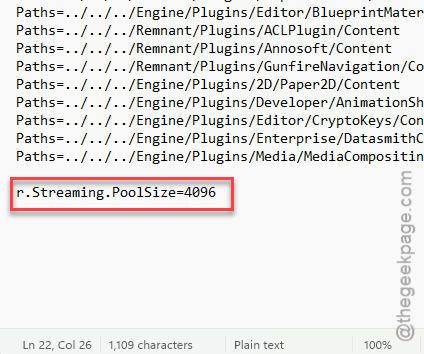
4 – Go to the very bottom and add the line [SystemSettings] if it is not already there.
5 – Under it, add r.Streaming.PoolSize=4096. Use 8192 instead if your card has 12 GB of VRAM or more.
6 – Save the file and close Notepad.
7 – Right-click Engine.ini, choose Properties, tick Read-only at the bottom, and click OK.
Read-only stops the game from wiping your change on the next launch.
Fix 2 – Turn Off Hardware Ray Tracing
Quick one. Ray traced shadows inside the storm cause a huge memory spike.
1 – Open the in-game Display settings,
2 – Then, turn off Hardware Ray Tracing, and apply.
And then ride into a storm to test it.
Fix 3 – Disable Frame Generation
FSR 3 and DLSS 3 Frame Generation use roughly 1 to 1.5 GB of VRAM on their own.
1 – Turn Frame Generation off in the graphics settings.
2 – So you lose some smoothness.
Not ideal, but better than the crash is worse.
Fix 4 – Make the Paging File Bigger
When VRAM overflows, Windows leans on the paging file (space on your drive it uses as extra memory). But if it’s too small, Windows ends the game. Making it bigger will not delete anything.
1 – Right-click Start and click System.
2 – Click Advanced system settings.
3 – Under Performance, click Settings.
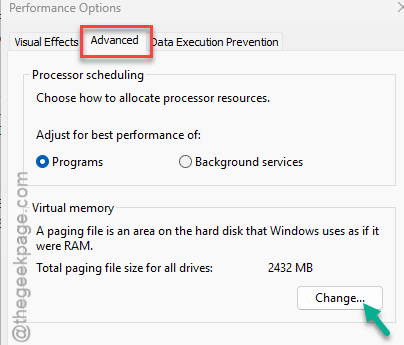
4 – Open the Advanced tab and click Change under Virtual memory.
5 – Untick Automatically manage paging file size for all drives at the top.
6 – Pick your main drive, choose Custom size, and type 32768 in both boxes.
7 – Click Set, then OK, and restart your PC.

See if this offers any help.
Fix 5 – Calm Down an Intel 13th or 14th Gen CPU
If none of the above helped and you have one of these chips, look here. Unreal Engine 5 decompresses textures hard during storms (it uses a tool called Oodle). That pushes CPU voltage up, and an unstable chip crashes with the false VRAM error.
The real fix is a BIOS update with Intel microcode 0x11D or newer. One player with the exact same hardware and driver went from crashing every storm to reaching the main menu with all shaders compiled. Check your motherboard maker’s support page for a BIOS that lists that microcode.
Can’t update right now? Set the CPU power limits back to Intel’s defaults.
1 – Restart your PC and press Del or F2 to enter the BIOS.
2 – Open the CPU power or overclocking menu.
3 – Change the power profile from Extreme or Unlimited to Intel Default Settings.
4 – Save, exit, and launch the game.
Avoiding This Next Time
- Keep that Engine.ini tweak. Big patches can reset it, so check it after each one.
- Leave ray tracing off for storms. Worth it.
- Update your BIOS when your board maker ships a new one, especially on Intel 13th or 14th gen. Those updates fix real stability bugs, and this crash is one of them.
Quick Answers
How do I fix the Out of Video Memory error in Dune: Awakening?
Start with Engine.ini. Add r.Streaming.PoolSize=4096 under [SystemSettings] in %localappdata%\DuneAwakening\Saved\Config\WindowsClient, then set the file to read-only so it sticks. Turning off ray tracing and frame generation frees more VRAM. If you have an Intel 13th or 14th gen CPU, update your BIOS too.
How do I stop Dune: Awakening from crashing?
Most crashes happen when a Coriolis storm hits and VRAM runs out. Raise the texture streaming pool, switch off hardware ray tracing, and disable frame generation. Also set your paging file to 32 GB. And on Intel 13th or 14th gen chips, a BIOS microcode update often fixes it.
Is this crash caused by my graphics card?
Not always. Sometimes VRAM really does run out during storms, especially on 8 GB cards. But on Intel 13th and 14th gen systems, an unstable CPU can trigger the same error message. If the GPU fixes don’t help, check your BIOS version before buying a new card.
Will these changes hurt my frame rate?
A little, maybe. Turning off frame generation lowers smoothness, and losing ray tracing makes storms look a bit flatter. The Engine.ini change and the bigger paging file cost basically nothing. Honestly, a stable game at slightly lower settings beats crashing every time the sand starts blowing.