Your Hyper-V replication was humming along. Then it just stops. “The operation was canceled.” No detail, no reason. Just a dead sync.
And it keeps failing every time it retries. For anything you’re relying on for failover, that’s a problem. The good news: this error has a short list of usual suspects. Let’s knock them out.
Why This Happens
Replication copies changes from your main VM to a replica on another host. To track what changed, Hyper-V keeps little log files. And when those get corrupted, the sync loses its place and bails.
Stuck checkpoints do it too. A leftover snapshot can lock the virtual disk so nothing can write to it. The sync hits the wall and cancels.
Then there’s timing. A slow link, or a giant batch of changes, can blow past the default timeout. Hyper-V gives up before the transfer finishes.
And don’t rule out your antivirus. If it locks a virtual disk file mid-transfer, the whole operation aborts. Quietly.
Fix 1 – Reset the Change-Tracking Files
Start here. Hyper-V tracks changes in .mrt and .rct files. When they corrupt, delta syncs fail. Clearing them forces a clean rebuild.
1 – In Hyper-V Manager, right-click the VM and remove replication.
2 – Power off the VM briefly.
3 – Open the folder where the VM’s .vhdx disk lives.
4 – Delete the .mrt and .rct files in that folder. Don’t touch the .vhdx itself — only the .mrt and .rct.
5 – Power the VM back on.
6 – Reconfigure replication from scratch.
Hyper-V builds fresh tracking files and re-syncs. The first sync re-sends more data than usual since it’s starting clean, so give it time.
Fix 2 – Clear a Stuck Checkpoint
A hidden or broken snapshot can lock the disk chain and cancel every sync. So hunt it down and let it merge away.
1 – Right-click the VM on both the primary and replica hosts, and choose Replication > Remove Replication.
2 – Open the checkpoint (snapshot) tree for the VM.
3 – Delete any lingering replication checkpoints you find.
4 – Wait for the .avhdx files to finish merging back into the base disk. This can take a while on a big VM — let it finish completely before you touch anything.
5 – Re-enable replication.
If a checkpoint won’t merge, shut the VM down fully and let it complete while powered off. A clean merge is what unblocks the sync.
Fix 3 – Restart the Management Service and Check VSS
Stuck background threads cause phantom cancellations. Restarting the service clears them, and a quick VSS check tells you if the snapshot system is healthy.
1 – Open Command Prompt as an administrator on both hosts.
2 – Type this in the terminal and press Enter.
vssadmin list writers
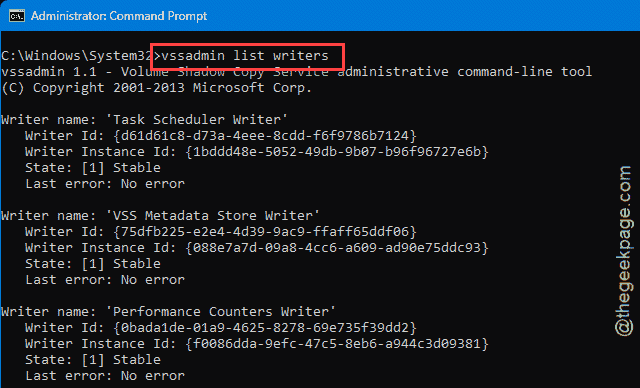
3 – Look at each writer’s state. They should all read [1] Stable. Anything else — like Waiting for completion or Failed — points to a snapshot problem.
4 – Press Windows + R, type services.msc, and press Enter.
5 – Find Hyper-V Virtual Machine Management, right-click it, and choose Restart.
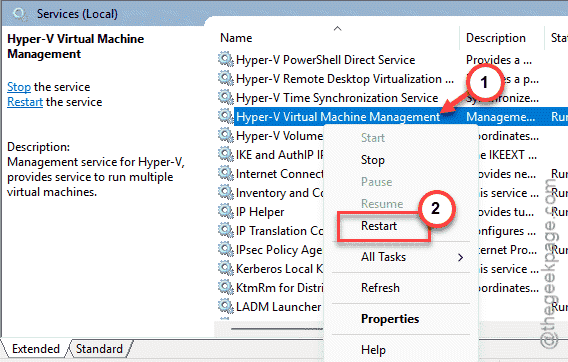
If a VSS writer was stuck, restarting its related service — or rebooting the host — resets it to Stable.
Fix 4 – Give Replication More Time
If a slow link or a huge change batch is the issue, the default timeout is too tight. You can stretch it with a registry value.
1 – Open regedit on both hosts (press Windows + R, type regedit, press Enter).
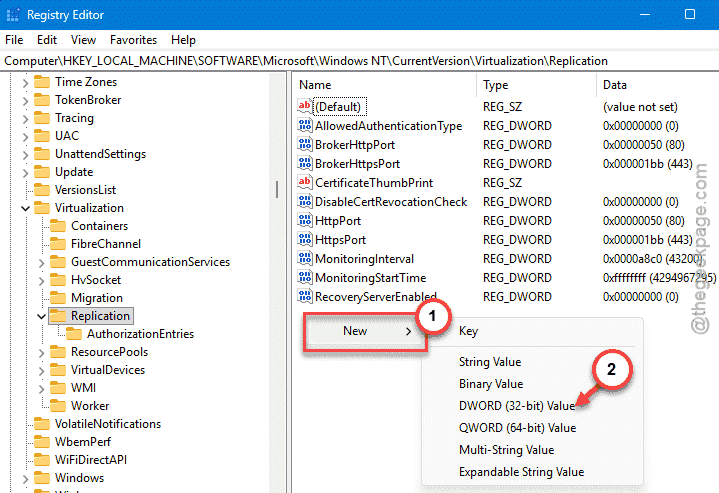
2 – Go to:
HKLM\SOFTWARE\Microsoft\Windows NT\CurrentVersion\Virtualization\Replication
3 – Right-click in the right pane and create a new DWORD (32-bit) Value named TimeoutInSec.
4 – Double-click it, choose Decimal, and set the value to 300 for 5 minutes — or 600 for 10.
5 – Click OK, then restart the Hyper-V Virtual Machine Management service (like in Fix 3).
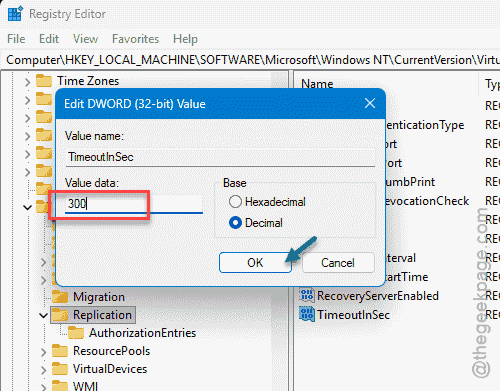
Set it on both ends, not just one. They have to agree on the timeout or you’ll keep hitting the same wall.
Fix 5 – Exclude VM Folders From Antivirus
Quick but easy to miss. If your antivirus grabs a lock on an active virtual disk or a .hrl replication log mid-transfer, the sync cancels on the spot. Add an exclusion in Windows Defender — or your endpoint security tool — for your VM directories, like C:\ClusterStorage\ or C:\ProgramData\Microsoft\Windows\Hyper-V\.
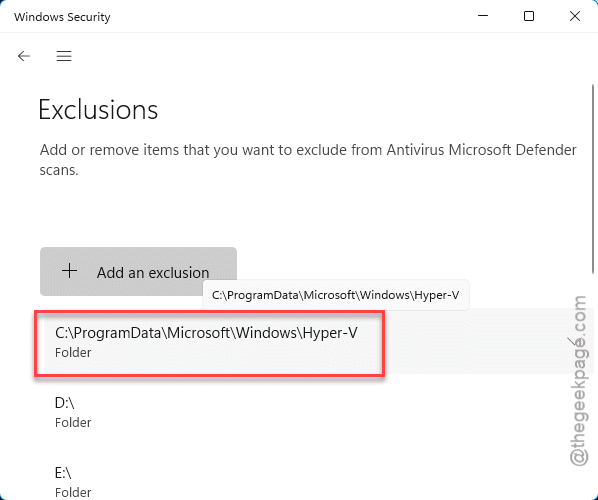
Do it on both hosts. With the disks out of the scanner’s reach, the transfer stops getting interrupted.
Fix 6 – Refresh the Authentication Between Hosts
Expired tickets or a clock that’s drifted between the two servers can drop the sync thread. Re-toggling the replica setting forces a fresh handshake.
1 – On both servers, open Hyper-V Settings > Replication Configuration.
2 – Uncheck Enable this computer as a Replica server and click Apply.
3 – Re-check the box.
4 – Choose Use Kerberos (HTTP) and click Apply again.
That forces the security tickets to refresh. While you’re at it, make sure both servers’ clocks are in sync — a time skew alone can cause this.
How to Prevent This
– Exclude your VM folders from antivirus scanning up front. File locks during transfer are a top cause of cancellations.
– Let checkpoints merge fully before starting or restarting replication. A half-merged snapshot locks the disk.
– Keep both hosts’ clocks in sync. A time skew quietly breaks the authentication.
– Bump the timeout on slow links before it bites. Better than chasing random cancellations later.
People Also Ask
How do I restart replication in Hyper-V?
Right-click the VM in Hyper-V Manager, go to Replication, and choose Resume Replication. If it won’t resume, remove replication entirely and set it up fresh. Clearing the .mrt and .rct change-tracking files first gives you the cleanest restart when the sync keeps failing.
Why does Hyper-V replication keep failing?
Usually it’s corrupted change-tracking files, a stuck checkpoint locking the disk, or a timeout on a slow link. Antivirus locking the virtual disk does it too. Work through those one at a time. Resetting the tracking files and clearing stuck checkpoints fixes most cases.
How do I fix a Hyper-V VM stuck in stopping state?
Restart the Hyper-V Virtual Machine Management service from services.msc to clear the stuck thread. If that doesn’t release it, end the VM’s worker process in Task Manager. As a last resort, reboot the host. After it clears, check for unmerged checkpoints before restarting replication.