You’re mid-fight in Borderlands 4. The game hitches all the time. Then again it does. Enemies teleport a few feet, your shots stop landing, and the frame counter dips every few seconds like clockwork. But, it isn’t your PC being weak. Plenty of high-end rigs have exhibited the same signs across the globe.
Why This Happens
Gearbox built a lot of online stuff into this game. SHiFT (Gearbox’s account system) links to Twitch, friend pop-ups, live texture loading. And each one can freeze the game for a split second. Stack them and you get constant stutter.
The worst offender? The ECHOcast Twitch extension. If your SHiFT account is linked to Twitch, the game keeps checking for viewer interactions in the background, over and over. And every check can spike your frame time. Even when nobody’s watching you stream. Brilliant design.
Then there’s the network desync. The game runs on a modified Unreal Engine 5, and uncapped frame rates throw its physics out of sync with the server. So enemies rubber-band. Not your internet, for once.
But at least most of this you can switch off yourself.
Fix 1 – Unlink Twitch From Your SHiFT Account
Start here. It’s the single biggest cause of the stutter.
1 – Open Shift.GearboxSoftware.com in your browser and sign in.
2 – Find your linked accounts and click Unlink next to Twitch.
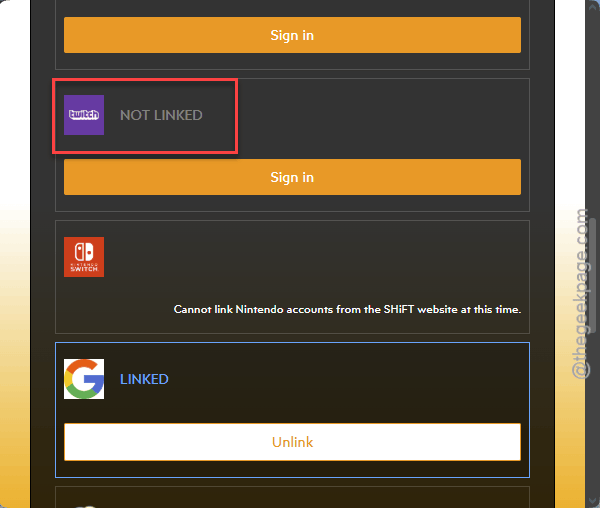
3 – Restart Borderlands 4.
But you lose the ECHOcast viewer rewards. Small price.
Fix 2 – Turn Off Social Notifications
Every time a friend logs in or pops an achievement, the game pauses to draw the little pop-up
So go to Options > Network & Social in the game.
Then, turn off all the friend and achievement pop-ups.
Fix 3 – Stop Texture Streaming in the Config File
The game loads textures from your drive on the fly while you play. Fine on a fast NVMe drive, rough everywhere else. This setting stops that.
1 – Close the game.
2 – Open File Explorer and go to Documents > My Games > Borderlands 4 > Saved > Config > WindowsNoEditor.
3 – Right-click GameUserSettings.ini and open it with Notepad.
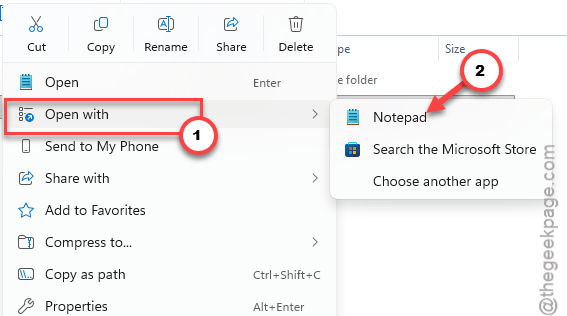
4 – Press Ctrl + F and search for TextureStreamingPoolSizeOverride.
5 – Set its value to 0.
6 – Save the file and launch the game.
If the first load takes a little longer now, that’s normal. The game is loading textures up front instead of mid-fight.
Fix 4 – Cap Your Frame Rate Below Your Refresh Rate
This one fixes the desync. Uncapped frame rates break the physics in this engine, so cap it a bit below what your monitor can show. On a 144Hz monitor, set the frame limit to 120 FPS in the game’s graphics settings. On a 60Hz screen, try 55.
And enemies should stop teleporting. Shots should land where you aim. Silly that you have to do this, but here we are.
Fix 5 – Clear the NVIDIA Shader Cache
On NVIDIA cards, an old or broken shader cache (saved graphics data from earlier sessions) causes stutter too. Clearing it is a little fiddly. Takes about five minutes, including one restart.
1 – Open the NVIDIA app and click Graphics in the left sidebar.
2 – Click Global settings at the top.
3 – Scroll down to Shader Cache Size, set it to Disabled, and apply.
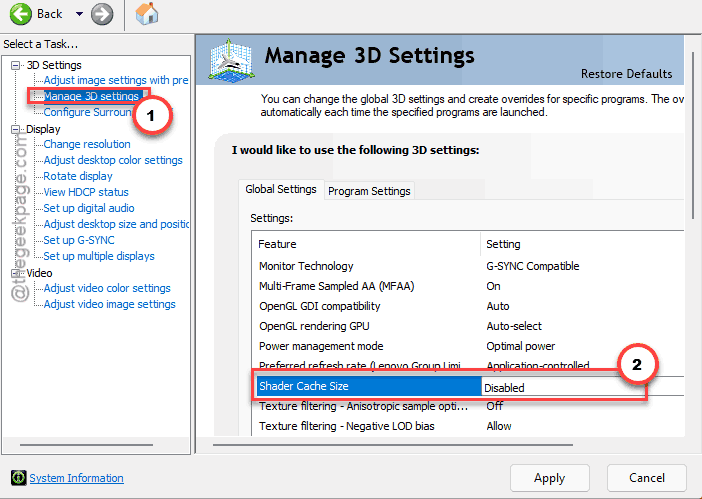
4 – Press Windows + R, type this, and press Enter.
%localappdata%\NVIDIA\DXCache
5 – Select everything in the folder and delete it. Skip any files Windows says are in use.

6 – Restart your PC.
7 – Open the same DXCache folder again and delete what’s left.
8 – Go back to the NVIDIA app and set Shader Cache Size to 10 GB or 100 GB.
But do not skip step 8. Leaving it on Disabled makes stutter worse, not better.
Fix 6 – Let the NVIDIA App Optimize the Game
Quick one.
1 – In the NVIDIA app, click Graphics,
2 – then Program settings at the top.
3 – Find Borderlands 4 in your game list and click Optimize.
It picks settings that match your card, which is often less than the game’s own defaults ask for.
Fix 7 – Verify the Game Files
Does one area of the map stutter every single time? Then a game file might be damaged.
1 – Open Steam or the Epic Games Launcher.
2 – Right-click Borderlands 4 in your library.
3 – Choose Properties on Steam or Manage on Epic.
4 – Click Verify integrity of game files (Steam) or Verify (Epic).
It checks every file and re-downloads any that are broken. Can take 10 minutes or more on a slow drive.
How to Prevent This
- Leave Twitch unlinked unless you actually stream. The rewards aren’t worth the hitching.
- Keep a frame cap on. Always.
- After a big game patch or a new NVIDIA driver, check GameUserSettings.ini again. Updates like to reset it, and you’re back to streaming textures without knowing.
- Install the game on an SSD if you can. So much less stutter.
People Also Ask
How do I stop Borderlands 4 from stuttering?
Unlink Twitch from your SHiFT account first, since the ECHOcast extension keeps hitting the game in the background. Then turn off social pop-ups, set TextureStreamingPoolSizeOverride to 0 in GameUserSettings.ini, and cap your frame rate below your monitor’s refresh rate. Clearing the NVIDIA shader cache helps too.
Has Borderlands 4 fixed the performance issues?
Not fully. Patches have helped some players, but the stutter from SHiFT, Twitch polling, and texture streaming still shows up for many people. Until Gearbox changes how those features work, the settings changes in this guide are the most reliable way to get smooth frames.
Why is Borderlands 4 so glitchy online?
A lot of it is desync. The game’s modified Unreal Engine 5 doesn’t handle uncapped frame rates well, so physics drift out of sync with the server and enemies seem to teleport. Capping your frame rate a little below your monitor’s refresh rate usually clears it up.