This one looks like Ollama is totally broken. It almost never is. Usually it’s one stray quote mark hiding in a Windows setting. Here’s what you’re probably seeing. The llama icon shows up in the system tray (the small icons by the clock). But the server never starts. Commands time out, your models won’t load, and the log file is empty.
Why This Happens
Short version: the Ollama tray app has to find and launch a second program, the actual server, called ollama.exe. And on version 0.40.6, it finds that program by reading your Windows PATH (a list of folders Windows checks when it looks for programs).
So what breaks it? A single quotation mark in that list. The lookup fails, and it fails silently. No pop-up, nothing in server.log. You’d never guess.
The usual culprit is Microsoft PowerToys, of all things. It adds an entry ending in DSCModules” with an extra quote at the end. Weird, but that one character is enough.
But it isn’t always PATH. A crashed server that never fully closed can hold the port Ollama needs (port 11434). And a custom OLLAMA_HOST setting can send the command line looking for the server in the wrong place.
Fix 1 – Close Every Leftover Ollama Process
If the server crashed earlier, a half-dead copy can still be sitting in the background. It holds on to the port, so a fresh server can’t start. Clearing it takes about 30 seconds.
1 – Click Start, type cmd, right-click Command Prompt, and choose Run as administrator.
2 – Type this code and press Enter. This closes the tray icon.
taskkill /F /IM "ollama app.exe"
3 – Then, do the same thing with this code. This closes any stuck server.
taskkill /F /IM ollama.exe
4 – Open Ollama again from the Start menu.
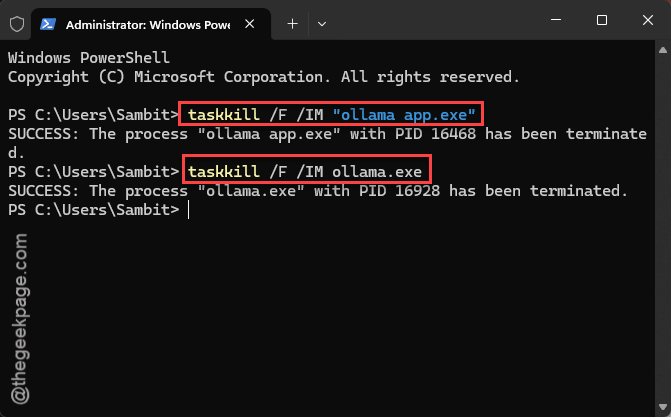
The llama icon should come back in the tray and stay there. Does it vanish again right away? Then the problem is somewhere else, and Fix 2 is the big one.
Fix 2 – Remove Stray Quote Marks From PATH
This is the 0.40.6 bug itself. Don’t worry if you’ve never touched PATH before (you only need to delete a character or two).
1 – Press Windows + R, type sysdm.cpl, and press Enter.
2 – Click the Advanced tab at the top.
3 – Click Environment Variables near the bottom right.
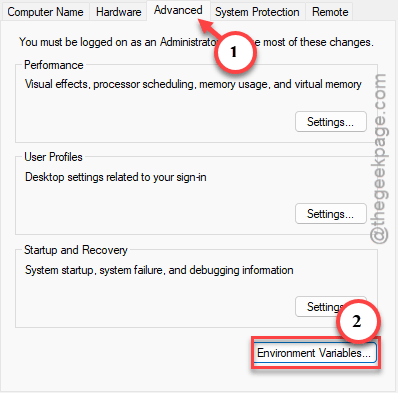
4 – In the top box, User variables, click Path and then Edit.
5 – Look through every line for a quotation mark (“). The PowerToys line is the most likely one, C:\Program Files\PowerToys\DSCModules" with a quote at the end.
6 – Click that line, click Edit, delete the quote marks, and press Enter.
7 – Click OK to close the Path window.
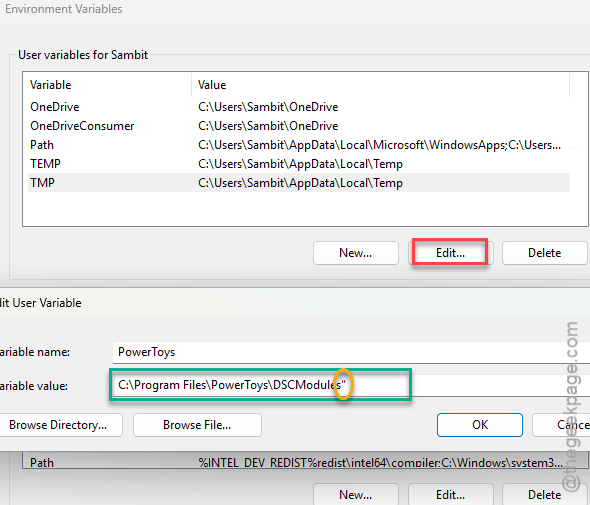
8 – Do the same check for Path in the bottom box, System variables.
9 – Click OK on every window, then restart your PC.
After the restart, open Command Prompt and type ollama ps. If it answers without an error, the server is running. And if ollama serve says address already in use, that’s good news too. It means the server already started on its own.
Fix 3 – Clear Up an OLLAMA_HOST Mismatch
Did you ever set OLLAMA_HOST to something like 0.0.0.0:11434 so other devices could reach Ollama? That can cause a quiet mix-up. The command line waits for the server at that address, while the tray app may start it at the default 127.0.0.1 (your own PC). They’re looking in two places, so you get a timeout.
1 –Open Environment Variables the same way as Fix 2.
2 – Under User variables, look for OLLAMA_HOST.
3 – Delete it to go back to normal, or set its value to exactly 127.0.0.1:11434.r
4 – Then restart Ollama.
To test it, type curl http://localhost:11434 in Command Prompt. You should see Ollama is running.
Fix 4 – Start Ollama From Command Prompt
Sometimes it is the Start menu shortcut that’s broken, not Ollama. This skips it.
1 – Click Start, type cmd, and open Command Prompt.
2 – Type ollama and press Enter.
ollama
You should see a list of Ollama commands. Got an error saying it isn’t recognized? Then try it from the program’s own folder:

3 – Right-click your Ollama shortcut and choose Open file location.
4 – Click the address bar at the top of File Explorer, type cmd, and press Enter. A Command Prompt opens right in that folder.
5 – Type ollama and press Enter again.
Once it responds, type ollama list to see your models. No models at all? Type ollama run qwen to download a small one. It finishes with a chat prompt where you can type, which proves the server works.
Fix 5 – Add Ollama to PATH
If ollama only works from its own folder, Windows doesn’t know where it lives. The fix is to add that folder to PATH. Ollama normally installs to %LOCALAPPDATA%\Programs\Ollama.
1 – Open Environment Variables like in Fix 2.
2 – Click Path under System variables, then click Edit.
3 – Click New and paste the Ollama folder path.
4 – Click OK on every window and restart your PC.
Then open a fresh Command Prompt anywhere and type ollama. It should work from any folder now.
Fix 6 – Catch the Hidden Error, Then Reinstall
Still stuck? Before you reinstall, it’s worth seeing the error Ollama is hiding. Some launch failures never reach server.log at all.
Quit Ollama from the tray icon. Open PowerShell and run: & $env:LOCALAPPDATA\Programs\Ollama\”ollama app.exe” hidden 2>&1 | Tee-Object -FilePath out.txt. Any error shows on screen and gets saved in out.txt, which helps if you ask for help on GitHub.
Then do the reinstall:
1 – Press Windows + I to open Settings.
2 – Click Apps, then Installed apps.
3 – Find Ollama, click the three dots (⋯), and choose Uninstall.
4 – Download the newest installer from the official Ollama website.
5 – Right-click the installer and choose Run as administrator.
A clean install rebuilds the shortcuts and the background pieces. Your downloaded models usually survive it, so you will not need to pull them all again.
How to Prevent This
- Glance at PATH after installing PowerToys or any big dev tool. One extra quote mark is all it takes, and it breaks Ollama without a word.
- Only set OLLAMA_HOST if you really need other devices to connect. If you do not, leave it out.
- Quit Ollama from the tray icon before shutting down. Fewer half-dead processes next time.
- Check for odd OLLAMA settings now and then. Run Get-ChildItem Env: | Where-Object Name -like “OLLAMA*” in PowerShell. If you see an OLLAMA_UPDATE_URL you never set, delete it right away. A known flaw (CVE-2026-42249) lets attackers use that setting to push fake updates.
People Also Ask
How do I start the Ollama server on Windows?
Open Ollama from the Start menu and the tray app starts the server for you. Want to do it by hand? Open Command Prompt and type ollama serve. If it says the address is already in use, good. That means the server is already running in the background.
Why isn’t my Ollama model loading?
Usually because the server never actually started. On version 0.40.6, a stray quote mark in your Windows PATH blocks it with no error at all. Remove those quotes, restart, and test with ollama ps. And check ollama list, since you may not have any models downloaded yet.
How do I restart the Ollama server on Windows?
Right-click the llama icon in the system tray and choose Quit. Then open Command Prompt as administrator and run taskkill /F /IM ollama.exe to clear any stuck copy. Finally, reopen Ollama from the Start menu. The whole thing takes under a minute.