It is very common for us to run into issues and face bugs while setting up local models on Open WebUI. Sometimes, Ollama connection to the latest setup can also become a bothersome weekend idea if you run into unnecessary halts here and there. Here is a comprehensive guide that contains fixes that we have also faced at our end while setting up our local AI models on Open WebUI.
Fix 1 – Add http:// to the Ollama Address
A missing prefix may lead to this problem. So, try adding the http to the API address.
1 – Open Open WebUI in your browser and click your profile picture at the bottom left.
2 – Click Admin Panel.
3 – Click Settings at the top, then Connections.
4 – Under Ollama API, change the address to http://localhost:11434 or http://127.0.0.1:11434.
5 – Click Save.
Refresh the page and open the model dropdown. Your Ollama models should be there now.
Fix 2 – Use host.docker.internal If You’re on Docker
If you are running Open WebUI in Docker Desktop with Ollama installed straight on Windows, there is a chance that the localhost is the wrong address.
1 – At first, open your docker run command. You can directly open up the docker-compose.yml file.
2 – Then, find OLLAMA_BASE_URL and change it from http://localhost:11434 to http://host.docker.internal:11434.
Then rebuild and restart the Open WebUI container.
Fix 3 – Set OLLAMA_ORIGINS for the Server Connection Error
Seeing WebUI Server Connection Error? That means Ollama is turning away requests from the web page on purpose.
1 – Start by pressing the Windows + R,
2 – Next, write down this, and press Enter.
sysdm.cpl
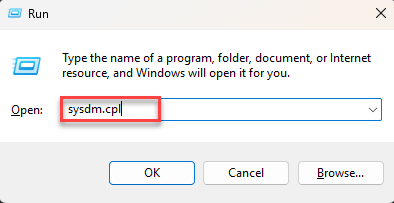
2 – Proceed to the Advanced tab and tap Environment Variables.
3 – Later, under the System variables at the bottom, tap New.
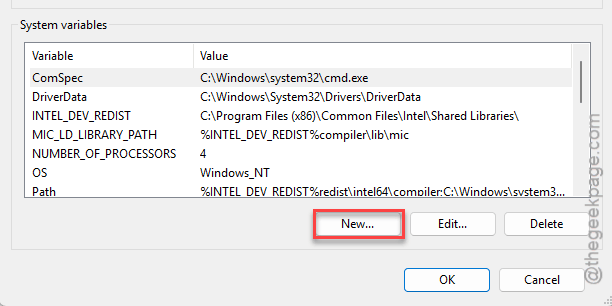
4 – Write down OLLAMA_ORIGINS as the variable name and * as the value.
5 – Then, click OK on every window.
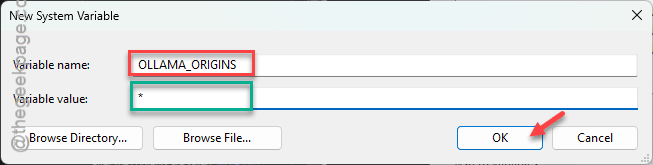
6 – Then, restart your PC.
then open Ollama again.
Check if this offers any help.
Fix 4 – Switch Function Calling From Native to Default
You should switch to the Default mode from Native module.
1 – Go to the Workspace in the left sidebar.
2 – Then, tap Models.
3 – Later, tap the edit (pencil) icon next to the model you use for tools.
4 – Go ahead and open up the Advanced Params.
5 – Proceed to change Function Calling from Native to Default.
6 – Finally, click Save at the bottom.
Check if this holds together. Test it out.
Fix 5 – Bake Your Settings Into a Modelfile
If the Native tool still ignores the context size and the problem recurs, build it into the model itself.
1 – Open Command Prompt.
2 – Write down this code: and press Enter. Replace the model for the real model name in the terminal code you have just written down.
ollama show yourmodel --modelfile > Modelfile

3 – Later, open the new Modelfile in Notepad.
4 – Add the line at the bottom and save it.
PARAMETER num_ctx 32768
5 – Type this code next and press Enter.
ollama create yourmodel-agent -f Modelfile
Then pick yourmodel-agent in Open WebUI for anything that uses tools. This will not change your original model.
Fix 6 – Turn Off Verbose Logging in LM Studio
Disabling the verbose logging should work out.
1 – Go to your LM Studio’s Developer tab.
2 – Once you are there, look for the Verbose Logging. Turn it off.
[If you can’t find it there, you can find it in the developer console for the model. ]
Leave it like that unless you’re actively debugging something manually.
Fix 7 – Update Open WebUI and Shrink Big RAG Results
Tool results that are too long get cut off. The limit is roughly 65,000 characters, and past that the reply breaks in odd ways. Newer versions handle this better. So update first.
1 – Open the Command Prompt window you use for Open WebUI and turn on its virtual environment (the Python folder it runs from) the way you normally do.
2 – Type this code and press Enter.
pip install --upgrade open-webui
3 – Wait for it to finish, then start Open WebUI again.
4 – Lower the RAG Top K and chunk size settings so a single result stays under about 60,000 characters.
Run that pip command every couple of weeks, honestly. This project moves fast and the tool-calling fixes keep landing.