You click the ChatGPT icon. The window opens, and then it just spins. Sometimes you get a blank white screen instead. Sometimes the app closes on its own before you can type a single word.
What’s Behind the Crash
Here’s what’s going on. The ChatGPT app for Windows runs a hidden helper in the background called codex.exe (yes, it still uses the old Codex name). The window you see is just the front. That helper is what actually loads your chats.
And when the helper freezes during startup, the window sits there waiting for it. It never gives up and it never shows an error. So you get the spinner. Recent builds in the 26.9xx range hit this a lot, going by the reports piling up on OpenAI’s own GitHub issue tracker.
But there’s good news. You usually don’t need to reinstall anything. Start with Fix 1. It takes about 20 seconds.
Fix 1 – End the Stuck codex.exe Process
Quickest fix by far. It restarts the helper without closing the ChatGPT window.
1 – Leave the frozen ChatGPT window open. Do not close it.
2 – Press Ctrl + Shift + Esc to open Task Manager.
3 – On the Processes tab, find ChatGPT and click the small arrow next to it to expand the group.
4 – Click the codex.exe entry that’s using the most memory.
5 – Click End task at the top right of Task Manager.
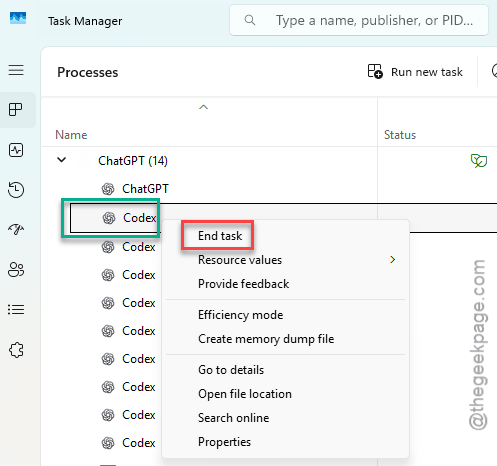
6 – Switch back to the ChatGPT window.
Your chats should show up within a few seconds.
And if there’s no ChatGPT group at all, look for Codex instead. Same app, older name. Type codex in the search box at the top of Task Manager and it’ll pop up.
Picked the wrong one and the app closed? No harm done. Just reopen ChatGPT and try again. If the app loads but some old chats won’t open, you ended a smaller codex.exe by mistake. Go back and end the biggest one.
So if you see several and aren’t sure which is right
1 – Click the Details tab.
2 – Then, right-click any column header, and choose Select columns.
3 – Tick Command line and click OK.
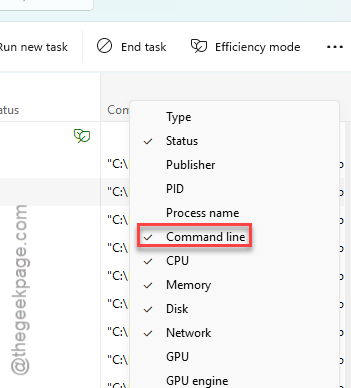
The codex.exe you want has app-server in that column.
Fix 2 – Restart the Helper With One PowerShell Command
Same idea as Fix 1, but faster once you’ve done it once. It only kills the stuck helper. It will not sign you out.
1 – Leave the stuck ChatGPT window open.
2 – Click Start and type PowerShell.
3 – Right-click Windows PowerShell and choose Run as administrator.
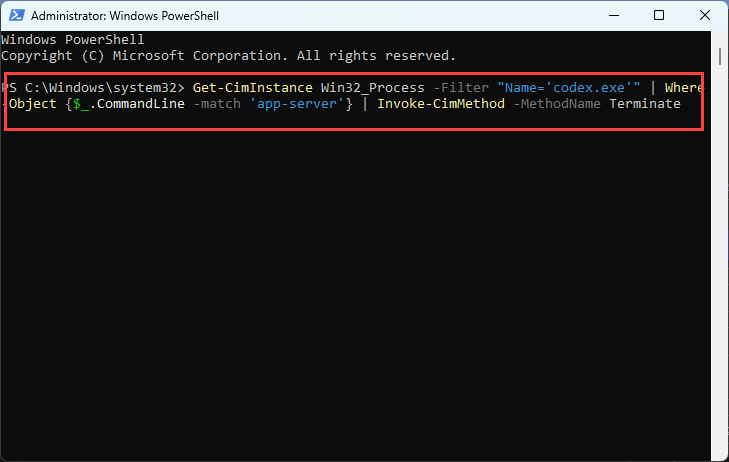
4 – Paste this command and press Enter:
Get-CimInstance Win32_Process -Filter "Name='codex.exe'" | Where-Object {$_.CommandLine -match 'app-server'} | Invoke-CimMethod -MethodName Terminate
And the ChatGPT window starts a fresh helper by itself and finishes loading. No need to touch it.
Getting a plain white screen instead of a spinner? That’s a different piece, the renderer (the part that draws what you see in the window).
Run this command instead, in the same admin PowerShell window:
Get-CimInstance Win32_Process -Filter "Name='ChatGPT.exe'" | Where-Object { $_.CommandLine -match '--type=renderer' } | ForEach-Object { Stop-Process -Id $_.ProcessId -Force }
The white screen should clear and your chat history should reload.
Fix 3 – Let a Script Do Fix 1 Every Time
Here’s the catch with Fixes 1 and 2. They’re temporary. You have to repeat them every single time you open the app until OpenAI ships a fixed version.
One user in OpenAI’s GitHub thread for this bug (issue 48466) shared a PowerShell script that does it for you. It opens ChatGPT, waits 20 seconds, then restarts only the codex.exe helper without touching your files.
# Get the first child process of the app and terminate it to break the loading loop
$AppProcess = Get-Process -Name "Codex" -ErrorAction SilentlyContinue

if ($AppProcess) {
# Sort by ID or creation time to safely target the stuck initialization child process
$ChildProcess = $AppProcess | Select-Object -First 1
Stop-Process -Id $ChildProcess.Id -Force
Write-Host "Successfully terminated the stalling child process. The UI should load shortly." -ForegroundColor Green
} else {
Write-Warning "The application process was not found running."
}
1 – Save it as Fix-ChatGPT.ps1, right-click the file, and choose Run with PowerShell.

But read it before you run it. Always do that with scripts from the internet.
Fix 4 – Delete the Broken config.toml File
If the app closes before the spinner even shows up, this one’s for you. A damaged settings file stops the app at the very start.
1 – Close ChatGPT completely.
2 – Check the system tray. Close ChatGPT there too if you see it.
3 – Then, press Windows + R to open the Run box.
4 – Paste this, and press Enter.
%USERPROFILE%\.codex
5 – Find the file called config.toml in the folder that opens.
6 – Delete it.
7 – Open ChatGPT again.
The app walks you through the Windows setup again and builds a clean config file. Takes about a minute.
Fix 5 – Turn Off Advanced Account Security
Different symptom here. The app opens, you sign in through your browser, and then 10 to 35 seconds later it dumps you back at the sign-in screen.
That’s a token problem. A token is the digital pass that keeps you logged in. Accounts with Advanced Account Security turned on use a hardware-backed token, and for some reason the Windows app can’t refresh it yet.
1 – Open chatgpt.com in your web browser and sign in.
2 – Open your profile settings.
3 – Find Advanced Account Security and turn it off.
4 – Open the ChatGPT desktop app and sign in again.
Not great for security, obviously. So turn it back on once OpenAI patches the Windows app.
Fix 6 – Look for a Dead MCP Server
Seeing Reconnecting 5/5 with stream disconnected (os error 61)? It looks like your internet dropped. It probably didn’t.
Open the same config.toml file from Fix 4 in Notepad. Look at every MCP server and skill listed in there. Remove any that you no longer use or that won’t start, save the file, and restart ChatGPT.
Fix 7 – Switch to the ChatGPT Beta
The stable Store version (26.825.x) has a startup deadlock that the Beta doesn’t. Same PC, different result. Worth a shot if nothing above stuck.
1 – Close ChatGPT.
2 – Click Start, type PowerShell, and open it.
3 – Paste this directly, and press Enter.
winget install 9N8CJ4W95TBZ --source msstore
4 – Wait for the install to finish. It takes a minute or two on most connections.
5 – Open the ChatGPT Beta from the Start menu.
Fix 8 – Do a Clean Reinstall
Nuclear option. Save it for when everything else has failed.
1 – Press Windows + I to open Settings.
2 – Click Apps in the left sidebar, then Installed apps.
3 – Find ChatGPT, click the three dots (⋯) on the right, and choose Uninstall.
4 – Press Windows + R, paste %LOCALAPPDATA%\Packages, and press Enter.
5 – Delete the folder whose name starts with OpenAI.Codex or OpenAI.ChatGPT.
6 – Install the latest ChatGPT from the Microsoft Store.
Keep It From Coming Back
- Check for app updates every few days. Open the Microsoft Store, click Library at the bottom left, then Get updates. The real fix has to come from OpenAI.
- Keep the Fix 2 command saved in a note. You’ll want it again.
- Go easy on local MCP servers. Every one you add is one more thing that can crash. And a crashed one makes the whole app look offline.
- Don’t encrypt your AppData folder. Ever. The app runs its files from there.