Why would a brand-new Gears game crash before you even reach the menu? But usually it isn’t the game at all. It’s the Xbox side of Windows, or your graphics driver, tripping over it.You launch E-Day. Maybe the Xbox app closes on its own. Maybe you get a box that says LowLevelFatalError (a catch-all crash message from Unreal Engine, the engine the game runs on).
The Short Version
Here’s the quick background. Game Pass games depend on a Windows service called Gaming Services, which checks your license. When it breaks or runs twice, the Xbox app crashes. And separately, the game builds a ton of shaders (small graphics programs your GPU needs) on first launch. If that takes too long, Windows thinks the graphics card froze and kills the game. Annoying. But both are fixable.
Fix 1 – Close the Duplicate Gaming Services
Try this one first. A second copy of Gaming Services running at the same time is a common reason the Xbox app crashes.
1 – Press Ctrl + Shift + Esc to open Task Manager.
2 – Click the Processes tab.
3 – Scroll down to Gaming Services and click the small arrow next to it.
4 – Right-click the second GamingServices entry and choose End task.
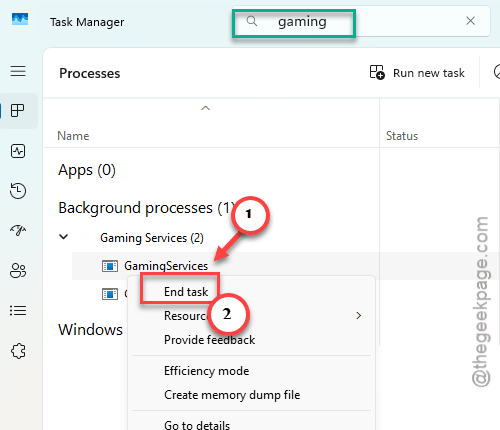
5 – Launch Gears of War: E-Day again.
Only one entry under Gaming Services? So that’s not your problem. Move on.
Fix 2 – Reinstall Gaming Services
If the Xbox app crashes the moment it checks your Game Pass license, Gaming Services itself is probably damaged. This removes it and puts a fresh copy back (your games and saves stay where they are).
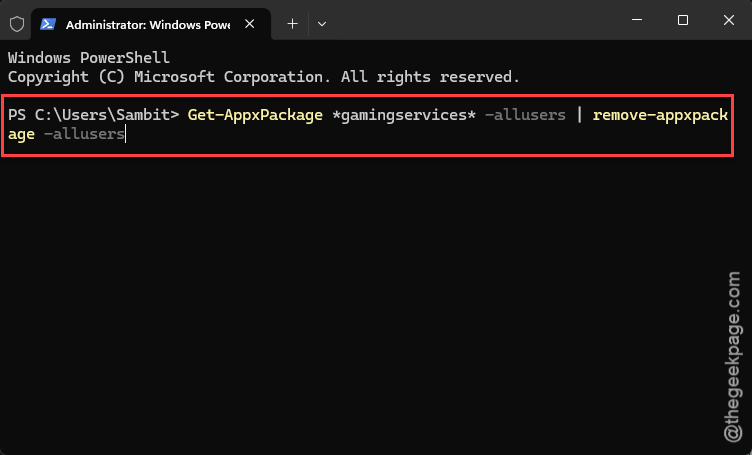
1 – Right-click Start and click Terminal (Admin).
2 – Paste this code, and press Enter.
Get-AppxPackage *gamingservices* -allusers | remove-appxpackage -allusers
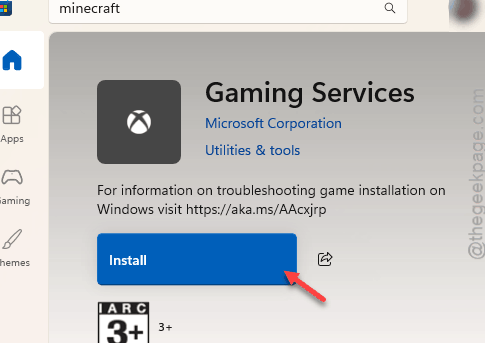
start ms-windows-store://pdp/?productid=9MWPM2CQNLHN
3 – Paste and press Enter. The hidden Gaming Services page opens in the Microsoft Store.
4 – Click Install and wait for it to finish.
5 – Restart your PC.
And don’t panic if you see red text after step 2. It sometimes complains about one piece and still removes the rest.
Fix 3 – Reset Your NVIDIA Shader Cache
One player figured this out after a lot of trial and error. It’s the shaders. A broken shader cache (the saved copy of those graphics programs) crashes the game during loading.
1 – Right-click your desktop and open NVIDIA Control Panel.
2 – Click Manage 3D Settings in the left sidebar.
3 – Find Shader Cache Size in the list and set it to Disabled or Unlimited.

4 – Click Apply at the bottom right.
5 – Change Shader Cache Size back to what it was and click Apply again.
So yes, you change it and then change it right back. Weird, but that’s what forces the cache to rebuild. The first launch afterward takes longer while it rebuilds.
Fix 4 – Give Your GPU More Time Before Windows Gives Up
Windows has a safety timer called TDR (Timeout Detection and Recovery). If the graphics card doesn’t answer for 2 seconds, Windows resets it. Ever seen your screen go black for a second and come back? That’s TDR. Heavy shader building in E-Day can go past that, and the game dies with LowLevelFatalError. So making the timer longer helps.
1 – Press Windows + R, type regedit, and press Enter.
2 – Paste this into the address bar at the top and press Enter.
HKEY_LOCAL_MACHINE\System\CurrentControlSet\Control\GraphicsDrivers
3 – Right-click an empty spot on the right side and choose New > DWORD (32-bit) Value.
4 – Name it TdrLevel and leave its value at 0.
5 – Create another DWORD (32-bit) Value the same way and name it TdrDelay.
6 – Double-click TdrDelay, pick Decimal, type 10, and click OK.
7 – Restart your PC.
That gives the card 10 seconds instead of 2. Careful in the Registry Editor, though (change only what’s listed here).
Fix 5 – Quit Your RGB Lighting Software
Strange but true. Easy Anti-Cheat, which E-Day uses, treats some RGB apps as cheating tools.
Example – ASUS Aura (LightingService.exe) and Corsair iCUE (iCUE.exe) are the usual suspects.
Right-click their icons in the system tray near the clock and choose Exit or Quit, then launch the game.
Your lights might go plain for a while. Worth it.
Fix 6 – Delete the Epic Online Services Webcache
Crossplay runs through Epic Online Services, even on the Xbox version. And its cache gets corrupted on launch more than it should, for some reason.
1 – Close the game.
2 – Press Windows + R, type %localappdata%, and press Enter.
3 – Open EpicGamesLauncher, then Saved.
4 – Delete the webcache folder.
It comes back on its own the next time you play, clean this time. And that’s it.
Keep It From Coming Back
- Check Task Manager for a doubled Gaming Services entry after big Windows updates. That’s when it tends to show up.
- Keep the TdrDelay change. It does not hurt anything, and other big Unreal Engine 5 games like it too.
- Close RGB apps before you play anything with Easy Anti-Cheat. Every time, honestly.
- Let the first launch after a driver update finish building shaders. Don’t alt-tab or force-close it.
People Also Ask
Why does Gears of War: E-Day keep crashing?
Two things cause most of it. Either Gaming Services is broken or running twice, which crashes the Xbox app, or shader building takes so long that Windows resets your graphics card. End the duplicate Gaming Services process, reset your shader cache, and raise the TdrDelay to 10 seconds.
What does LowLevelFatalError mean?
It’s Unreal Engine’s general crash message. The engine hit something it couldn’t recover from, often the graphics card timing out while compiling shaders. It doesn’t point to one exact cause. In E-Day, raising the Windows TDR delay and resetting the shader cache fix it most often.