While accessing the MS Store, some users have met with this error ‘Something went wrong and Microsoft Store failed to initialize.‘ message on their Windows 10/11 system. This particular error can originate from any of the reasons such as corruption of the Store files, misconfigured network settings, etc. No one wants to get greeted with an error message like this in Microsoft Store, which is the native source of apps on Windows. These fixes should help you resolve this issue.
Quick Fixes –
1. Reset the Store Cache – Use the wsreset code from the Run panel (Windows+R key) to reset the Microsoft Store cache.
2. Update Windows – See whether any updates are pending for Windows. According to user reports, Windows version updates like 24H2 can cause certain issues. So, check if any latest patch is available to install.
Fix 1 – Remove and reinstall the Microsoft Store
If there is some corruption in the Microsoft Store, uninstalling the Store app and reinstalling the same should fix the issue.
Step 1 – At first, right-click the Windows button and tap Windows Terminal (Admin) to load up the terminal.
Step 2 – Right-click the ➕ button there and tap Windows PowerShell.
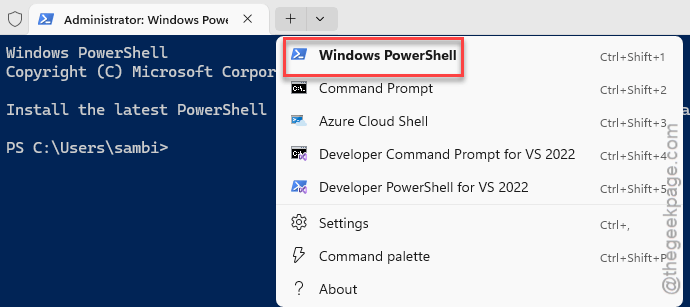
Step 3 – In the new PowerShell panel, paste this code and hit Enter to remove the Microsoft Store.
Get-AppxPackage windowsstore | Remove-AppxPackage
Step 4 – Then, use this code to reinstall MS Store on your machine.
Get-AppXPackage WindowsStore -AllUsers | Foreach {Add-AppxPackage -DisableDevelopmentMode -Register "$($_.InstallLocation)\AppXManifest.xml"}
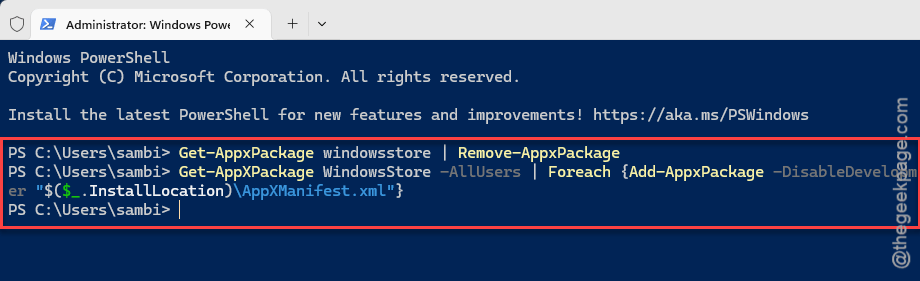
After reinstalling Microsoft Store, open it up and test.
Fix 2 – Reset or Repair the Windows App Runtime Singleton app
Windows App Runtime Singleton is used in Microsoft Store ecosystem. So, its corruption can lead to such issues in MS Store.
Step 1 – Open the Windows Settings and go to the Apps tab. Open the Installed Apps tab.
Step 2 – Search for Windows App Runtime Singleton app and tap Advanced Options.
Step 3 – Next, use the Terminate mode and try the Repair and Reset option there.
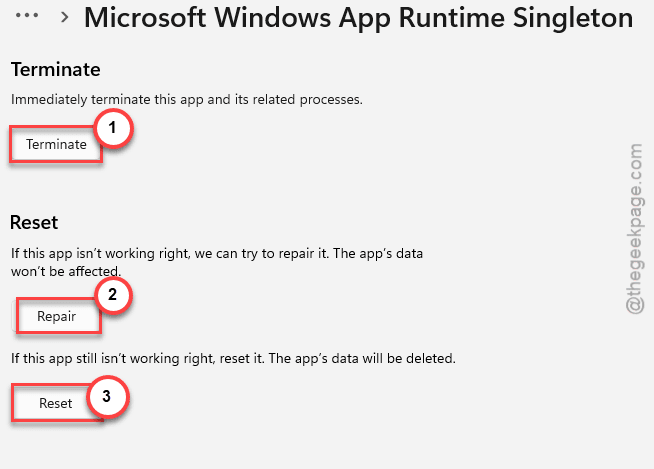
NOTE – In any case, if this one fails, or you get any error while repairing the App Runtime Singleton, you can install it –
1. Open the AppRuntime.Singleton app on a browser.
2. Then, tap the Install button to get the app on your system.
3. Tap Get on the overlay to install the app.
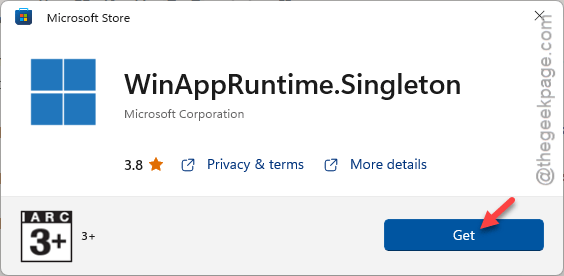
Check if this solves the MS Store issue.
Fix 3 – Enable the TLS in Network Adapters settings
Step 1 – Quickly press the Win+R buttons to load up a Run terminal.
Step 2 – Next, type this there, and click OK.
inetcpl.cpl
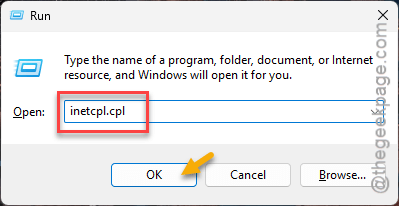
Step 3 – After this loads the Interent Properties page, go to the Advanced tab.
Step 4 – Next, check these boxes there.
Use TLS 1.0
Use TLS 1.1
Use TLS 1.2
Use TLS 1.3
Step 5 – Save the changes using the Apply and OK function.
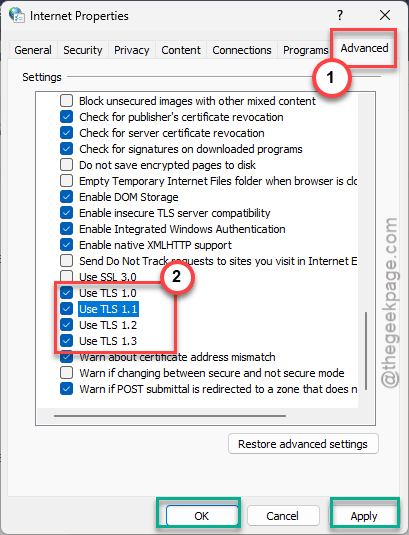
After applying these changes, you must restart your computer. Try using Microsoft Store once again.
Fix 4 – Automate the Background Intelligence Transfer Service
Background Intelligence Transfer Service (BITS) and some other necessary services needs to be running on the machine for the Microsoft Store to work properly.
Step 1 – Type services in the search box and open up the Services utility.
Step 2 – Find the Background Intelligence Service there and double-tap it.
Step 3 – At first, set the ‘Startup type:’ to Automatic mode. Tap Apply and OK to save the modification.

Step 4 – Coming back to the main Services page, right-click the Background Intelligence Service there, and tap Restart to reboot the service. If the service has not started yet, tap the Start button to start it.
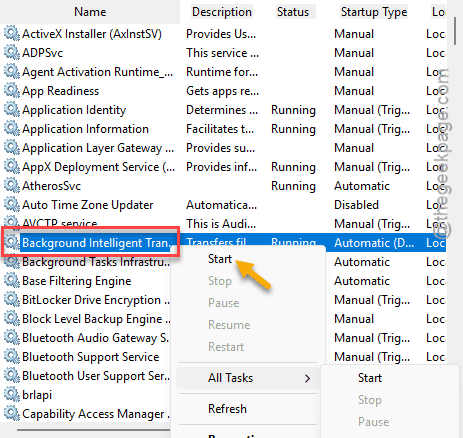
Step 5 – Now, you have to automate and restart/start the following services as well –
Windows Update
Microsoft Store Install Service
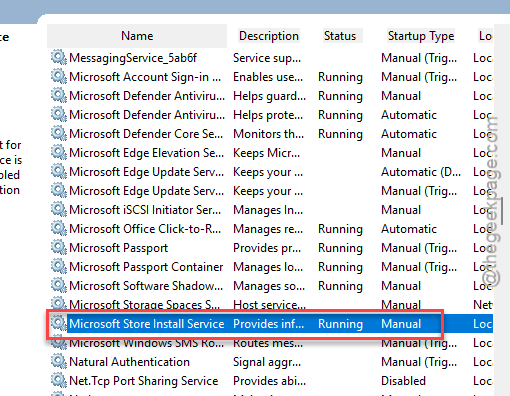
Once these services are running, open the Microsoft Store and check.
Fix 5 – Download, install the WinAppSDK and retry using Store
[NOTE – Do this if the apps are failing to update on your Microsoft Store.]
Another reason behind this crash of Store can be due to the old Windows App SDK files.
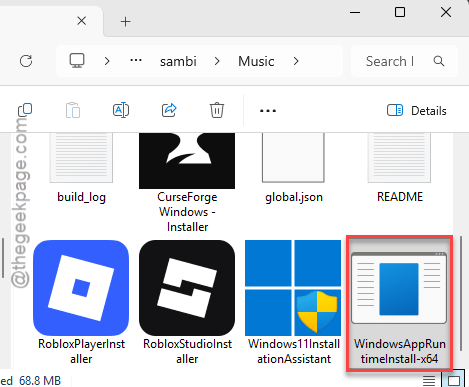
Step 1 – Download the latest version of Windows App SDK.
Step 2 – Do not run the installer right away. Instead, close all the apps and restart your computer.
Step 3 – After a fresh restart, run the downloaded Windows App SDK installer on your machine.
Step 4 – This process won’t take much time. A terminal will open up where it installs the SDK package. You don’t have to do anything.
Step 5 – Now, open the Microsoft Store and tap the Retry button for a few times.
See if the Microsoft Store works or not.
Fix 6 – Re-register the Microsoft Store
Re-registering the MS Store has solved the issue for many affected users. Follow these steps –
Step 1 – Open a Run panel, using Win+R buttons together.
Step 2 – Next, write powershell in the Run box. Now, press the Ctrl, Shift, and Enter keys together to load up an instance of PowerShell.
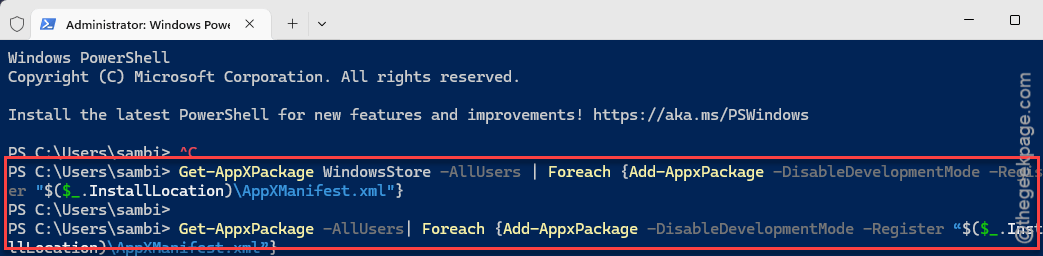
Step 3 – Finally, run these commands to de-register and re-register the Windows Store from the terminal.
Get-AppXPackage WindowsStore -AllUsers | Foreach {Add-AppxPackage -DisableDevelopmentMode -Register "$($_.InstallLocation)\AppXManifest.xml"}

Get-AppxPackage -AllUsers| Foreach {Add-AppxPackage -DisableDevelopmentMode -Register “$($_.InstallLocation)\AppXManifest.xml”}
After re-registering Microsoft Store, it will be operational once again. Finally, after loading the Microsoft Store, check again.