Microsoft Word has this very useful feature that lets users simply drop-down texts across their workbooks. But, this feature seems not to be working properly for some users, as they are unable to drag and drop selected texts directly on their workbook. Generally, if the Allow Text to be dragged feature is disabled, you may not be able to directly drag and drop the selected texts in MS Word. Here are some tips that should solve your issue.
Fix 1 – Enable Allow Text to be dragged and dropped feature
The drag-drop feature in MS Word is an editing feature that must be turned off on your system. This is the reason you can’t drag-drop the selected texts.
Step 1 – Open the File tab. Then, go to the Options tab.
Step 2 – Next, go to the Advanced feature.
Step 3 – Then, check the Allow text to be dragged and dropped feature. Tap the OK button to save the changes.
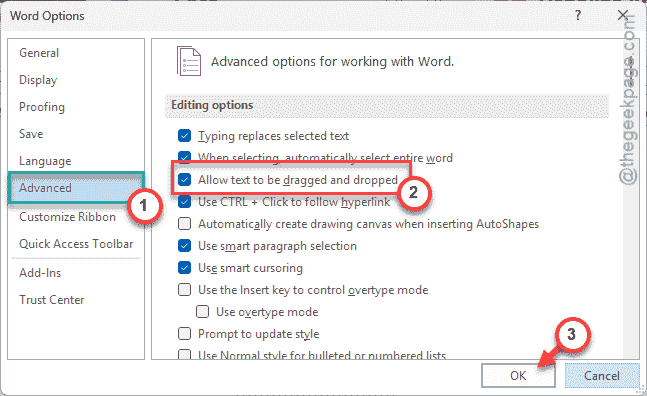
After saving these changes, you can easily drag-drop the items of your choice in other Word document.
Fix 2 – Close any Conflicting Prompt/ Boxes
If any other dialogue boxes or prompts are open in the Word document, that may conflict with the drag and drop function of MS Word.
Step 1 – Look for any conflicting prompt or boxes (like Find & Replace, any warning message) in MS Word. Then, close any such prompts in there.
Step 2 – After this, try to use the same drag and drop feature.
This time, there won’t be any further issues dragging and dropping the contents directly.
Fix 3 – Launch MS Word in Safe Mode and Retry
Sometimes, external add-ins may run you into such issues. So, try launching Word in Safe Mode.
Step 1 – Hit the Win+R buttons together.
Step 2 – Next, write this line there, and click OK.
winword.exe /safe
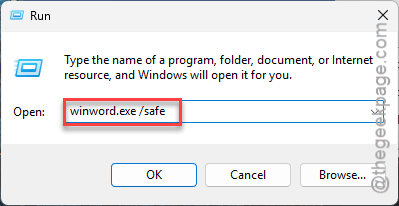
This will launch the Word application in Safe Mode, without the influence of any third-party components like add-ins, plug-ins etc.
Try using the same drag-drop feature now.
Fix 4 – Disable the Add-ins in MS Word
Try disabling any add-ins in MS Word and using that drag-drop feature.
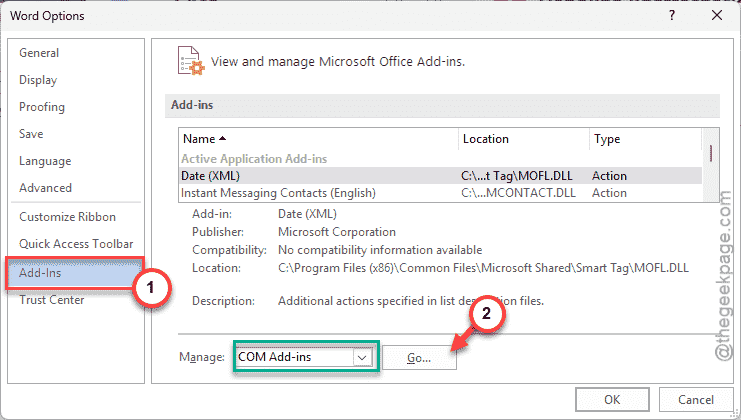
Step 1 – Load up the File tab in MS Word. Next, proceed to the Options tab.
Step 2 – Go to the Add-ins tab.
Step 3 – Later, set the Manage button to COM Add-ins. Tap the Go button there.
Step 4 – Now, once the add-ins list appears, uncheck all of them. Click OK to save the changes.
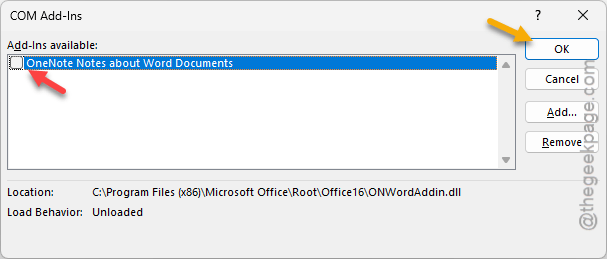
After disabling the add-ins, try to use the same drag-drop feature once again.
See whether this resolves the problem for you.
Fix 5 – Disable Copilot for Word
It seems some affected users have held the Copilot program as the potential
Step 1 – Load up the Word app. Then, proceed to the File tab.
Step 2 – Later, open up the Options menu.
Step 3 – Uncheck the Enable Copilot panel. Then, click OK to save the changes.
After disabling the Copilot, you retry dragging and dropping the selected contents in Word.
This way, you can solve this problem.