When you apply filters to a large table with a huge number of cell data, Excel has to recalculate the visibility of every single row against the filter criteria. Now, if you have automatic calculations enabled or a complex formatting system in place, Excel can quickly become nonresponsive trying to render the grid of the spreadsheet. If Excel is freezing on your device, here are some steps you can enact to fix this issue yourself.
| Issue | Recommended Fix |
| Hangs Immediately after clicking “OK“ | Fix #1: Switch to Manual Calculation |
| Lag when selecting filter checkboxes | Fix #2: Use Slicers insread of standard drop-downs. |
| Stutters while scrolling filtered data | Fix: Use Advanced Filter to process the criteria online |
Fix 1 – Switch to Manual Calculation
Every time you filter something in your workbook, Excel recalculates all the formulas in the spreadsheet, leading it to the freezing incident.
Step 1 – Go to the Formulas tab. Then, tap the Calculation Options.
Step 2 – Choose the Manual mode.
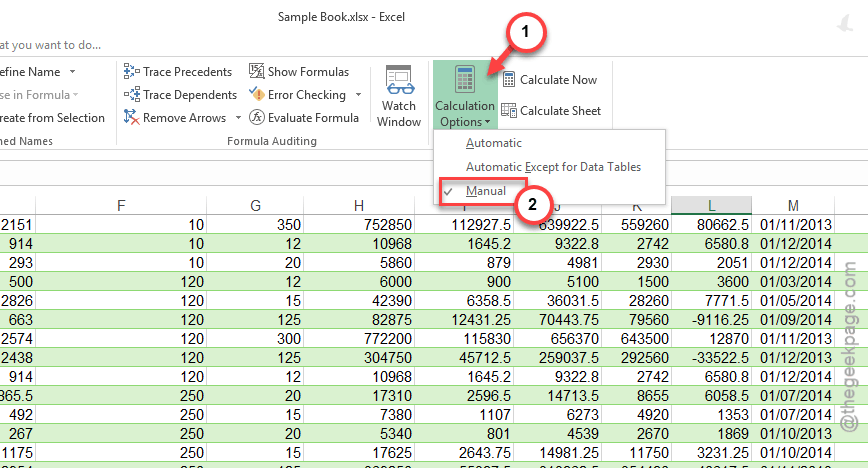
Step 3 – Then, apply your filters.
Once you are done, you can use the F9 key to view the updated formulas.
Fix 2 – Use Slicers Instead of Dropdowns
Instead of using standard filters that can freeze up the big spreadsheets with a huge amount of data, you can use slicers.
Step 1 – Click inside your table.
Step 2 – Go to the Table Design tab. Tap Insert Slicer.
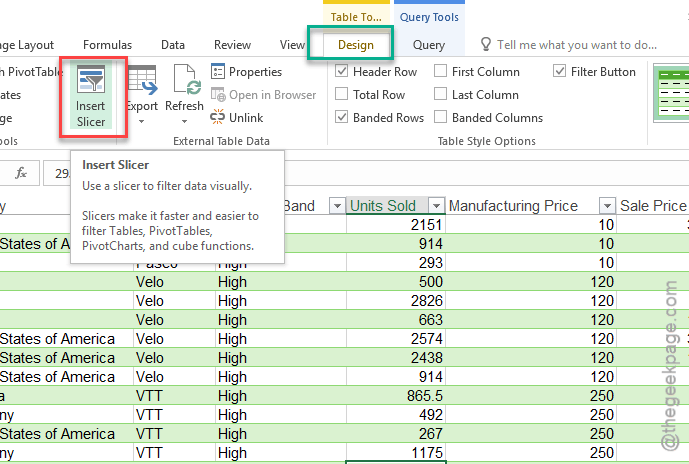
Step 3 – Choose the columns you want to filter by.
You can now click buttons to filter without relying upon the menu tab, which may freeze the Excel app.
Fix 3 – Clear Conditional Formatting
If the tables are color coded or highlighted with different colors, Excel must recalculate all of them according to the conditional formatting formula.
Step 1 – Select your data.
Step 2 – Go to the Home tab. Select the Conditional Formatting tab. Then, tap the Clear Rules. Choose the Clear Rules from Selected Cells feature.
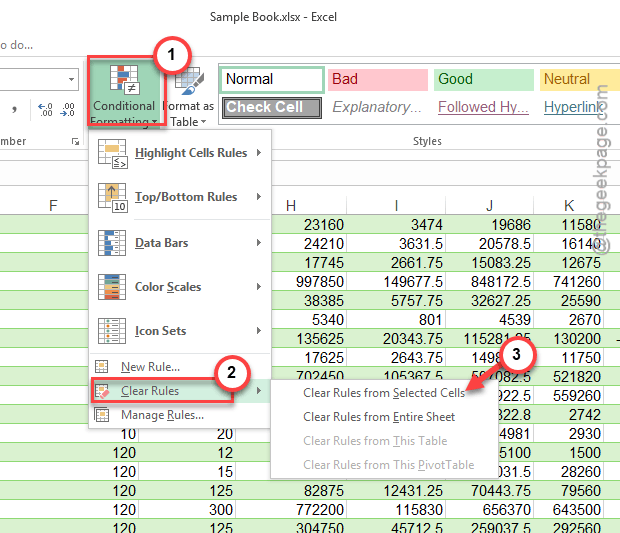
See if this works.
Fix 4 – Use the Advanced Filter Feature
If you are filtering 3 or 4 different criteria across rows or columns, Excel might struggle. Use the advanced filters to do it.
Step 1 – Go to the Data section. Proceed to the Advanced section.
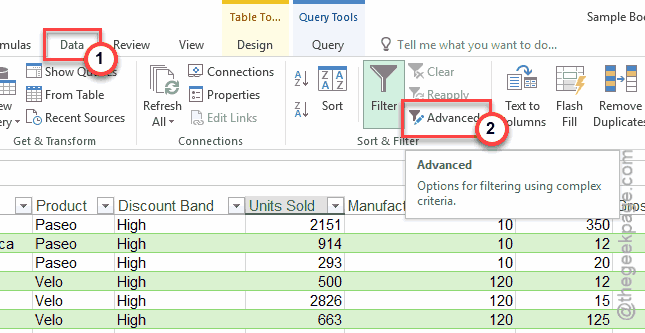
Step 2 – Set your List Range and Criteria Range. Here, the List Range is your data, and the Criteria Range denotes the small table with headers and your specific requirements.
Step 3 – Click OK.
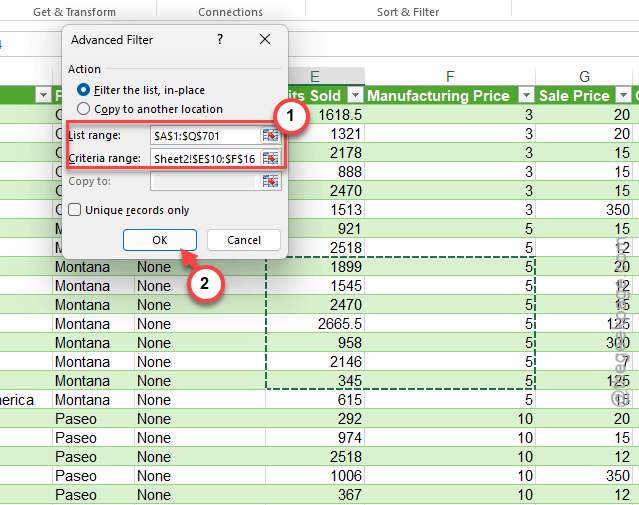
This is a faster technique than the traditional filters.
Fix 5 – Convert to an Official Excel Table (Ctrl+T)
Filtering data directly from cells can be cumbersome on the hardware resources. Use filters on Tables for a quick result.
Step 1 – Select your data in the spreadsheet and press the Ctrl+T buttons together.
Step 2 – Ensure that the My table has headers option is checked.
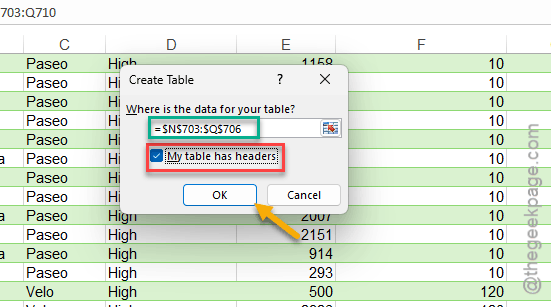
The table handles the filter operations with more stability.
See if this fixes your problem.