Does the Teams client not open at all? Don’t worry. If the Teams app is not loading at all, it can be due to an outage and has been reported by many other users. It is usually because of a stuck authentication token or background processes that cause the MS Teams app to get stuck in the loading phase. Here are the only tips that you will need to counter this issue in Microsoft Teams.
| Issue | Recommend Fix |
| Stuck on Loading… splash screen | Clear the MS Teams Local Cache |
| White/Blank screen on launch | Reset the MS Teams app |
| Works on web, not on the desktop. | Uninstall & Reinstall MS Teams from Microsoft Store |
Fix 1 – Repair & Reset the Teams Client
Repairing or resetting the Microsoft Teams client should fix the issue that does not involve any uninstallation or reinstallation of the app.
Step 1 – At first, open the Apps tab in the Settings panel.
Step 2 – Go to the Installed Apps panel.
Step 3 – Then, search for the teams app. Next, tap the three-dot button next to the Microsoft Teams app, and tap Advanced Options.
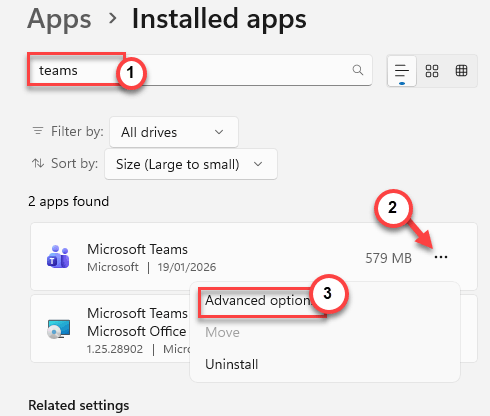
Step 4 – In the Teams app page, run the Repair button. Then, use the Reset button to reset the Teams app settings.
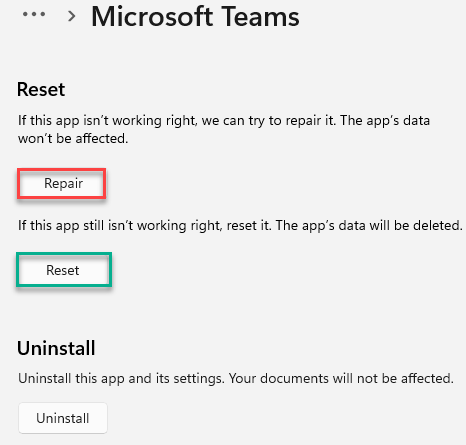
Resetting the Teams client will log you out and restore the app to the default factory settings. You have to manually log back into the app to fix the problem.
Fix 2 – Terminate any residual Teams processes
The residual Microsoft Teams processes still running in the background may obstruct new
Step 1 – Hit the Ctrl+Shift+Esc buttons together to open the Task Manager.
Step 2 – Then, proceed to the Details tab.
Step 3 – Find any of these tasks in the Task Manager, and terminate them, if they are running –
ms-teams.exe
msedgewebview2.exe
Teams.exe
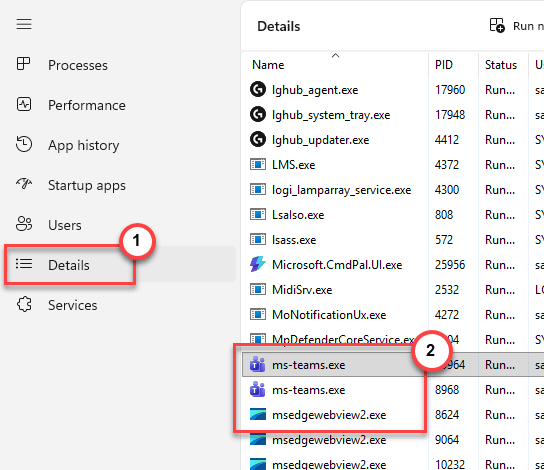
After ending the Teams processes, relaunch the client and check again.
Fix 3 – Perform the new Teams Cache Cleanup
Corrupted local Teams cache can run into such issues.
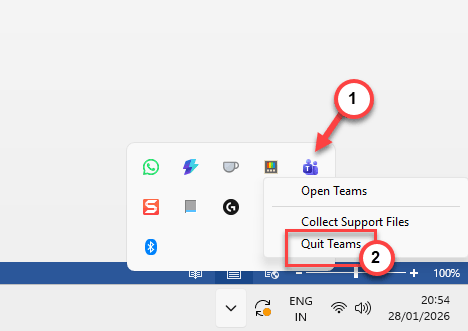
Step 1 – Close the Teams client, first. You have to close it from the system tray as well. Just go ahead and quit MS Teams from there.
Step 2 – Open up a Run tab. Then, paste this address there and click OK to reach the MS Teams cache location.
%localappdata%\Packages\MSTeams_8wekyb3d8bbwe\LocalCache\Microsoft\MSTeams
Step 3 – Delete everything from inside that folder.

After this, relaunch the Teams client. It may take a while to boot up the client. Sign in using your account credentials.
There won’t be any further issues.
Fix 4 – Launch the Teams client with Administrative Rights
The lack of administrative rights can lead to authentication issues. So, you should just launch the Teams client with administrative rights to fix the issue.
Step 1 – Search for teams from the search box.
Step 2 – Then, right-click the Microsoft Teams client and tap Run as administrator option to run the Teams client with administrative rights.
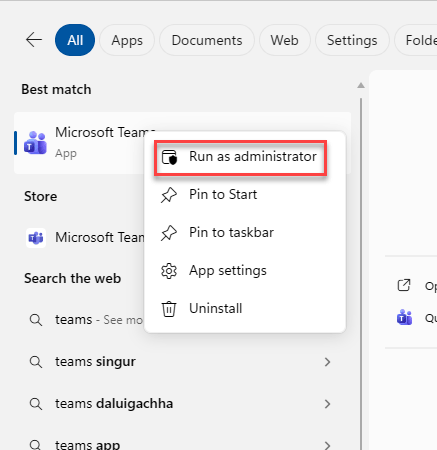
After launching the client, see whether it is loading up or not.
Fix 5 – Use Teams on Web/ Other Devices
If the Microsoft Teams app is still not opening, you should give the web client a try.
Step 1 – Load up the Microsoft Teams on web.
Step 2 – Use the Sign in function there and use your account credentials to log into the client.
Check whether this allows you to use the app.

Step 3 – If that does not work, use the Teams client on your phone or other devices to log in and use it.
Hope these fixes have helped you!