Have you recently noticed the amount of your typing error (typo) has gone drastically up since the iOS 26 update? You are not alone, as many users have reported this same behavior. The Autocorrect function is the main culprit in this case. Here are some resolutions that should help you fix the keyboard problem.
Fix 1 – Refresh the Auto Correct functionality in Keyboard Settings
You have to turn off the Auto correct settings for the iPhone keyboard, and turn it on from there.
Step 1 – Open the iPhone Settings. Go to the General tab.
Step 2 – Later, load up the Keyboard settings.
Step 3 – Find the Auto Correction settings. Disable it and wait for a few seconds. Then, re-enable it.
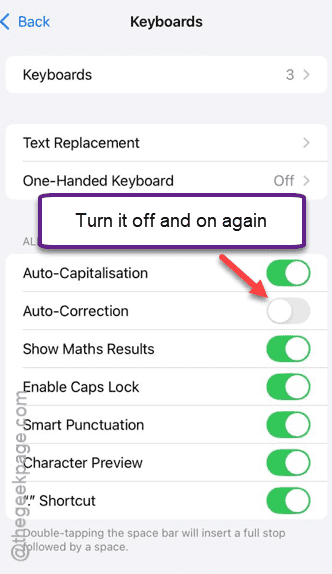
This simple refresh should fix the keyboard lag issue that you are having post iOS 26 update.
NOTE – Some users have also found that the autocorrection is causing this havoc. So, you may just disable the Auto correct function from the same settings page.
Fix 2 – Remove any third-party keyboard and use Apple Keyboard
Third-party keyboards can cause such problem post iOS 26 update. So, you should remove any such keyboard and continue to use the Apple keyboard as the primary device.
Step 1 – Go to the iPhone Settings and reach the Keyboard settings this way –
General ⇾ Keyboard
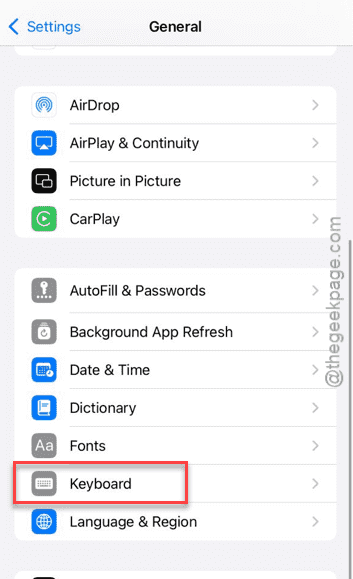
Step 2 – In the Keyboard settings page, tap the Keyboards button.
Step 3 – Now, tap the Edit button at the top. Then, tap the minus ⛔ button next to all the third-party keyboards and tap Delete to delete each one of them.
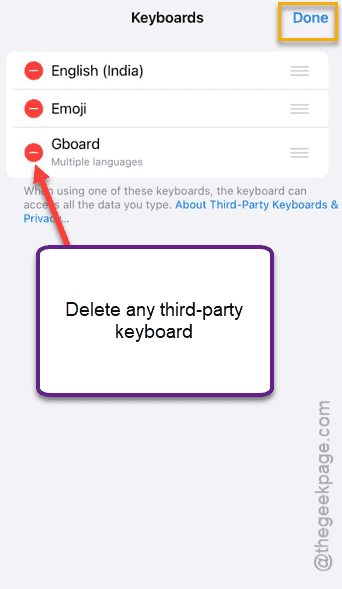
Step 4 – Now, you can also remove the third-party keyboards from your iPhone as well. To do that, hold the keyboard app, and tap the Remove App option to remove it.
After removing the app, the iPhone will automatically use the Apple keyboard as the default keyboard. Try using it now.
Fix 3 – Clear out all the iPhone Settings
If the keyboard is behaving weirdly or lagging too much, you should consider cleaning up all the settings on the iPhone.
Step 1 – In the iPhone Settings page, reach the General settings.
Step 2 – Then, proceed to the Transfer or reset iPhone settings.
Step 3 – Next, load up the Reset option.
Step 4 – Finally, Reset All Settings to reset all your iPhone settings.
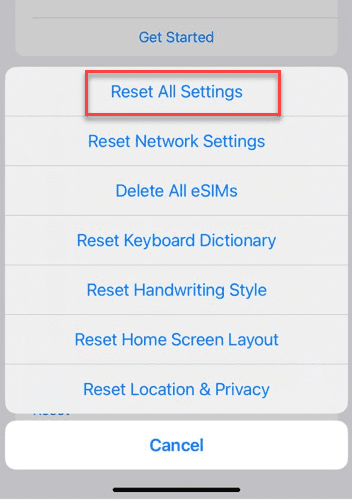
This includes all the settings of your iPhone, even saved network settings like stored Wi-Fi credentials, settings modifications etc. But, your app data remains untouched.
Once you have gone through this procedure, you can expect the keyboard to function normally.
Fix 4 – Update the iPhone
This sort of issues were mostly patched in the next builds of iOS 26, such as iOS 26.0.1. So, install the latest version of iOS on your system.
Step 1 – Load up the iPhone Settings and proceed to the General settings.
Step 2 – Then, go to the Software Update page.
Install the latest version of iOS 26 update on the device. Test the keyboard function after the update. Your experience will improve drastically.
NOTE – If you are using any Developer Build of iOS 26, you must return to the stable build of iOS 26.
Final Words –
These are the tips you can apply to fix the keyboard lag issue on your iPhone.