Are the external links not opening up on the YouTube app? Normally, when you tap any YouTube link, it loads up right in the YouTube app. But, in some cases, the same action may load up the YouTube video in your default external browser. Here are those solutions that will make sure that video loads up in the YouTube app, not in the external player.
Why the YouTube links are not opening in YouTube app?
Generally, when you try to open a YouTube link, the link by default loads in the web browser, and then it gets redirected to the YouTube app. Now, if there are some problems in this pipeline, the redirection to the YouTube gets blocked and the video continues to play on the browser.
Fix 1 – Clear the browser data of the browser
After thorough research, we have found that this problem is directly associated with the default browser that you are using. Most of the iPhone users use the Safari or Google Chrome as the default browser on their device. We have covered the steps for both of these browsers.
Steps for Safari browser users –
You may follow these steps to clear out the data of the Safari browser.
Step 1 – You must go to the “⚙” to get to the Settings.
Step 2 – In that Settings page, go straight to the “Apps” page.
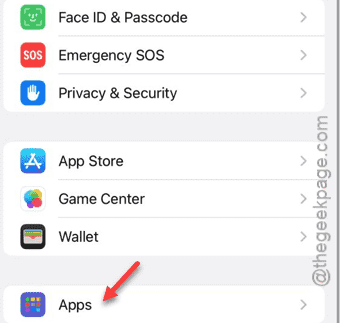
Step 3 – You must open up the “Safari” settings.
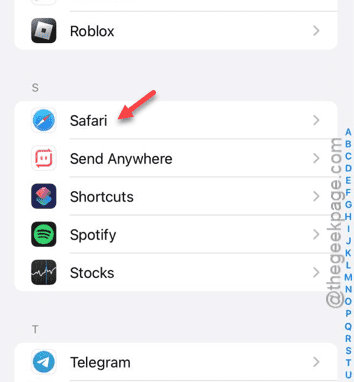
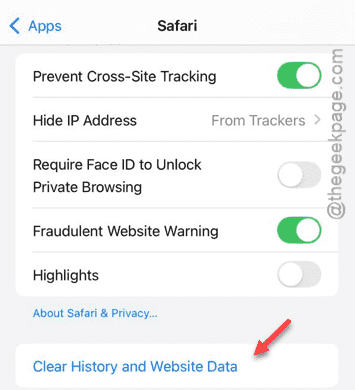
Step 4 – In that Safari settings page, slide down and use the “Clear History and Website Data” option.
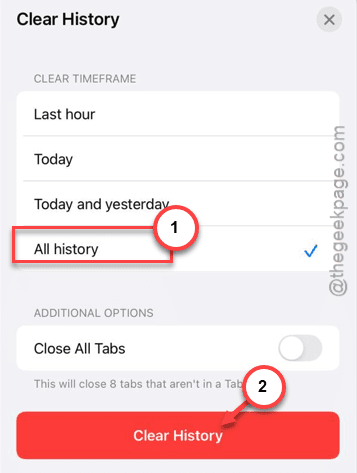
Step 5 – Safari does give you the option to delete how much of the data that it has stored. Select “All Time” to clear all the stored up history.
Step 6 – Toggle the “Close Tabs” option, if the tabs are not that of much importance to you.
Step 7 – Finally, tap “Clear browsing data“.
After clearing the browser data and history on Safari, try opening the links once again.
Steps for Google Chrome users –
If you are using Google Chrome as the default browser, clean up the browser data following these steps –
Step 1 – Get to the Google Chrome browser.
Step 2 – Tap the small three-dot button there in the corner.
Step 3 – Later, choose the “Clear Browsing data” option.
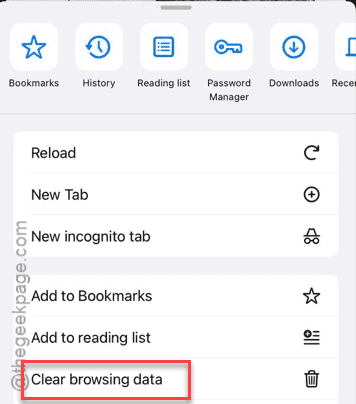
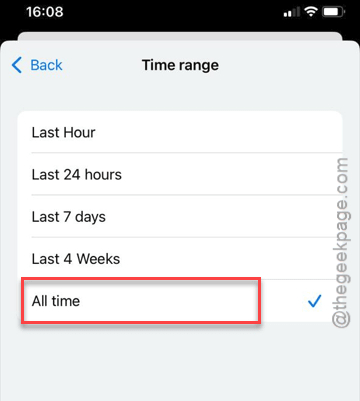
Step 4 – At first, you have to fix the “Time Range” to “All Time“.
Step 5 – Once you have set the time range, tap the “Clear Browsing data” to clear out the Chrome browser.
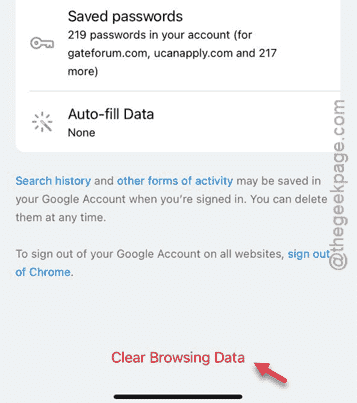
After clearing out the chrome data, all the external links in the YouTube will open up in the app instead of the browser.
Fix 2 – Update the YouTube app
The links may stop opening up if you are using an older version of YouTube app.
Step 1 – You need to go to the App Store.
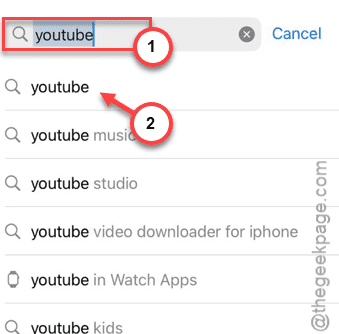
Step 2 – In the App Store home page, search for the “YouTube” in the search box.
Step 3 – Later, tap the “YouTube” in the search result.
Step 4 – When the YouTube store page loads up, if an update is pending for real, tap the “Update“.
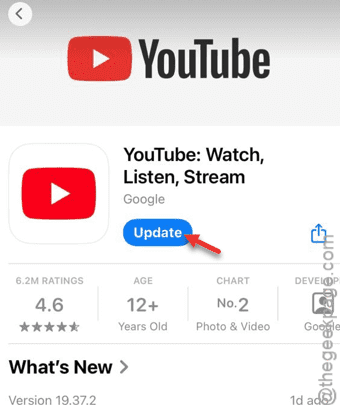
After updating the YouTube app, try to open a link and see whether the link has opened up in the YouTube app.
Hope this have worked out!