The infamous ‘ChanneStillProvisioing‘ error prompt may show up in Microsoft Teams in various scenarios. Usually, when Teams is unable to create or access a SharePoint folder or site required to host the file, this error prompt shows up in the client. This can also be treated as a sync deadlock, as it stops the synchronization operation for all the files of the affected team. Troubleshooting this is easier than you assume, as you can just apply these fixes to resolve the issue.
Quick Troubleshooting Chart –
| Issue | Recommended Fix |
| Endless ‘ChannelStillProvisioning’ error | Use Teams Mobile App to Create a Folder (Fix 1) |
| Files tab is completely blank | Clear the blob_storage in Teams Cahe (Fix 3) |
| ‘There was a problem reaching this app’ | Assign a new Owner of the affected Team (Fix 4) |
Fix 1 – Use Teams Mobile App to Trigger the main client
The easiest workaround to this problem is just to create a fresh new folder in the affected channel using the Teams mobile client.
Step 1 – Open the Teams mobile app.
Step 2 – Then, navigate to the affected channel in the Teams app.
Step 3 – Tap the + button icon or the three-dot button, and tap Create New Folder.
Step 4 – Simply, name it something of your choice, like Test or Sample and save it.
Step 5 – Wait for 30 seconds. Then, load up the Teams client on the desktop.
This should clear any blocking in the Sharepoint sync.
Fix 2 – Reset the SharePoint Library name
If the owner of the channel has mistakenly renamed the main Share Document folder, it will break the entire File tab, causing the ChannelStillProvisioning issue.
Step 1 – Go to the Teams client. Find the channel that is causing such issues. Tap More options (…) and click the Open in SharePoint option.
Step 2 – Check the URL and try to find the library name. It must be named Documents or Shared Documents.
Step 3 – If you found it renamed, go this way –
Library Settings > More Settings
Step 4 – Rename it to Shared Documents.
This should fix the issue.
Fix 3 – Clear the blob_storage cache of Microsoft Teams
Corrupted cache storage in MS Teams app
Step 1 – Quit the current instance of the Microsoft Teams app. Make sure to quit the Teams app as well.
Step 2 – Then, open a Run box. Use this address to reach the MSTeams folder.
%localappdata%\Packages\MSTeams_8wekyb3d8bbwe\LocalCache\Microsoft\MSTeams
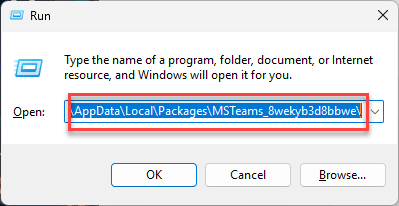
Step 3 – Now, find and delete the blob_storage and Cache folders from your computer.
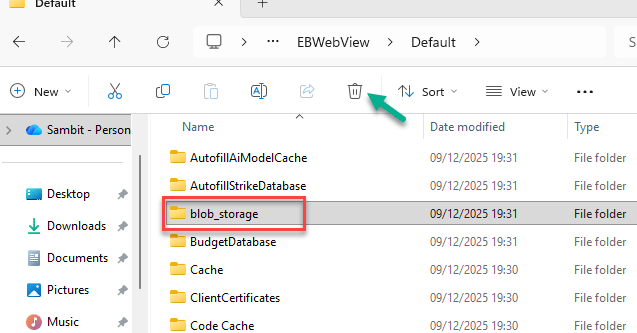
After deleting these two folders, relaunch the Teams app on the desktop and try to access the files in the affected channel.
Fix 4 – Ensure Channel Has an Active Owner
If the channel admin or owner has left the company, all the subsequent new channel provisioning stops as well.
NOTE – Only an IT Admin can do this. So, you may have to contact them to perform the steps mentioned below.
Step 1 – Go to the Microsoft 365 Admin Center.
Step 2 – Proceed this way –
Groups > Active Groups
Step 3 – Look for the team name there. Make sure there is at least one active owner is present for the team.
Step 4 – If there are no active owners, you can add yourself or the manager as the owner.
It does take about an hour for the new permissions to reflect. After that, the channel files will start to provision the files immediately.
Hope these fixes have helped you solve this issue.