App issues after a major iOS update is quite common, and iOS 26 is not an exception, not even by a mile. iPhone users have already flagged the mail delivery issues where the email messages are getting delayed, and in some cases, not even delivered at all! Generally, it is the misconfigured fetch email data settings, which is causing this delay, but there are other possible reasons. Here are some quick steps that can help you fix the issue.
Fix 1 – Refresh the Mail Fetch Settings
Just turn off the Mail Fetch settings, and turn it back on to refresh the whole mail fetch system.
Step 1 – Load up the iPhone Settings. Then, proceed to the Apps section.
Step 2 – Then, open the Mail app settings.
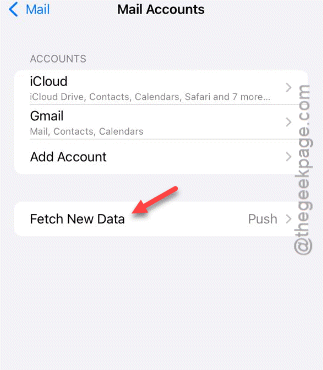
Step 3 – Later, load up the Mail Accounts menu. Then, tap the Fetch New Data settings.
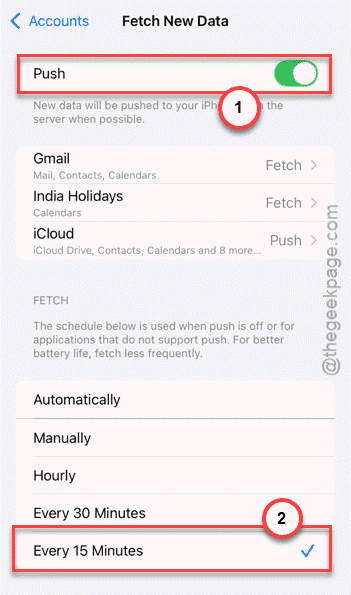
Step 4 – Make sure the Push setting is turned On. Set the Fetch to Every 15 Minutes mode.
Step 5 – Restart your iPhone.
The Mail app will now fetch messages every 15 minutes. But,, do keep in mind that it may put some effect on the battery life of the device.
Fix 2 – Remove and re-add the Email Account
Remove the email account from the Mail app, and add it there again.
Step 1 – Open the Mail app settings in Apps page of your iPhone Settings.
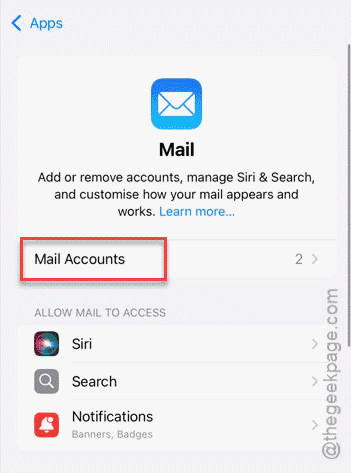
Step 2 – Then, open the Mail Accounts tab.
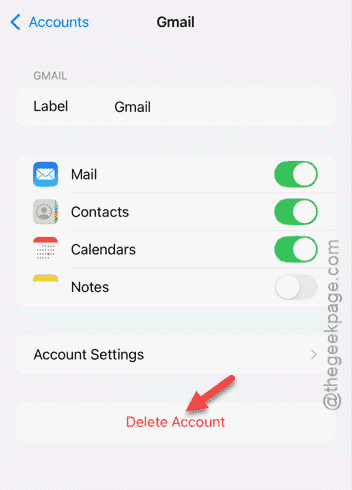
Step 3 – Tap the problematic email ID to access it. Use the Delete account function to delete the account.
Step 4 – Later, reboot your iPhone.
Step 5 – Then, proceed to the same settings section ⇾
Apps ⇾ Mail ⇾ Mail Accounts
Step 6 – Use the Add Account option to add the same account.
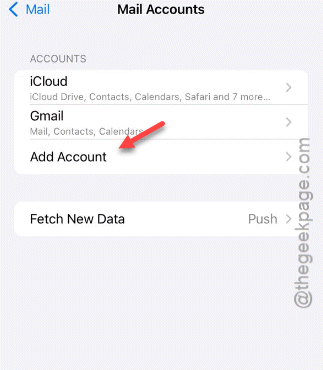
Now, follow the on-screen steps and set up the email account. You will get the mail alerts timely again.
Fix 3 – Turn off the Low Power Mode
The Low Power mode of iPhone in iOS 26 delay the fetch frequency of new email data.
Step 1 – Open the Battery settings on your iPhone.
Step 2 – Next, turn off the Low Power mode, if it is turned on.
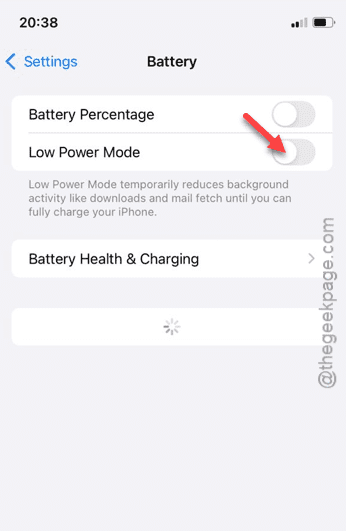
After disabling the low power mode, the mails will be delivered in real time, without any delay.
Fix 4 – Turn on the Background App Refresh for Mail
Mail is the most vital app that requires to run in your iPhone’s background to fetch new mail data.
Step 1 – Open up the General settings in iPhone.
Step 2 – Proceed to the Background App Refresh settings, there.
Step 3 – Then, make sure the Mail app is turned on in there.
While the Mail app has the proper background app refresh permission, it can deliver the new email alerts as soon as it gets delivered from the exchange server.
Fix 5 – Check Cellular Data Access for Mail
Cellular data plans comes with a data limit, where the Mail can be under the restriction for constantly eating up background data.
Step 1 – Open the Mobile Service settings.
Step 2 – Find the list of apps there. Tap the Show All option to view the complete list of apps.
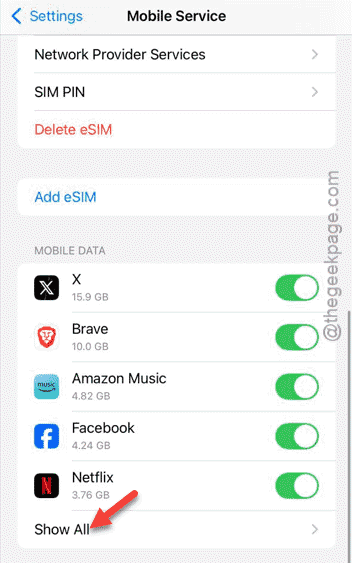
Step 3 – Just make sure the Mail app is turned on in there.
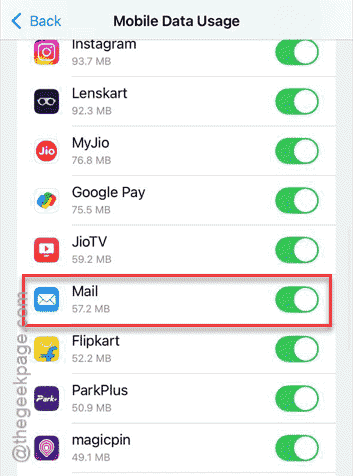
This way, you can solve the issue with the Mail app.