Does the microphone feel too quiet in the Teams meetings? Microphone is the most important tool for the users to convey their message to others in a meeting. So, if the microphone itself sounds too low, that must due to some misconfigured settings in the Teams app. You should enact these solutions to troubleshoot the microphone volume issue.
Fix 1 – Increase the Mic Input Volume
You must increase the microphone input volume to 80-90%, if the microphone feels too quiet.
Step 1 – Go to the System settings on Windows. Then, proceed to the Sound settings.
Step 2 – Scroll down to the Input settings. Go to the microphone settings.
Step 3 – Set the Volume slider to 80-90 mark.
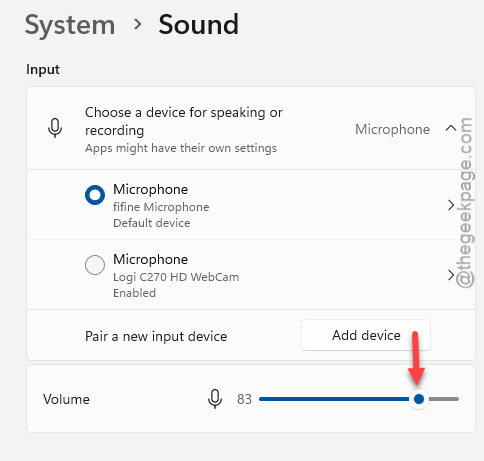
The microphone volume won’t feel quite again in MS Teams client.
Fix 2 – Turn off Automatic Mic Volume Control by Apps
There are some apps can take control over the microphone exclusively on your system.
Step 1 – Hit the Win+R buttons together for a brief second to call up a Run box.
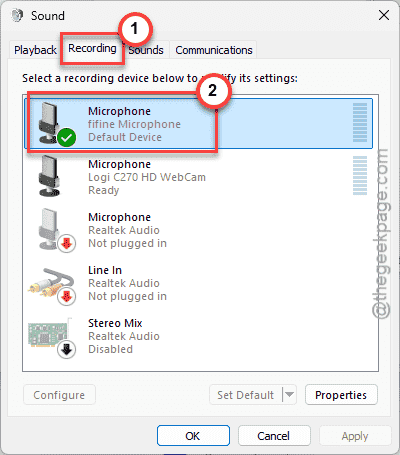
Step 2 – Paste this mmsys.cpl in the Run box. Click OK.
Step 3 – Go to the Microphone tab and double-tap the microphone to load up its properties.
Step 4 – Then, open up the Advanced tab.
Step 5 – Uncheck both these boxes in the Exclusive Mode ~
Allow applications to take exclusive control of this device
Give exclusive mode applications priority
Step 6 – Save these new modifications there.
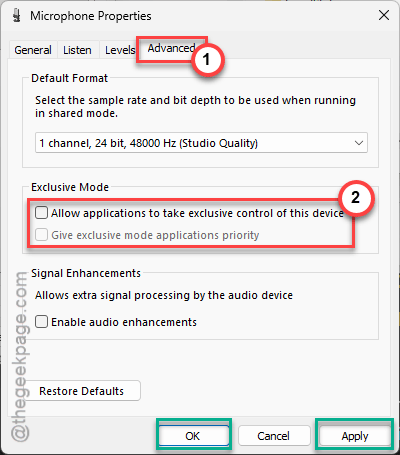
After saving these changes, check whether the microphone is still too quiet or not.
Fix 3 – Disable the Noise Suppression
Microsoft Teams has this Noise Suppression feature, which may unintentionally reduce your input signal.
Step 1 – Load up the Microsoft Teams client. Tap the ⋯ button, and tap Settings.
Step 2 – Then, go to the Devices tab. Turn off the Noise suppression feature from the right-hand pane.
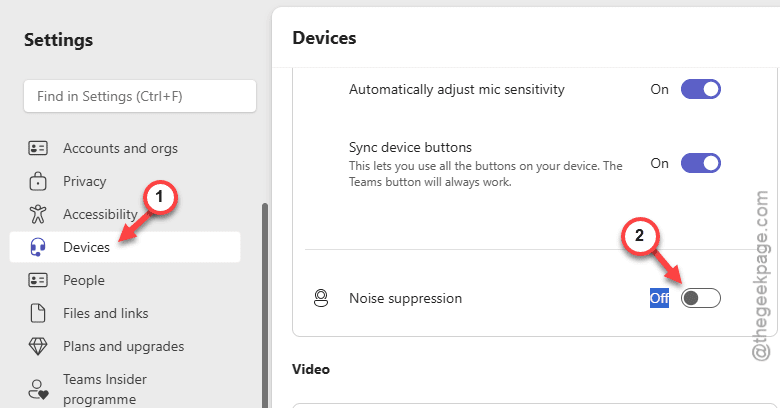
After turning it off, test the microphone and check.
NOTE – If your microphone has an inbuilt noise suppression feature, you should turn it off from the dedicated microphone software.
Fix 4 – Disable the Voice Clarity and Adjust Voice Focus
Windows has several audio enhancements like Voice Focus, Voice Clarity that can lead to low microphone output volume.
Step 1 – Go to the System settings on Windows. Next, load up the Sound settings.
Step 2 – Then, tap the microphone to access it.
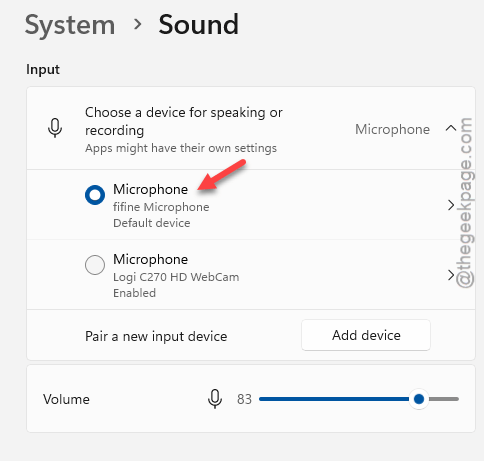
Step 3 – Next, set the Audio enhancements to Off mode. This should automatically turn off the Voice Focus mode, as well.
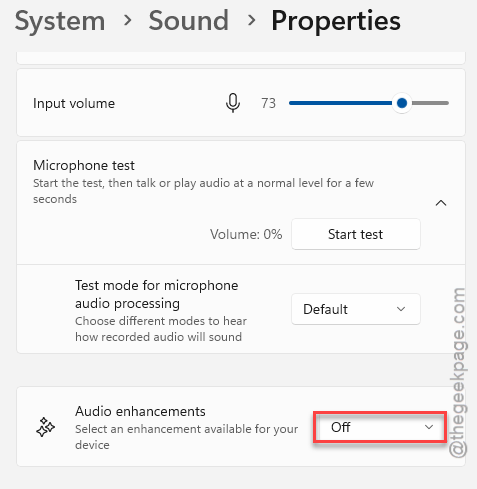
After this, check the microphone output level now. See whether the microphone is still offering low sound.
Fix 5 – Use the Microphone Boost (if available)
Many professional microphones offer the microphone boost feature, where users can boost the microphone volume.
Step 1 – Open the Settings page on Windows. Proceed to the System section.
Step 2 – Then, go to the Sound settings. Open up the microphone device to load it up.
Step 3 – Check if there is any microphone boost feature is available. If it is available, set the boost to +10dB or +20dB level to boost the microphone input.
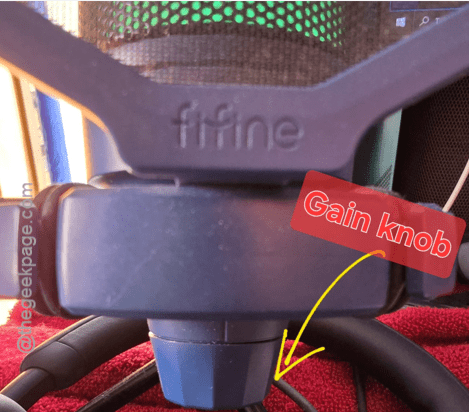
NOTE – If you are using a dedicated microphone to chat, look for the gain knob of the microphone. Almost all high-end microphone comes with the gain knob attached directly on the microphone body. You can use that to adjust the input gain to the maximum value.
Hope these fixes have solved your problem.