Having problem with the camera on your Microsoft Teams app? Camera is the most essential part of a video-conferencing app like Microsoft Teams. The possible reason behind the malfunction of camera on the Teams app is either misconfigured camera settings in the Teams app, wrong camera driver, missing permission for the Teams app to access the camera device, etc. Just enact these fixes to get that camera working in the Teams app.
Quick Tips –
1. If you are using any external camera, unplug it from your system, and plug back it in.
2. Close the Microsoft Teams client. Then, tap the arrow button in the taskbar and quit the Teams client. Later, relaunch the app and check.
Fix 1 – Give the Camera permission to MS Teams
Microsoft Teams need explicit permission from the user to get access to the camera. Make sure Microsoft Teams has the permission to use the camera.
Step 1 – Reach the Windows Settings using the Win+I button together.
Step 2 – Next, tap the Privacy & Security settings.
Step 3 – Then, scroll down and open the Camera settings.
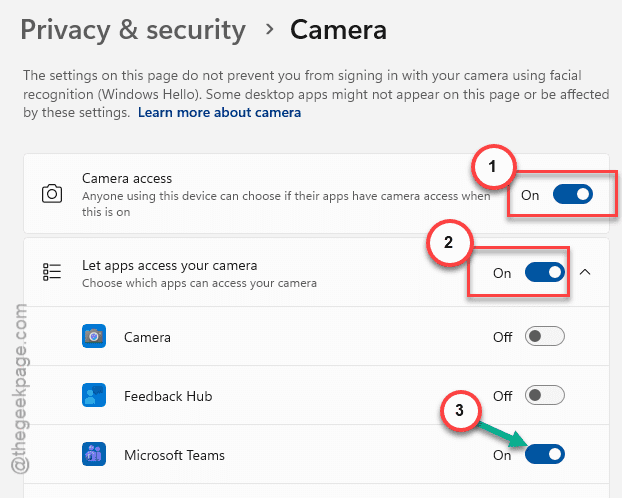
Step 4 – In the Camera permission page, at first, turn on the Camera access feature.
Step 5 – Then, enable the Let the apps access to camera option. In the list of apps, turn on the camera permission for the Microsoft Teams app.
Now, return to the Microsoft Teams app and try a video call.
Fix 2 – Disable other Apps from Using Camera
If any other apps have control over the camera, Microsoft Teams may not be able to access the camera.
Step 1 – Close any app that may use camera, like Zoom, AnyDesk, Windows Camera app.
Step 2 – Next, press the Win+X buttons together. Load up the Task Manager.
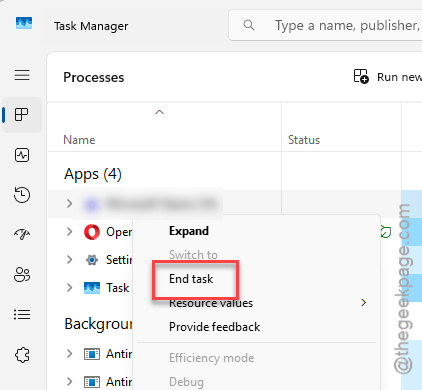
Step 3 – Find any such applications running in the background, right-click the app and tap End task to end them.
After this, relaunch the MS Teams and try to turn on the camera. Check whether you can use the camera or not.
Fix 3 – Use the Correct Camera Settings in Microsoft Teams
Correctly configure the camera settings in the Microsoft Teams app.
Step 1 – Load up the Microsoft Teams app, if you have minimized it.
Step 2 – Tap the three-dot button next to the profile picture, and tap the Settings from the drop-down.
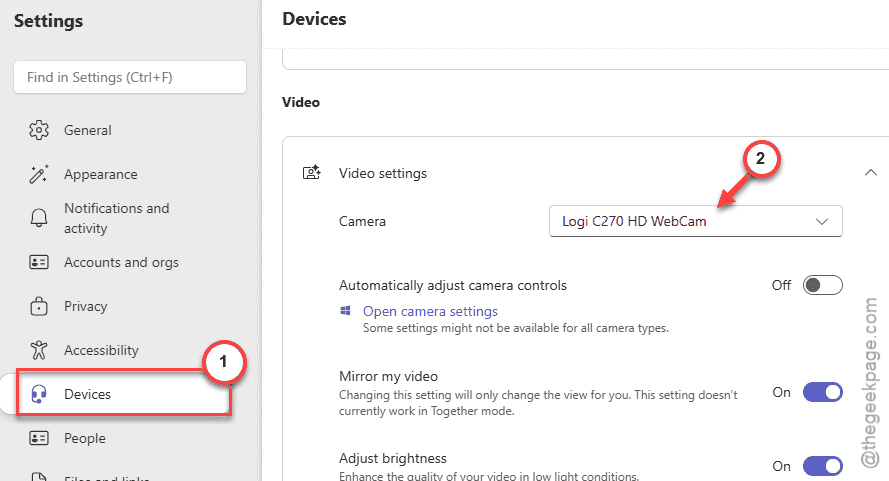
Step 3 – Proceed to the Devices section. On the right-hand pane, find the Video category. Choose the correct camera in there.
After rectifying the camera device in the Teams settings, start up a demo video call. Check whether you can use the Teams app to do a video call.
Final Words – These are the basic solutions that you can apply to fix the camera issue on your Microsoft Teams client. Hope these have helped you!