Hearing distorted or clicking sounds while streaming meeting recordings or attending video calls? Audio-visual errors in Microsoft Teams are not new. A fraction of users have reported that they are getting a clicking or distorted sound from their speakers/Bluetooth headsets in Microsoft Teams. The external audio enhancements, such as noise suppression or voice boost features, can glitch out and produce such distortions in the microphone feed, which may lead to such issues. Here are the resolutions you may follow to fix the issue yourself.
| Issue | Recommend Fix |
| Metallic/Robotic Voice | Disable All Enhancements (Fix 1) |
| Random rhythmic clicking sound | Use microphone and speaker in 44.1 Khz mode (Fix 2) |
| Audio stutters during screen share | Disable GPU Hardware Scheduling (Fix 3) |
Fix 1 – Kill Audio Enhancements
Sometimes, your microphone may sound distorted because of all the Windows audio enhancements placed on it.
Step 1 – Right-click the speaker icon on the taskbar, and tap Sound settings.
Step 2 – In the Sound settings page, tap All sound devices, and tap your sound device.
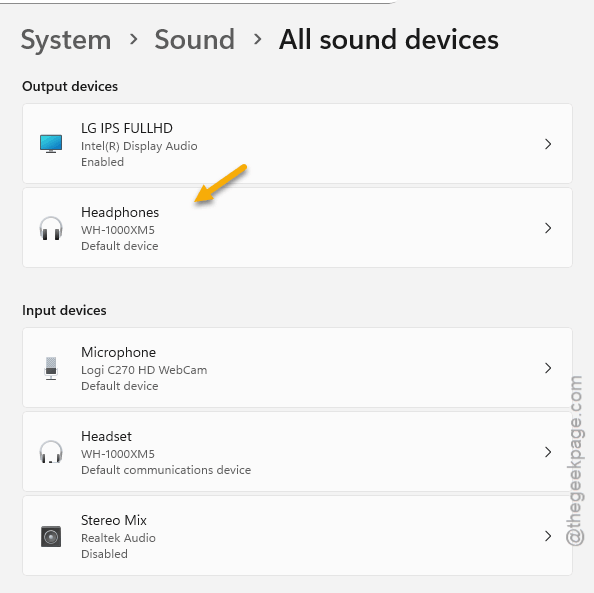
Step 3 – Then, go to the Advanced or Enhancements tab.
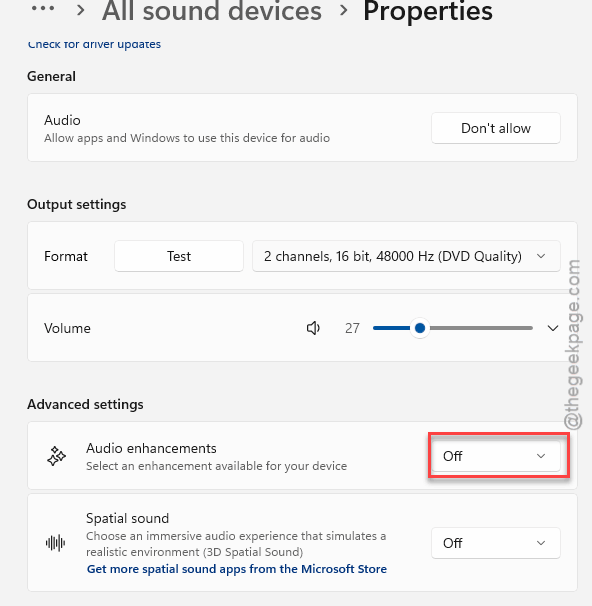
Step 4 – Check the Disable all enhancements tab or toggle the Audio Enhancements to OFF.
Step 5 – Now, do disable all the enhancements for your microphone device under the Recording tab.
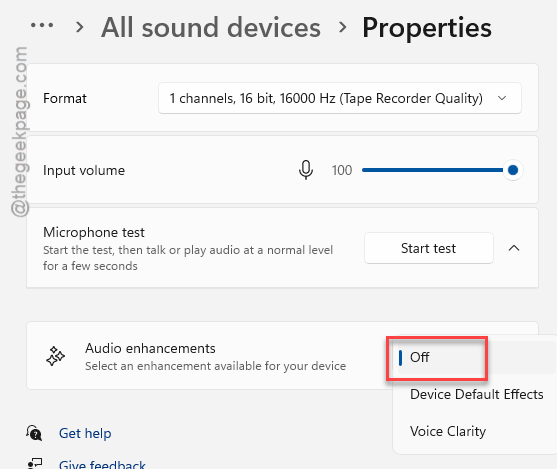
After disabling these enhancements, there won’t be any distortion or clicking sound.
Fix 2 – Change the Sample Rate Sync to 44.1 kHz
The disparity between the sample rate of the microphone and speaker may lead to such distortion issues.
Step 1 – Press the Win+R buttons. Then, type mmsys.cpl and click OK.
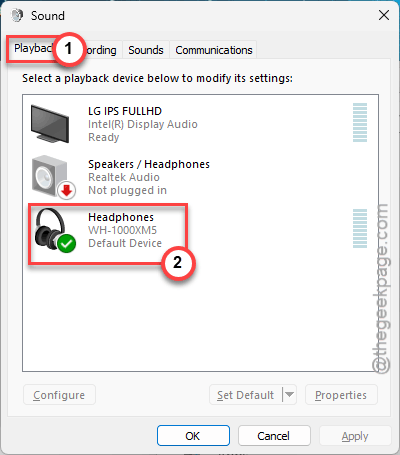
Step 2 – Go to the Playback tab. Then, double-click the speaker/headset device you are using.
Step 3 – Tap the Advanced tab. Set the 16-bit or 24-bit, 44100 or 48000 Hz mode from the drop-down. Save that change.
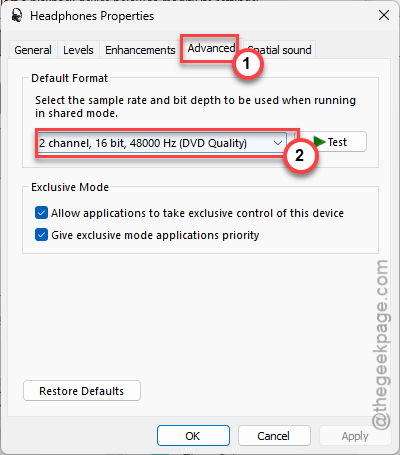
Step 4 – Later, go to the Recording tab. Double-click to open the microphone device.
Step 5 – Set it to the same 48000 Hz mode. Don’t forget to save the changes.
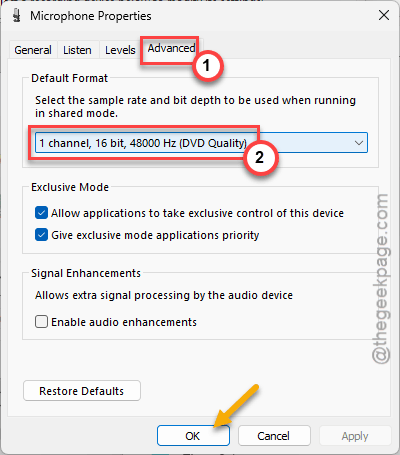
After this, this distortion will disappear from the microphone.
Fix 3 – Disable Hardware-Accelerated GPU Scheduling
On some of the HP and Dell laptops, the hardware-accelerated GPU scheduling feature can cause micro-stutters in the audio stream during video calls.
Step 1 – Use the Win+I buttons. Then, go to the System tab. Open up the Display tab.
Step 2 – Proceed to the Graphics menu.
Step 3 – Open the Change default graphics settings menu.
Step 4 – Set the hardware-accelerated GPU scheduling to OFF mode.
Check the microphone again.
Fix 4 – Disable Headphone Recording function (Bluetooth users only)
If the audio features a tin-can like sound throughout the Windows environment, it can be because you are using the Hands-Free AG Audio mode.
Step 1 – Press the Win+R buttons.
Step 2 – Then, type this code and click OK.
mmsys.cpl
Step 2 – Go to the Recording tab.
Step 3 – Then, right-click the Headset (Hands-free) Bluetooth entry for your Bluetooth headphone and disable it.
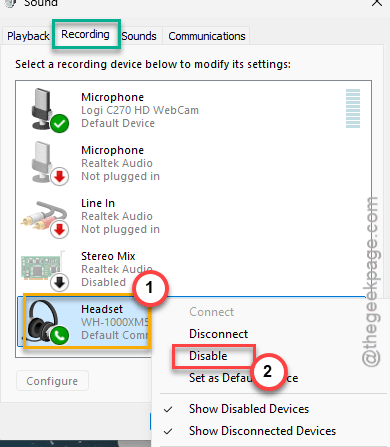
Step 4 – Save the changes there.
Windows will select the correct headset there.
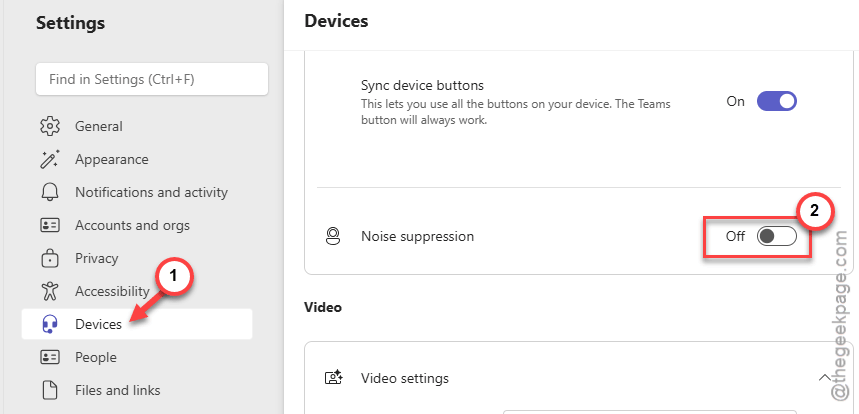
Fix 5 – Turn OFF Noise Suppression
You have to turn OFF noise suppression, as sometimes the microphone may produce a garbled voice trying to suppress outside noise.
Step 1 – In the Teams console, tap the three dot button, and tap Settings.
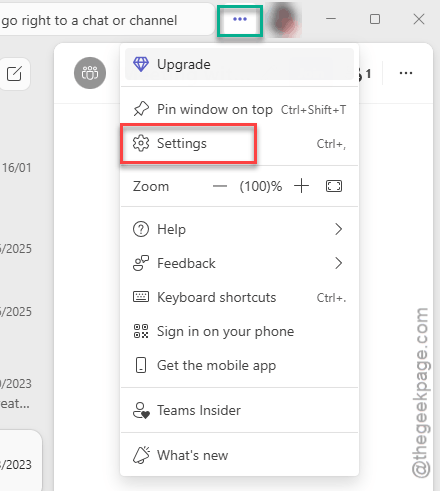
Step 2 – Choose the Devices tab.
Step 3 – Find the Noise Suppression settings and set it to Low or OFF mode.
Step 4 – Disable any other enhancements.
After this, try to use the microphone in a video call. Check whether this works.