Can’t find your favorite emojis in the keyboard on your iPhone? The emojis, stickers, and GIFs introduce the elements of fun, even in the formal communicative environment. But some users have complained that the search function is not working directly from the iPhone keyboard.
Fix 1 – Toggle the Show Stickers Feature
The iPhones running on iOS 26 and later have a combined search index that queries through emojis and stickers.
Step 1 – Load up the General tab. Proceed to the Keyboards section.
Step 2 – Scroll down to the very bottom of the section and find the Emoji section.
Step 3 – Toggle the Stickers to OFF mode.
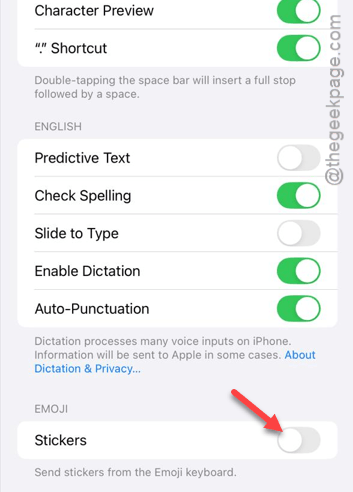
Step 4 – Now, open the problematic app. Try to search for the emoji.
Step 5 – Return to the same place of the Settings page –
General > Keyboards > Emoji
Step 6 – Turn ON the Stickers from there.
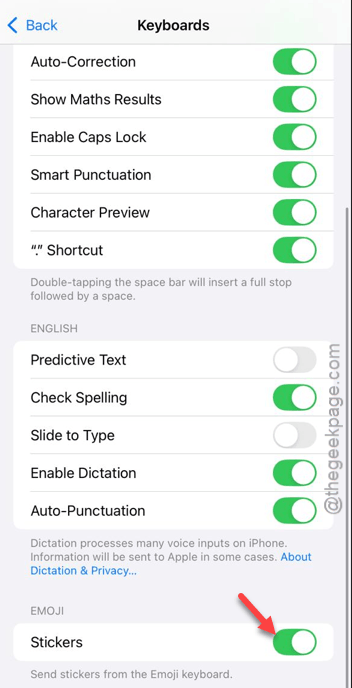
After doing this, the emoji issue will be resolved for you.
Fix 2 – Reset the Keyboard Dictionary
If the iPhone keyboard is showing a blank emoji board, you should reset the entire keyboard’s dictionary to fix that issue.
Step 1 – Open the General tab in the Settings utility.
Step 2 – Go to the Transfer or Reset iPhone feature.
Step 3 – Tap the Reset button, and use the Reset Keyboard Dictionary toggle.
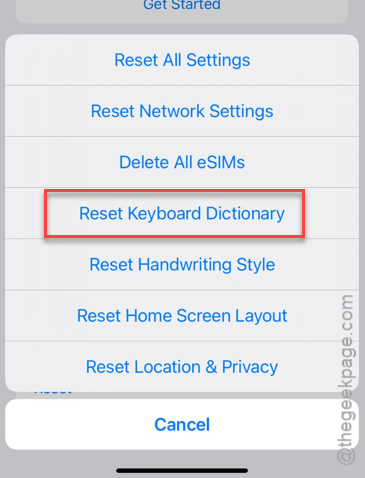
After resetting the keyboard dictionary, try to use the emojis again.
Fix 3 – Re-add the Emoji Keyboard
Manually delete the emoji keyboard from your iPhone, and add it to your
Step 1 – Open the General tab in iPhone. Then, proceed to the Keyboard settings.
Step 2 – Load up the Keyboards settings.
Step 3 – Tap the Add New Keyboard option.
Step 4 – Search for the Emoji keyboard and add it.
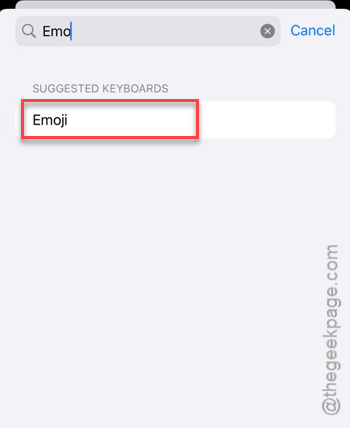
Step 4 – Restart the iPhone once.
Check whether the emoji search function is working or not.
Fix 4 – Refresh the iPhone’s language
You have to refresh the iPhone’s language to fix this problem.
Step 1 – In the iPhone Settings console, open the Language & Region tab.
Step 2 – Tap the Add Language option, and choose the English (US) or English (UK) whichever you are not currently using.
Step 3 – Set this is as your primary language. Your iPhone will restart once.
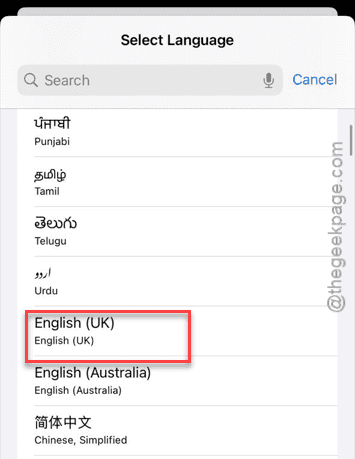
Step 4 – Once it is reset, return to your original language.
This should refresh the language indexing process and mend the emoji search problem as well.
Fix 5 – Turn OFF the Predictive and Show Math Results
The latest version of iOS 26 offers the smart keyboard that sometimes can lead to this issue.
Step 1 – Proceed to the Keyboard settings in the General settings of your iPhone.
Step 2 – Turn OFF the Predictive mode.
Step 3 – Toggle the Show Math Results to OFF.
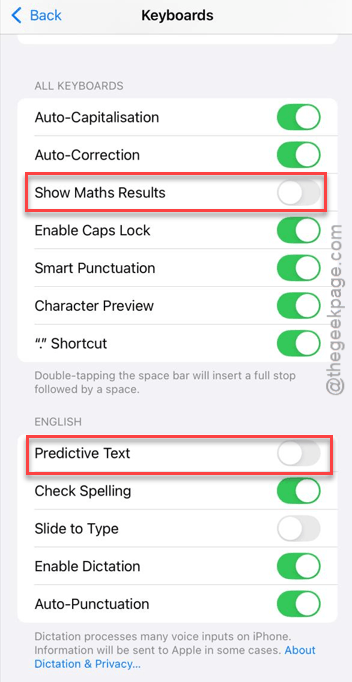
Step 4 – Try to search for the emojis again.
Check whether you can search and apply the emojis here.